Understanding the document sidebar
Find out what each icon in the document sidebar does and where to manage your contract information.
Written By Stefanie Kotynek
Last updated About 4 hours ago
The document sidebar on the right of an open document gives you access to important contract information and actions. Click an icon to open the corresponding panel.
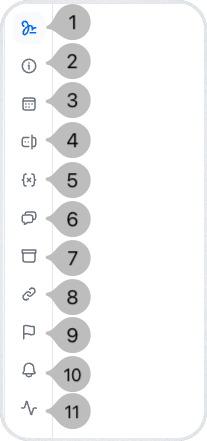
1. Parties & signatories
Add or manage the parties involved in the contract and the people who will sign on their behalf.
Learn more: Place and adjust signature blocks
2. General
Here you can find general information about the document, such as its language, document type and signature type.
You can also define which teams have access to the document and assign tags to make it easier to find later.
In addition, you can view the status of the AI analysis and a brief summary of the document once the analysis has been completed and confirmed.
3. Dates & duration
Manage contract dates, duration, renewal and notice periods. These dates form the basis for deadline reminders.
Learn more: Contract dates, durations and notice periods
4. Metadata
View and manage structured contract information, such as contract value or cost centre. Metadata can be used for filters, dashboards and exports.
Learn more: Metadata explained
5. Dynamic content
Fill in dynamic fields, such as prices or names, that appear in the contract text. This is particularly useful when working with templates.
Learn more: Dynamic fields, metadata or tags: which to use
6. Discussions
Discuss the document, mention colleagues and review comments or proposed changes. Depending on the document type, you can also propose changes to the text.
Learn more: Comments, discussions and change proposals
7. Internal file storage
Store supporting files such as internal notes or correspondence. These files are visible only to internal users with document access and are not signed with the contract.
Learn more: Attachments, file storage and linked documents
8. Linked document
Link related documents, such as a framework agreement and its amendments, to keep their relationships visible. Each remains a separate document.
Learn more: Attachments, file storage and linked documents
9. Approvals
View the approval process and its status. If an approval checkpoint is assigned to you, you can approve or reject the document.
Learn more: Internal approvals with checkpoints
10. Document notifications
Manage document-specific notifications and reminders. Depending on your plan and permissions, you can also create and assign tasks.
Learn more: Notifications: who gets notified and how · Tasks: assign and automate follow-ups
11. Activity
Follow the document's history, including approvals, signing invitations, reminders and signatures.
Learn more: After signing: signed PDF, validation, activity log
Good to know
The actions available to you depend on factors such as the document stage, your permissions and your plan.
Was this helpful?
Still need help? Ask the team