Notifications: who gets notified and how
Which notifications fynk sends by default, who receives them, and how to change them for your account, a template or a single document.
Written By Sebastian
Last updated About 2 hours ago
fynk notifies the right people when something happens to a document, from a new comment to an upcoming notice period. This article explains which notifications exist, who receives them, and where to change them.
Available on all plans · Configurable notifications: Essential, Business and Pro · Account defaults: Owner and Admin
Default notifications
The date-based notifications use the document's metadata, such as the contract end date and notice period. If a date is missing, no notification is sent. See Contract dates, durations and notice periods.
Who counts as a document member
You can target notifications at three groups of people on a document:
- Owners: internal users who own the document, usually the person who created it.
- Collaborators: internal or external people with access to the document who aren't owners or signatories.
- Signatories: internal or external people who sign the document.
On an individual document, you can also select whole teams as notification recipients. Team recipients cannot be preset globally or in a template. Being assigned to a document's team does not by itself subscribe someone to notifications.
Change notifications
You can adjust who receives a notification, when it's sent and how often reminders repeat. Settings exist on three levels:
- Account: Owners and Admins set the defaults in Account settings → Notifications.
- Template: settings in a template apply to every document created from it.
- Document: open the document and go to the notifications tab (bell icon). Changes here override the template and account settings.
The most specific setting wins: document over template, template over account.
These settings remain inherited; they aren't a fixed copy made when a document is created. Changing an account or template default can therefore affect existing documents that still inherit that setting. An override at a more specific level takes precedence. Before changing a shared default, check which documents rely on it.
To change an account default, click ⋯ on the notification to open Edit notification. A default you haven't changed shows "This setting is the system default". You can set:
- Trigger: the event the notification is about.
- Recipients: under Document members, choose None, All document members or Filter recipients. With a filter, pick the Roles (Owners, Collaborators, Signatories) and the Scope (Internal users, External users).
- Trigger time: a Condition, such as 2 weeks before a date, or a Specific date.
- Webhooks: the webhook targets that also receive this notification.
Click Save. To turn the notification off, click Disable this type.
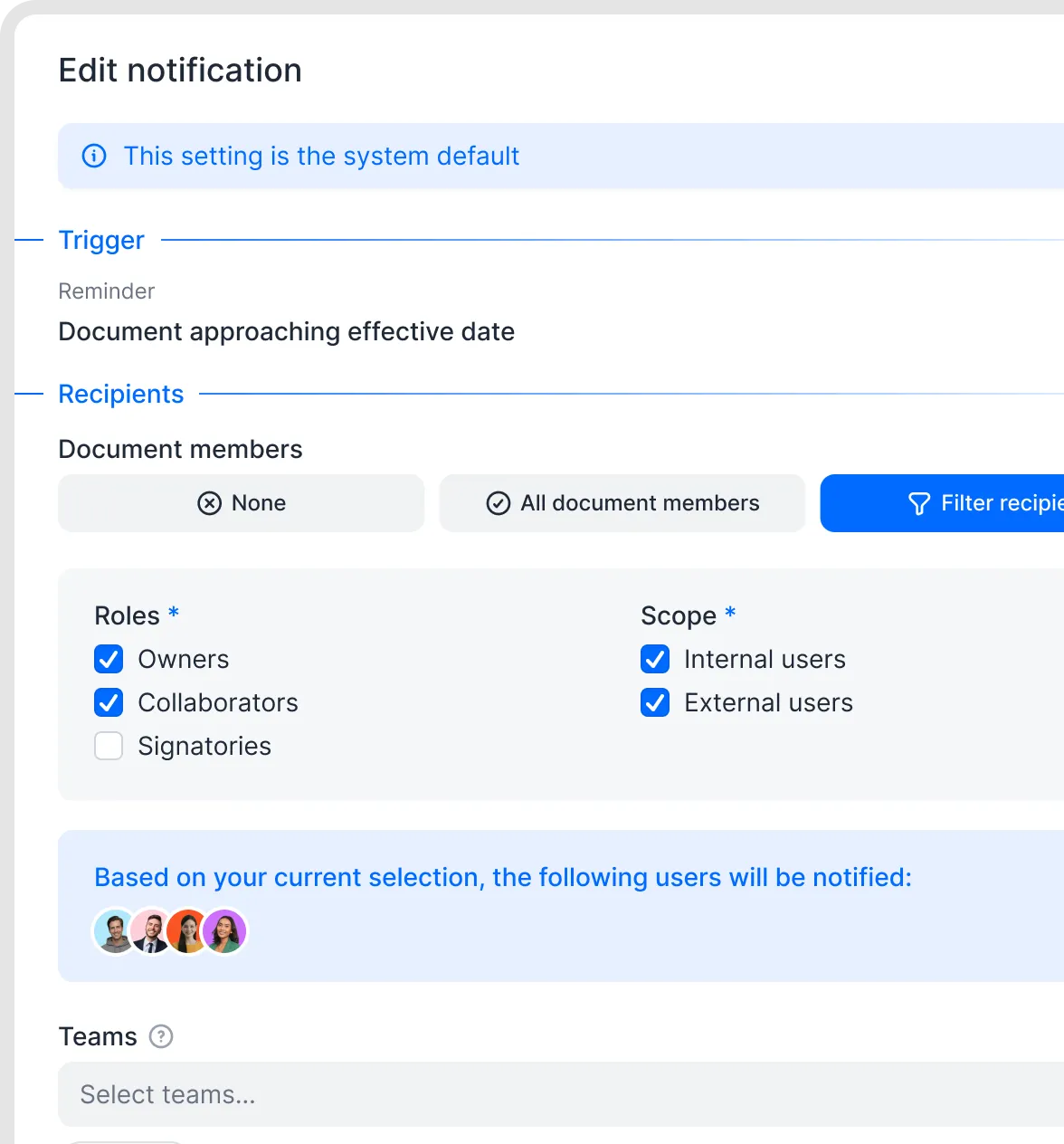
Edit a document notification.
Check who will receive a reminder
Open the notification settings for the template or document and check the relevant reminder’s Recipients, including its roles and internal/external scope. For a specific contract, start with the document’s bell icon: a document override takes precedence over the template and account defaults.
A rule such as “Owners and Collaborators” refers to the people with those roles on that document. Check the document’s sharing/access details to identify them. To check who actually received a notification already sent, use the document’s activity feed.
Turn notifications off for a document
In a document, you can choose for each notification whether you receive it by email, in the app, or not at all. External signatories can open the document notification settings using the link at the bottom of a document email (German: Benachrichtigungen für dieses Dokument verwalten). There they can turn off all notifications for that document with one click. This does not change notifications for other documents.
Your personal preferences
In User settings → Notifications, choose Email and Web (in-app) separately for notification types where those channels are available. You can adjust individual events, categories or All notifications. Use Selected account for account-specific preferences, or enable Use same settings for all my accounts. For export completion, find Documents → Document export completed. In-app notifications appear in your Inbox, together with your tasks. External people always receive emails.
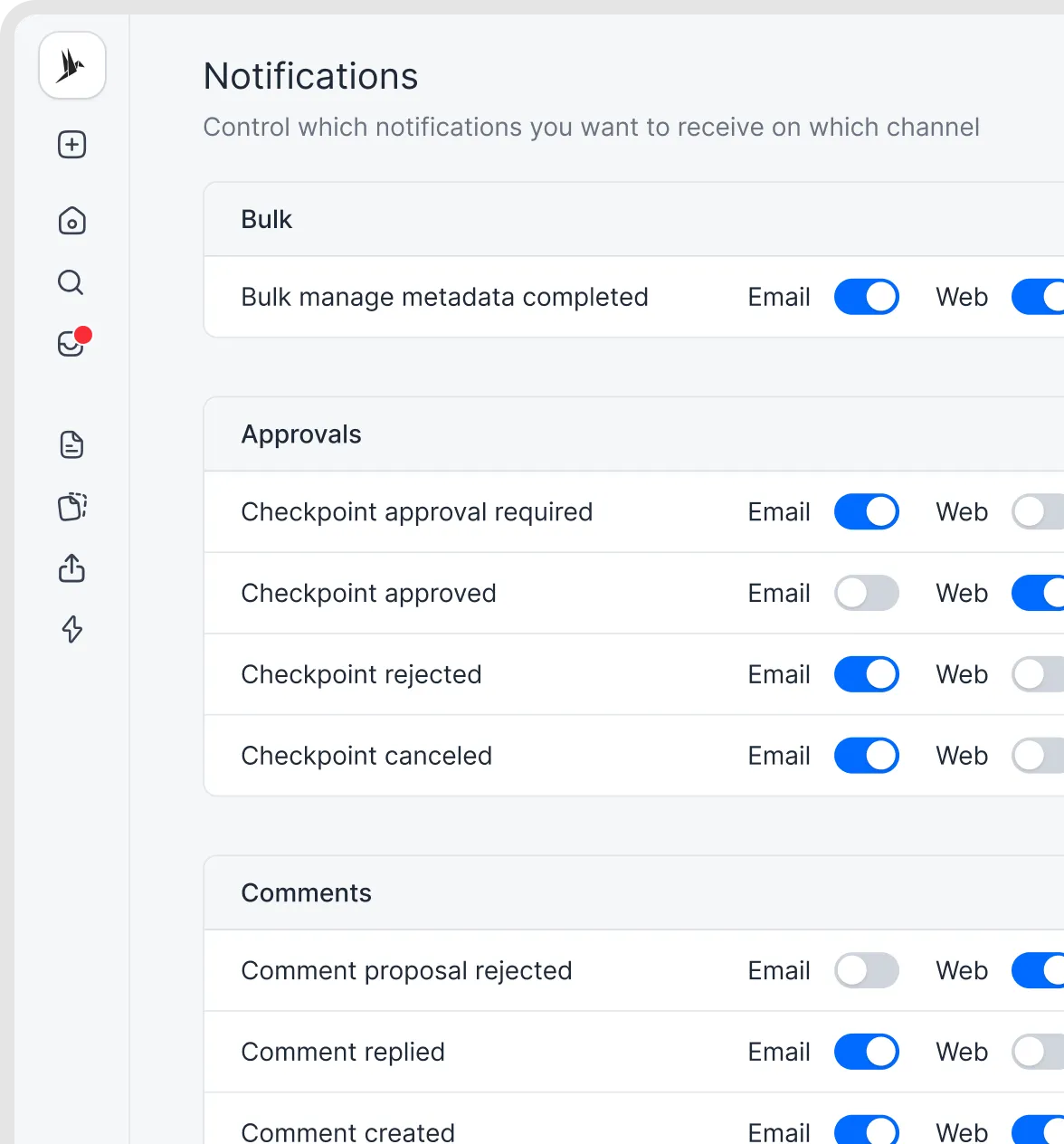
Choose your personal notification preferences.
Other ways to get notified
- Tasks: create reminders for any date field, for example a price review. See Tasks: assign and automate follow-ups.
- Calendar: add contract dates to your calendar. See Sync contract dates to your calendar.
- Webhooks: send notifications to Microsoft Teams or other systems. Select the webhook targets for each notification in Edit notification. See Webhooks.
Good to know
- Archived documents don't send notifications. Entering a termination date stops renewal and notice reminders and automatically calculates the expiration date.
- Some emails can't be turned off, such as user invitations, document invitations and password resets.
- The document's activity feed shows which notifications were sent and to whom.
- fynk doesn't notify anyone when a colleague uploads a new document. To bring someone in, mention them with @ in a comment, or use a checkpoint.
- The Document becomes effective notification uses the contract start date or the Effective date metadata field.
- The Document fully signed email contains the signed PDF and a link to the document in fynk.
Related articles
Was this helpful?
Still need help? Ask the team