Use the document list: filters, columns, saved views
Filter, sort and arrange the document list, save views for later, share them with colleagues, and act on many documents at once.
Written By Sebastian
Last updated About 2 hours ago
The document list shows every document you have access to. You can filter it, choose which columns to show, save the result as a view and change many documents at once.
Available on all plans · Export and delete are for Owners and Admins only
What the list shows
Stage, including how far signing has got.
An icon if a document has open comments or proposals.
Where the document came from: an uploaded PDF, a Word file or a template.
Internal and external parties in separate columns.
Switch between the table view and the Kanban view, which groups documents by stage, with the button next to the search field.
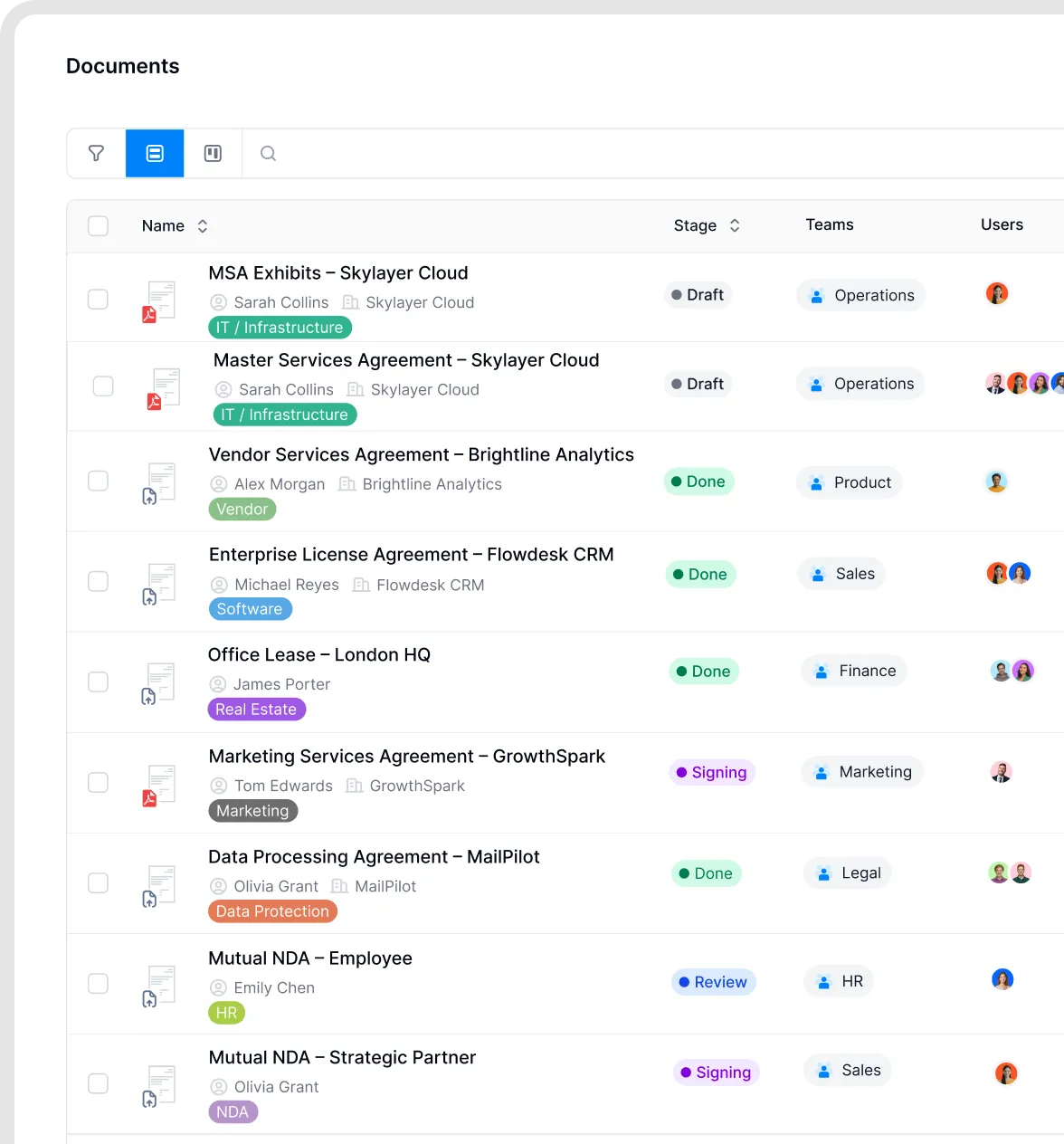
Document list with tags.
Filter the list
Click the filter icon next to the search field. You can filter by:
Stage, team, tags, document type and document user
Internal party and external party
Origin (for example, imported PDF or created from template), import and automation
Archived or expired documents
Any metadata field, such as contract end or contract value
For tags, choose whether a document must have all, any, or exactly the selected tags. To filter in plain language instead, use AI search. See Search and AI search.
Filtering for upcoming renewals: a contract end-date filter uses the stored date, which does not advance automatically after renewal. It can therefore differ from the upcoming-workload widget's calculated renewal dates. See Contract dates, durations and notice periods.
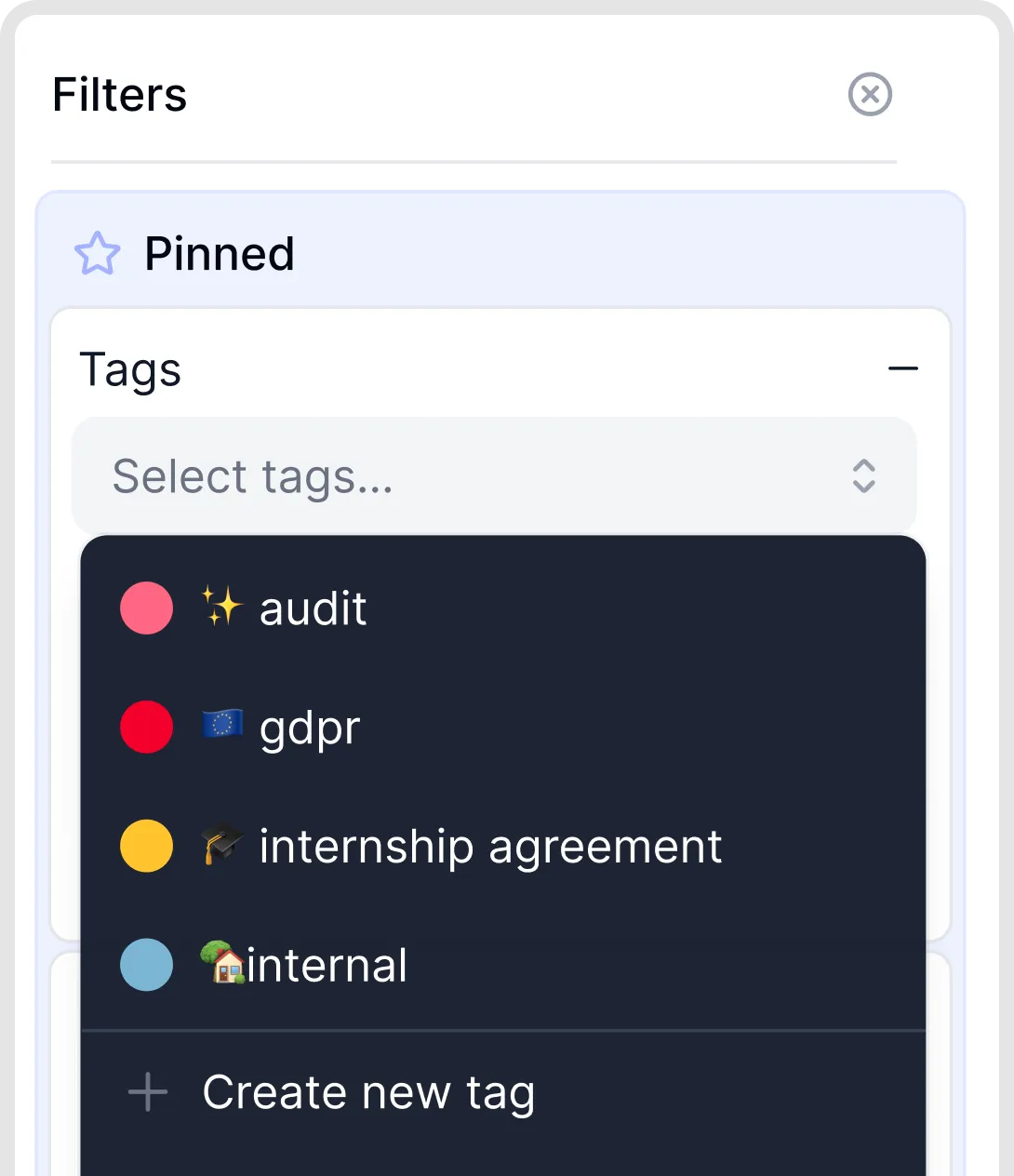
Filter the document list by tags.
Find documents with missing metadata
Add a filter for the metadata field you want to check, then choose the condition for an empty value. For example, filter for an empty contract end date to find documents that need review. You can save this as a view or select matching documents and fill their metadata with AI. Check whether a value should exist before filling it: an open-ended contract may correctly have no end date.
Find documents with open discussions
Ask the AI Assistant: Show me documents with open discussions, or Find all documents that have any discussions, including resolved ones. These are different searches: open discussions need attention, while any discussions also includes past conversations. In the document list, the conversation icon helps you spot open comments or proposals and open the discussion.
Choose columns and sort
Click the cog icon at the top right of the list.
Turn columns on or off, drag them into order, or add any metadata field as a column.
Click a column header to sort by it.
Your column layout is personal. Other users don't see your changes.
Show up to 250 documents on one page
For an occasional larger overview, you can manually change the per_page parameter in the document-list URL to per_page=250. This shows up to 250 documents at once.
Open the document list and click the address bar in your browser.
If the URL already contains
per_page=, replace its value with250. Otherwise, add?per_page=250if there is no query string, or&per_page=250if the URL already contains a?. Keep the other parameters unchanged.Press Enter to load the list.
Save your preferred page size: bookmark or save the document-list URL with the per_page parameter included. Opening that saved link brings you back to the list with that page size, for example 100 or 250 documents per page. The page size is carried by the saved URL; you do not need to edit it again each time you use that link.
This is not recommended for daily use: loading many documents at once can slow the list down. Reduce the value or remove the parameter afterwards. For bulk actions, you can also select all documents matching your filters without displaying them all on one page.
Save and share views
Set up the filters, search and columns you want.
Click Save view.
Find your saved views under All documents → Your views.
To share a view, click … next to it and copy the link. A colleague who opens the link sees the same filters and columns and can save the view for themselves. They only see documents they have access to.
Bulk actions
Limited Managers cannot use bulk actions in the document list, even when they are Collaborators on the selected documents. Other users see the actions allowed by their permissions.
Select documents with the checkboxes, or click the checkbox in the header to select all documents on the page or all that match your filters. Then choose:
"Replace" (synchronise) removes the existing teams or tags and sets only the ones you select.
Download multiple contracts locally
For a bulk or batch download to your computer, select the contracts and choose Export → Full archive. Owners and Admins can download the PDFs together in a ZIP file, including attachments and metadata. Metadata only exports the data, not the contract files. See Export documents and metadata for the steps and where to find a prepared download.
Good to know
Archived documents are hidden by default. Use the Archive filter to show them.
You can't sort by teams or tags, because a document can have several.
Filters can't exclude values yet ("everything except…"), except for tags.
The same filters work on dashboards. See Dashboards and widgets.
A document counts as expired once its expiration date has passed.
There's no limit on the number of columns. If they don't fit, scroll right.
The list has no totals row. To add up values such as contract values, use a custom widget on a dashboard, or export the metadata to Excel.
Related articles
Was this helpful?
Still need help? Ask the team