Place and adjust signature blocks
Add, move, resize and split signature blocks so every signatory signs in the right place.
Written By Sebastian
Last updated About 2 hours ago
A signature block marks where a party signs. Every party that signs needs at least one block in the document before you can start signing.
Available on all plans
Place a signature block
In a document created in fynk (editor or Word upload):
Open the document and make sure the parties and signatories are added.
Click Place signature blocks.
Drag the block for each party to the position where it should be signed.
In an uploaded PDF:
Drag the Signature element from the right-hand panel onto the page.
Choose the party and signatory the block belongs to.
Watch on YouTube: Place a signature block (1:15–1:37) · English
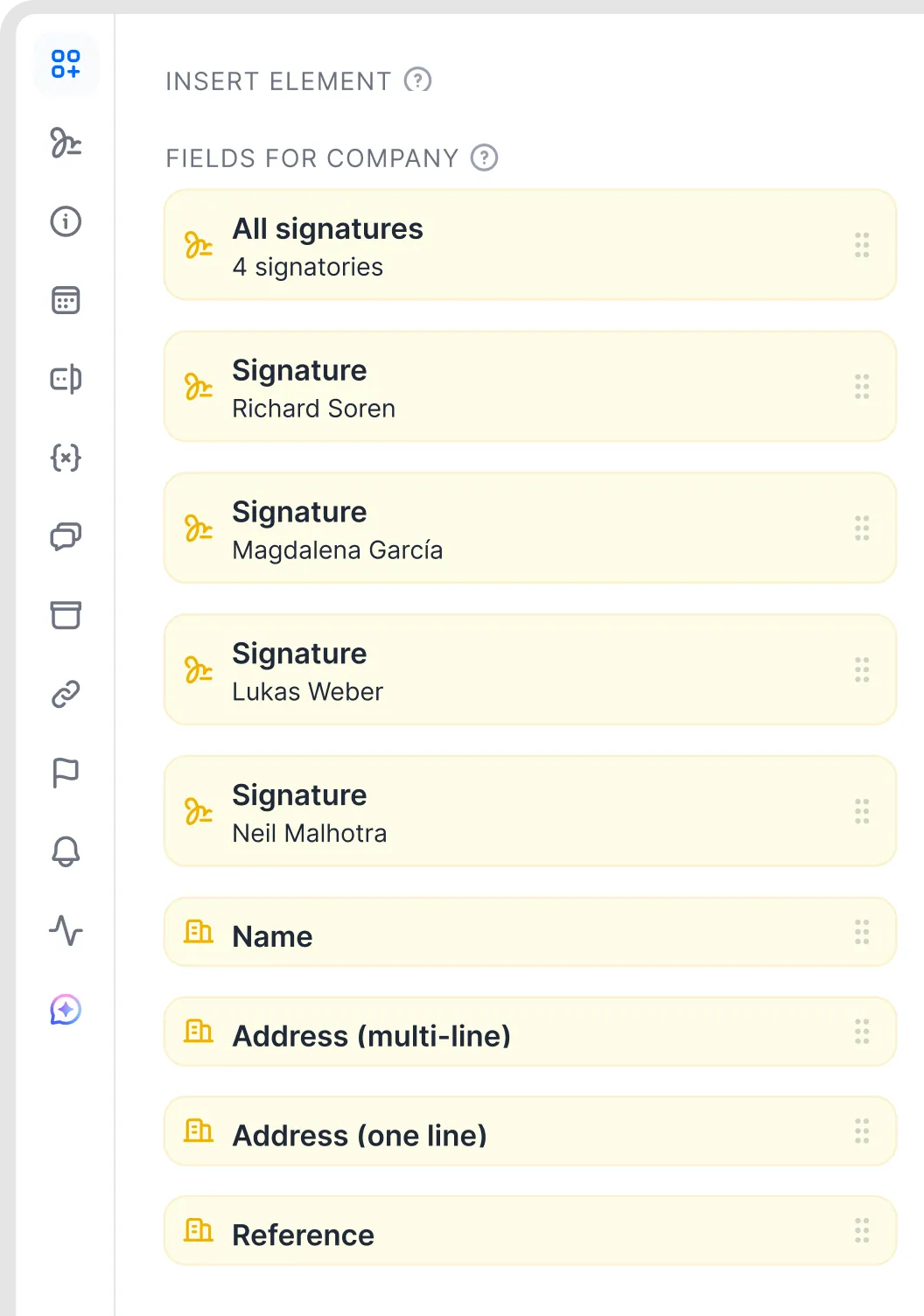
Separate signature blocks for individual signatories.
Adjust a block
Move: drag it, or select it and use the arrow keys for small steps.
Resize: drag the corner of the block so it fits your layout.
Style: switch between the Standard block and the Minimal block. The Standard style shows the signature, company and signatory names, title or position, masked email address, and signing date and time. The compact Minimal style shows the signatory's name, signature and signature identifier, without the company, title, email address or signing date and time. You can switch styles as long as nobody has signed.
On PDFs, hold Option (⌥) on Mac or Ctrl on Windows while dragging to duplicate an element. Hold Shift while dragging to temporarily disable auto-snap. Duplicating a signature block adds another signing location, so keep only the blocks you need.
One block per party, or one per signatory
Editor documents and editor templates: by default, a party has one block that lists all its signatories. Split it if signatories should sign in different places, for example two managing directors side by side.
PDF documents and PDF templates: individual signatory blocks are the default, so you can position each signature precisely on the fixed layout.
To combine individual blocks for the same party into a joint block, drag one signature block onto the other before signing starts.
A signatory can also have several blocks, for example to sign in several locations. This also works with QES for the same signatory and email address. Every block must be signed. Reusing the visual signature does not mean that one QES authorisation covers all blocks: the signatory may need to complete the provider's verification separately for each block. Keep only the signing locations you need.
Good to know
Every block you place must be signed before the document is complete. Remove blocks you don't need before you start signing.
You can't move, add or remove blocks after signing has started. Cancel the signing first; signatures given so far are lost.
In editor documents, put a signature block in its own table cell if you want text or a logo next to it.
Signature blocks are placed only in the main document, not on attachments. Attachments are digitally signed along with the document.
The Standard block displays the signing date and time automatically. The Minimal block does not display them.
The date shown in a Standard signature block belongs to that individual signature. fynk cannot insert a separate “fully signed on” date into the document text or a dynamic field once all signatures are complete. See Dynamic fields: types, visibility, mandatory fields.
Time zone: Signing dates and times in signature blocks always use UTC (Coordinated Universal Time). fynk uses UTC for standardization and technical consistency, so the displayed time may differ from your local time. The document language changes the date format, not the time zone.
To sign on behalf of someone, for example "i.V.", add it to the name shown in the block, for example "i.V. Anna Berger".
Dates in the signature block use the format of the document's language. For example, English (UK) shows dd/mm/yyyy. If no document language is set, dates show as mm/dd/yyyy.
In templates, you can place blocks once so every document created from the template already has them. See Parties and signatories in templates.
Troubleshooting
fynk says a block isn't placed? A signatory has a block that isn't positioned in the document yet. Place it, or remove that signatory or block.
Signature block in the wrong place in the signed PDF? Check the position in the PDF preview before you start signing. After signing, positions can't be changed without invalidating the signatures.
Related articles
Was this helpful?
Still need help? Ask the team