Dashboards and widgets
Build personal, team and account dashboards with widgets for deadlines, contract values, tasks and more.
Written By Sebastian
Last updated About 2 hours ago
Dashboards give you an overview of your contracts at a glance: upcoming deadlines, contracts waiting for signature, total contract values and open tasks. You can have several dashboards, each with its own widgets and filters.
Available on all plans · Custom dashboards: Business and Pro · Account dashboards are created and managed by Owners
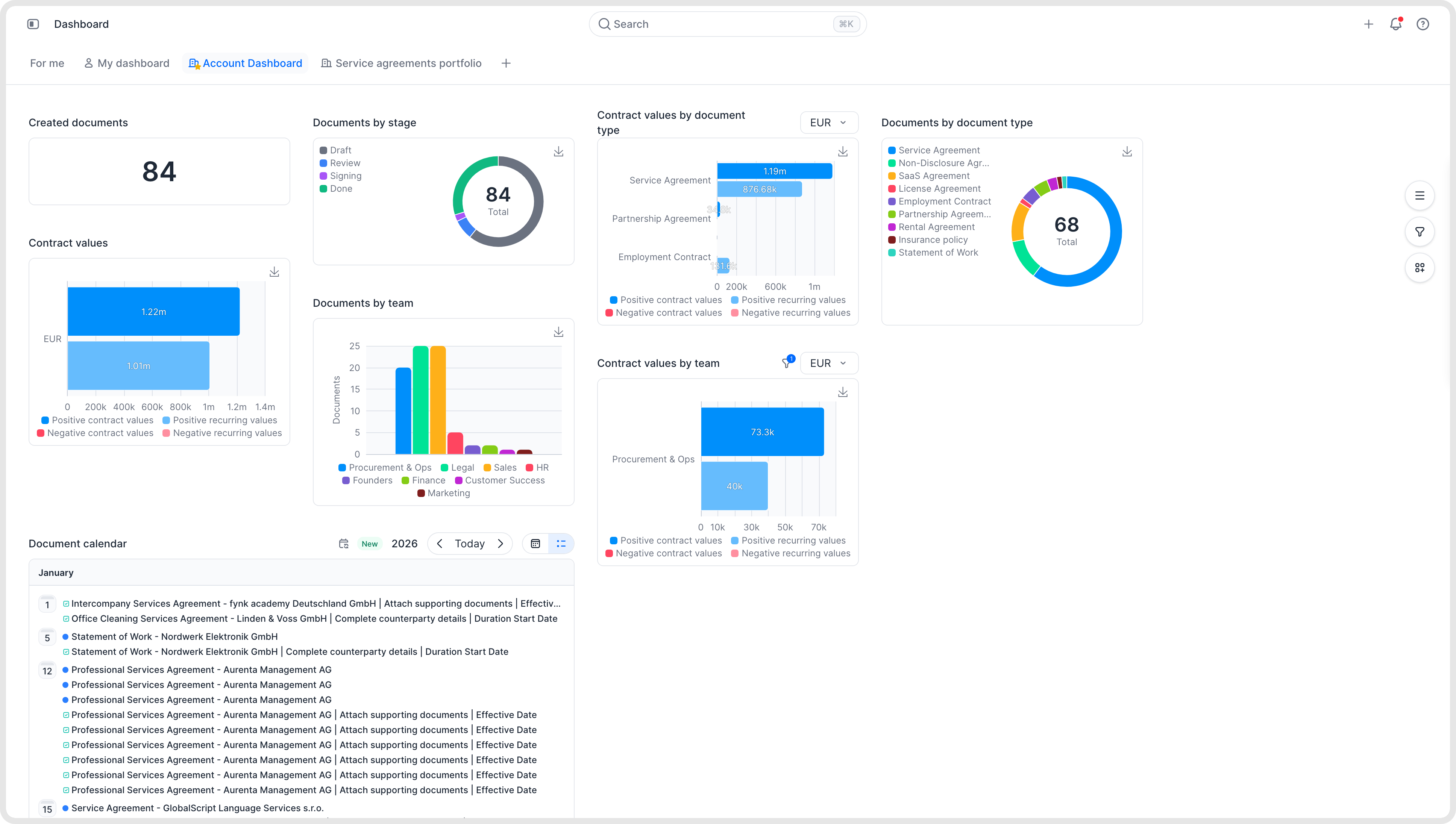
Example account dashboard with document stages, contract values and a calendar.
Types of dashboards
Examples: an HR team dashboard with notice periods, salaries and probation periods, or an account dashboard for management with contract values and terms.
Add a dashboard
Open Dashboards and click + beside the dashboard tabs at the top.
Choose personal, team or account, and give it a name.
Add widgets and filters.
Built-in dashboards and deletion
The built-in dashboards are My dashboard (personal) and Account activity (account). A built-in dashboard cannot be removed. When you create your first custom dashboard of the same type, it replaces the built-in one in the dashboard list.
fynk keeps at least one personal and one account dashboard. You cannot remove the last dashboard of either type. To replace your only custom dashboard, create another of the same type first; then remove the one you no longer need. A missing Remove option can therefore be expected.
Add and arrange widgets
Open the dashboard you want to customise and use its editing controls.
Drag widgets onto the dashboard, move them, or remove the ones you don't need.
Save.
Available widgets include upcoming deadlines, a calendar, documents by stage, key figures such as total contract value, tasks, clause overviews and party overviews.
Custom widgets show exactly what you need, for example the sum of a metadata field or documents of one type. Drag a custom widget onto the dashboard, save, then configure it.
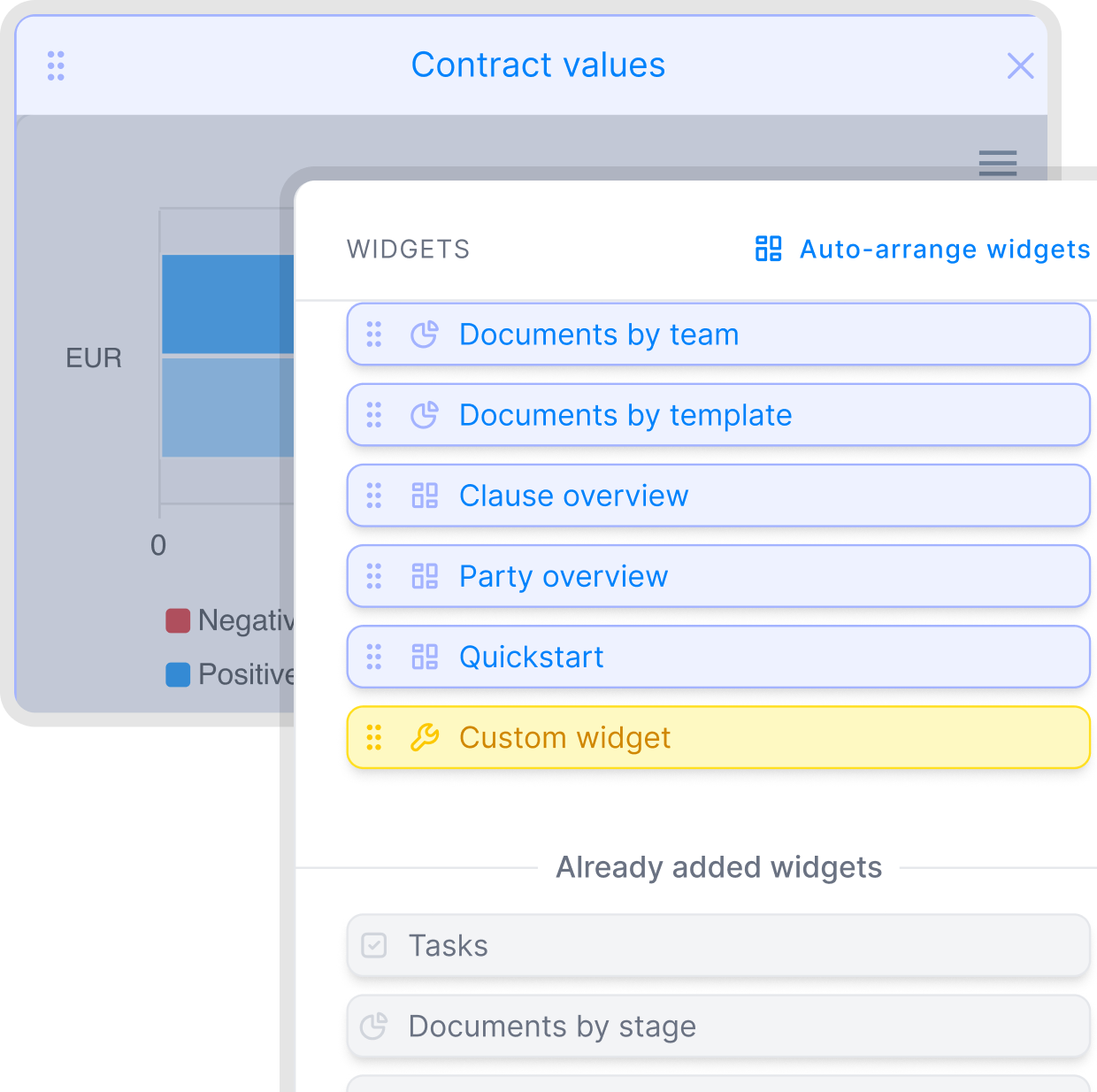
Widget selector with drag handles, automatic arrangement and a custom widget option.
Filter a dashboard
Dashboards support the same filters as the document list: stage, team, tags, document type, parties, dates, templates and any metadata field. Filters apply to all widgets on the dashboard.
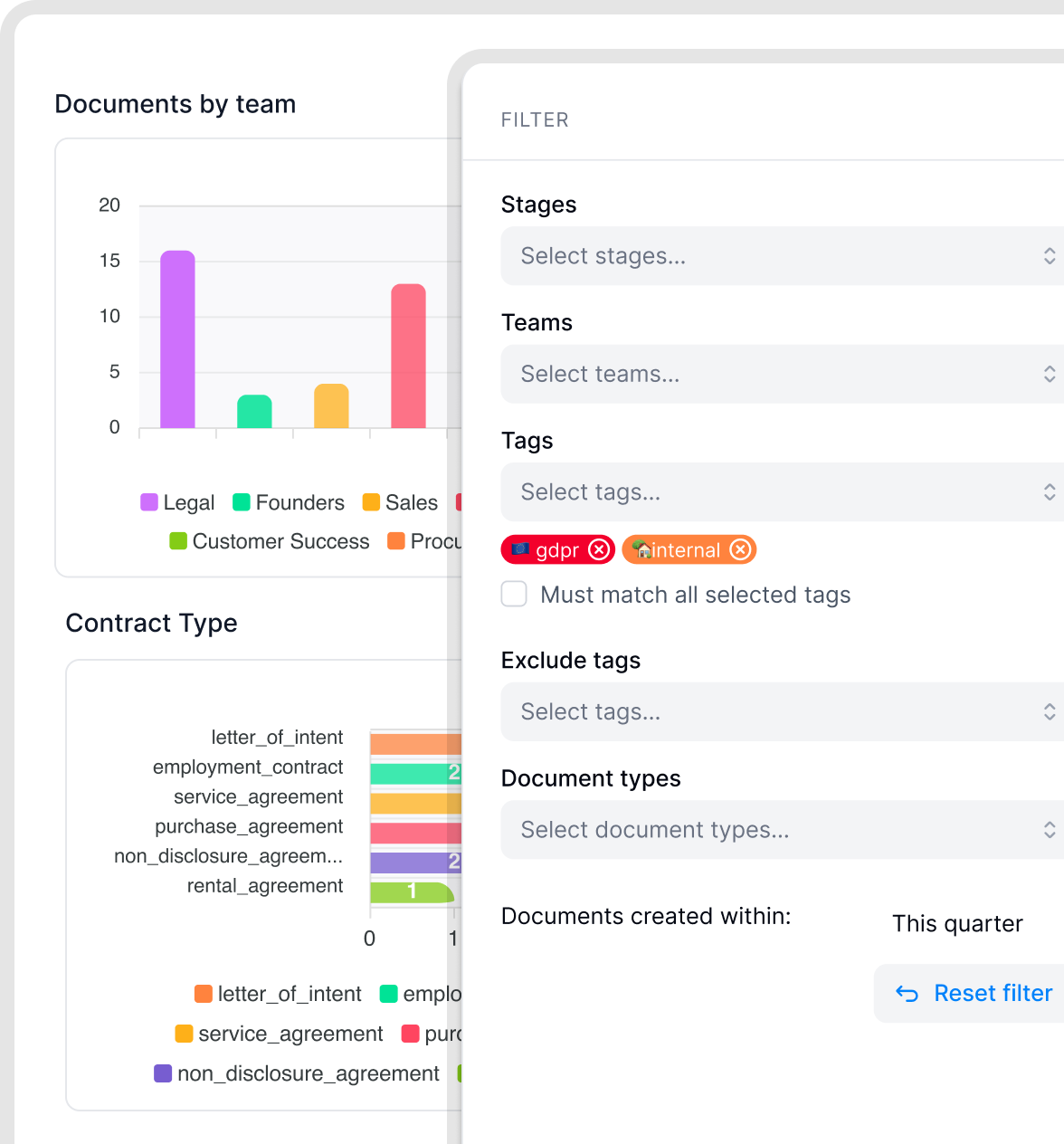
Example filter menu with tags selected. You can also filter by stage, team, document type and creation period.
Example: an HR dashboard showing signed employment contracts from this year:
Stage: Signed
Team: HR
Document type: Employment contract
Created: this year
Upcoming renewals and document-list filters
The upcoming workload widget calculates upcoming renewal dates for auto-renewing contracts. The stored contract end date does not advance after each renewal, so a document list filtered by end date may not match the renewals shown in the widget. See Contract dates, durations and notice periods.
Good to know
Dashboards only show documents you have access to, even on a team or account dashboard.
Values come from confirmed metadata. Unconfirmed AI suggestions aren't saved as document metadata and aren't counted in dashboard widgets.
You can sync a dashboard's dates to your calendar app. See Sync contract dates to your calendar.
A new dashboard starts empty. It fills up as soon as you import or create documents.
The Created filter also has an option with no time limit.
The contract value widget only uses currency metadata fields. Values are always shown as positive amounts. The widget doesn't tell incoming and outgoing payments apart.
Each widget shows one metadata field. Widgets can't break values down by team or combine two fields in a cross-table. Filtering a dashboard by document owner is currently not supported.
Dashboards can't be shared by link. To give colleagues the same overview, use a team dashboard.
Related articles
Was this helpful?
Still need help? Ask the team