Parties and signatories in templates
Add party placeholders, insert party names and addresses into the text, and place signature blocks for each party or signatory.
Written By Sebastian
Last updated About 2 hours ago
In a template you don't know yet who the other side will be. That's why parties in templates are placeholders with a reference, such as "Customer" or "Employee". The actual company or person is filled in when someone creates a document.
Available on all plans
Add a party
Click the Parties & signatories icon in the right-hand sidebar. The panel heading is Parties and signatories.
Click Add party and enter a reference, such as "Supplier".
For your own side, you can choose one of your internal parties straight away. See Set up your internal parties (My Parties).
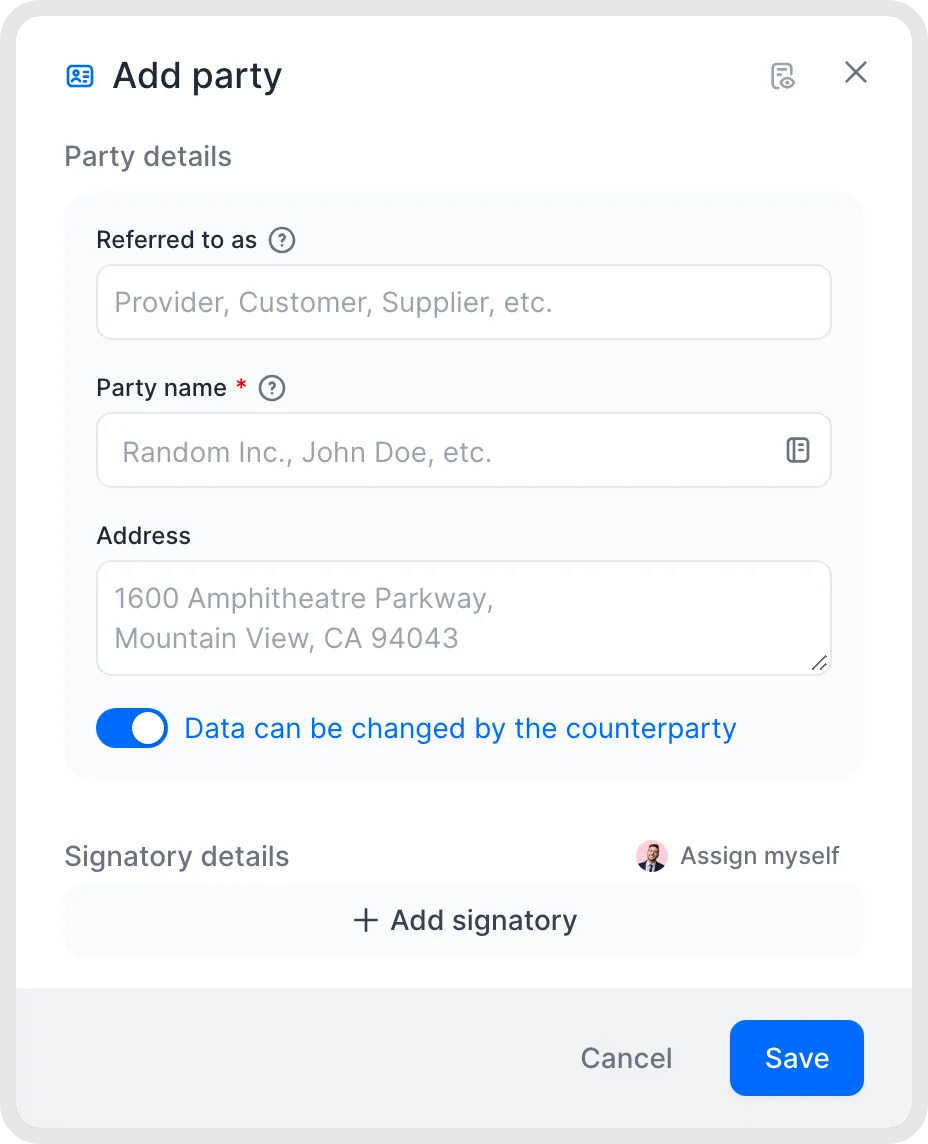
Add a party to a template.
Preset a signatory
If the same person always signs for your company, for example the HR manager for employment contracts, add them as the default signatory. Signatories for the other party are usually added when the document is created.
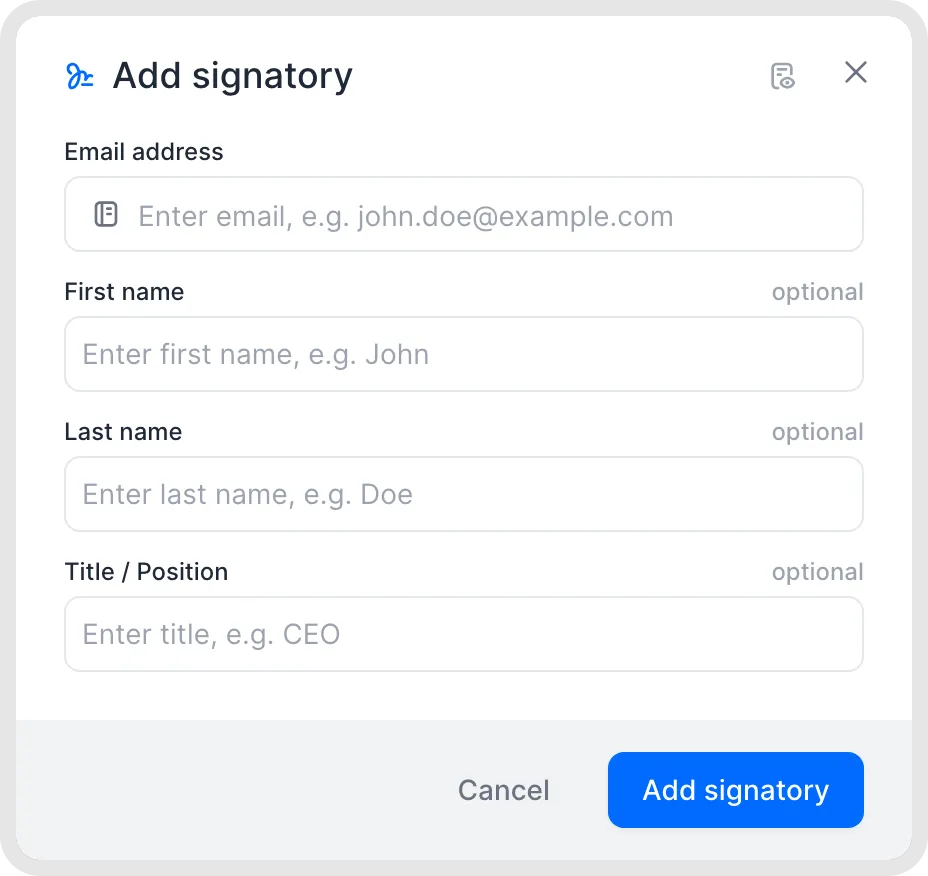
Add a signatory to a party.
Use party details in the text
Insert party placeholders from the command menu or drag them in from the panel. They're replaced with the party's details in every document:
Name of the company or person
Address on one line
Address (multiline) with line breaks, for example for the header of a letter
Reference, such as "the Customer"
Watch on YouTube: For HubSpot users: map parties from your CRM (1:07–1:16) · English
Place signature blocks
Drag a signature block into the template where the party signs. If a party has no signature block yet, fynk asks you to choose or create the party.
One block per party: in editor templates, one block contains all signatories of a party by default.
One block per signatory: this is the default in PDF templates. In editor templates, split a party block if each signatory signs in a different place.
Several blocks: add more blocks for the same party if they need to sign or initial in several places.
Click a signature block to move it, change the party or signatory, switch between the Standard and Minimal style, split it, or delete it. The Standard style shows the signature, company and signatory names, title or position, masked email address, and signing date and time. The compact Minimal style shows the signatory's name, signature and signature identifier, without the company, title, email address or signing date and time.
To combine individual blocks for the same party, drag one signature block onto the other. See Place and adjust signature blocks.
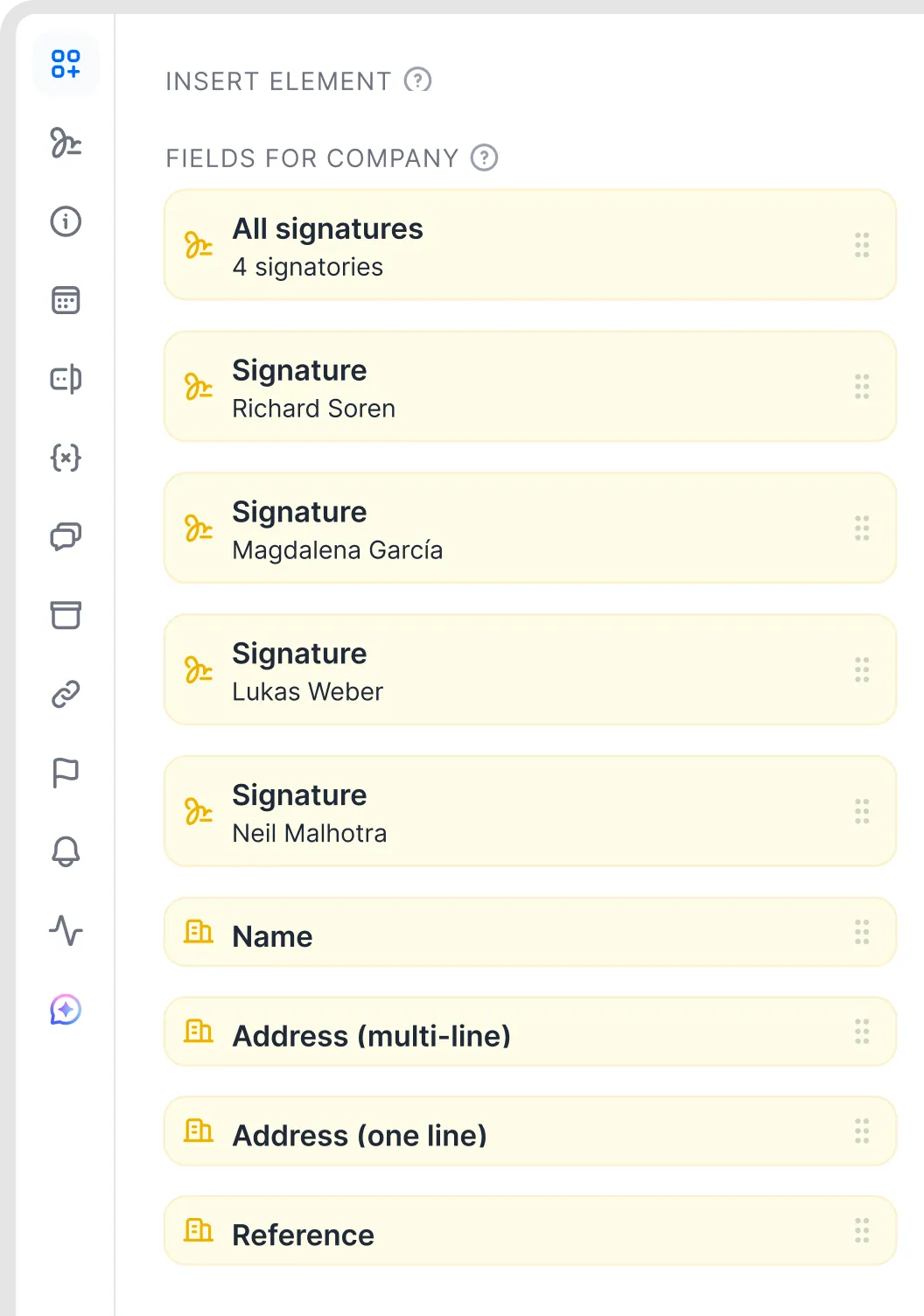
Separate signature blocks for individual signatories.
Good to know
The same party can have multiple placeholders and signature blocks throughout a document. However, you cannot add two separate parties with exactly the same name. If you need separate entries, an extra space makes the names distinct—for example, one space versus two spaces between “Test” and “GmbH”.
Every signature block must be placed and have a party. An unplaced block ("Block not set") or a block without signatories stops signing from starting.
Each email address is unique within a document and can sign for only one party. If one person signs for two parties, use plus addressing for one of them. Add
+textbefore the@, for examplename+company@example.cominstead ofname@example.com. Messages reach the original inbox if the email provider supports plus addressing and it is enabled. Check delivery with your IT team before using a plus address.Parties that only appear as a reference, without signing, are fine. Just don't add a signature block for them.
Signature blocks cannot be made optional or hidden using conditions.
To sign the template in advance, see Pre-sign templates.
There's no address book for external parties. External parties you've used before are suggested when you prepare another document.
Give parties clear references, such as Employer and Employee or Buyer and Seller, instead of Party 1 and Party 2.
Very long company names (more than about 50 characters) may not fit in the signature block.
Related articles
Was this helpful?
Still need help? Ask the team