Import from Word and export to Word or PDF
Bring Word files into the fynk editor with their comments and tracked changes, upload new versions, and download documents as Word or PDF.
Written By Sebastian
Last updated About 2 hours ago
You can start a document or template from a Word file, keep negotiating in Word if the other party prefers it, and download the result as Word or PDF at any time.
Available on all plans
Import a Word file
Click Create, choose Document or Template, and drag in a .docx file.
In Import from .docx, choose which content to bring across. The two options are independent and are currently marked Beta:
Import comments: imports new or updated comments into fynk.
Import suggestions: imports tracked changes as proposals you can review in fynk.
Click Preview import.
Review the document in Import preview, adjust the formatting settings if needed, and click Import.
Tidy up formatting in the import preview
The Format settings let you choose which clean-up to apply before importing:
Remove empty paragraphs
Apply standard line height
Normalize paragraph spacing
Unify font size
Remove font colors
Set font to standard
Set cell colors to gray
Remove indentations
Align text left
Remove multiple spaces
Use Show or Hide beside POLISH-O-METER™ to display or hide the visual meter. Check the document preview before clicking Import, or choose Back to return to the import options.
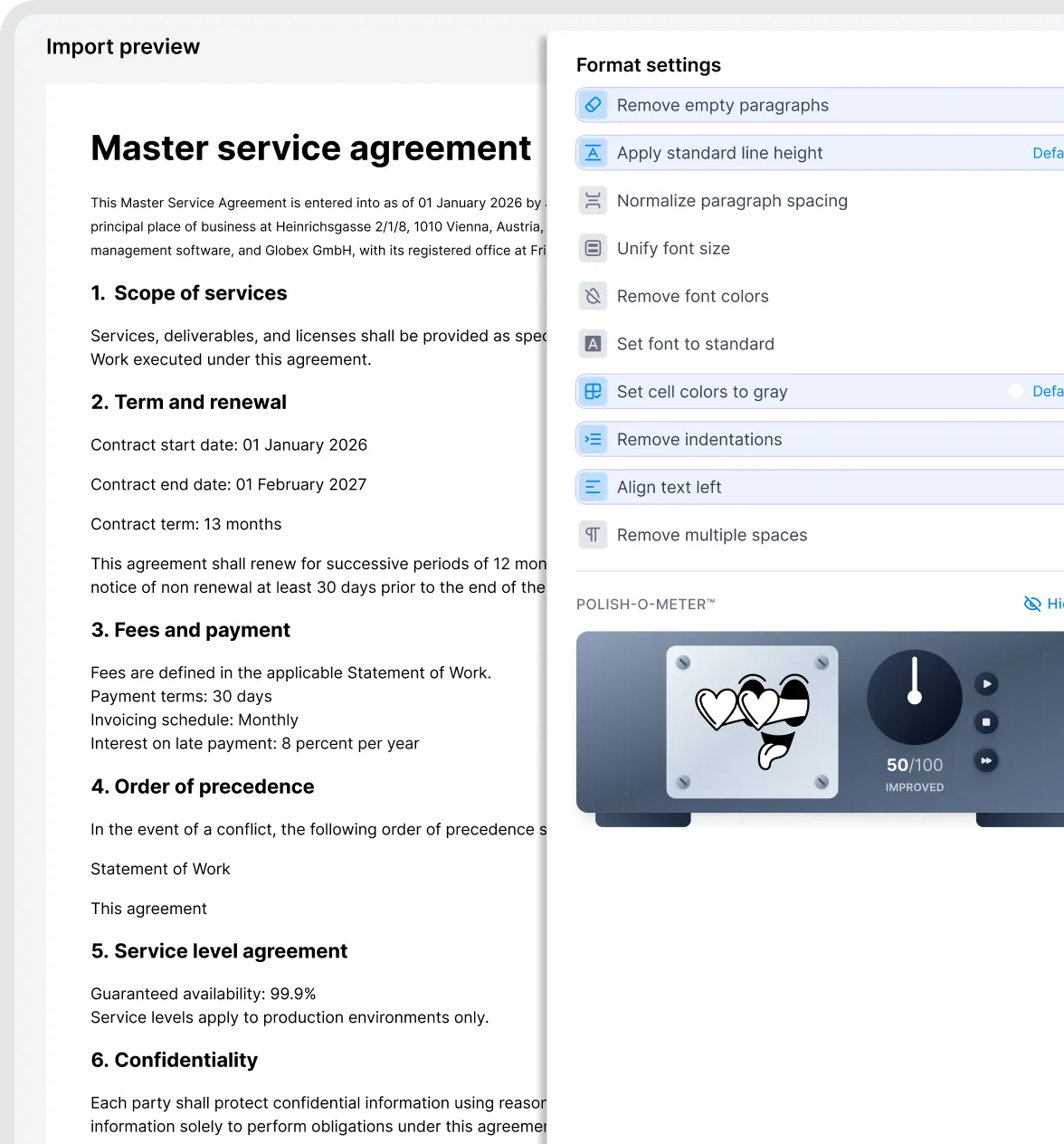
Review formatting when importing a Word document.
Upload a new version from Word
If the other party sends back an edited Word file, upload it as a new revision of the existing document:
Open the document and choose … → Upload revision.
Choose the Word file. Enable Import comments and Import suggestions as needed.
Click Preview import, review the result and formatting settings, then click Import.
The imported revision becomes the latest document content. Previous revisions remain available in the activity log. If you imported suggestions, open Discussions and choose View and resolve on a proposal to review it.
To open the comparison, choose … → Compare in the document header.
Export to Word or PDF
Open … in the document header and choose Download PDF or Download DOCX:
PDF: the document as it will be signed, with headers, footers and page breaks.
Word (.docx): an editable file. You can include comments and proposals as Word comments and tracked changes.
You can download individual document revisions from the revision history, but you cannot download the revision history itself as a report. If you need a copy of the activity feed, you can use your browser's print-to-PDF function, although the resulting layout may be untidy.
External collaborator only sees Download PDF? Ask an internal user with access to download the DOCX and share the Word file with them. The download options available through an external collaboration link can differ from those available to internal users.
Download several contracts at once
To save multiple contracts locally, use the document list’s Export → Full archive bulk action. Owners and Admins can download the selected contracts as PDFs in a ZIP file, together with attachments and metadata. See Export documents and metadata. This is the batch-download workflow; the Download PDF and Download DOCX actions above apply to individual documents.
Get a clean import
Word files are built in very different ways, so some clean-up is normal. You only have to do it once per template.
Numbering: automatic Word numbering usually comes across. Manually typed numbers or unusual list styles may not. Re-apply numbering in fynk if needed. See Format documents: numbering, headings, tables, page breaks.
Text boxes, shapes and columns aren't imported. Move their text into normal paragraphs or tables first.
Layout tables: if a whole page is built as one table, the import can break. Use normal paragraphs instead.
Logos in the Word header aren't taken over. Use your header and footer in fynk instead.
Fonts and spacing may change slightly. Check the preview before publishing.
Good to know
Word files can't be signed directly. Signing always uses the PDF that fynk creates.
Bulk import only takes PDFs. Word files dropped into an import are skipped.
Uploading a revision of a PDF replaces the current file. You can't restore an earlier revision directly. Download the earlier version from the revision history and upload it again as a new revision.
There's no Word add-in. Work in the fynk editor or exchange Word files as revisions.
Only Word (.docx) files can be imported into the editor. For an older .doc file, open it in Word or another compatible editor and use Save As to create a .docx copy. Simply changing the filename extension does not convert the file. Download Google Docs as Word first. Excel files can only be added to file storage.
To turn a Word file into a reusable template automatically, let the AI draft it. See Create and publish a template.
Related articles
Was this helpful?
Still need help? Ask the team