Signature types: simple, advanced, qualified
The three eIDAS signature levels in fynk, how signatories confirm their identity, and which one to choose.
Written By Sebastian
Last updated About 2 hours ago
fynk offers the three electronic signature levels defined by the EU eIDAS Regulation. They differ in how strongly the signatory's identity is verified.
Available on all plans, including Free. Qualified signatures are included under fair use.
These three signature levels are offered through four signing options in fynk: SES, AES, AES (eID) and QES. AES (eID) uses external identity providers; it is not a fourth legal signature level.
The three levels at a glance
Choose the signature type
For one document: choose the type when you click Start signing.
As your account default: set the default signature type in Account Settings → General.
In a template: set the type in the template. Documents created from that template always use it, and it can't be changed in the document.
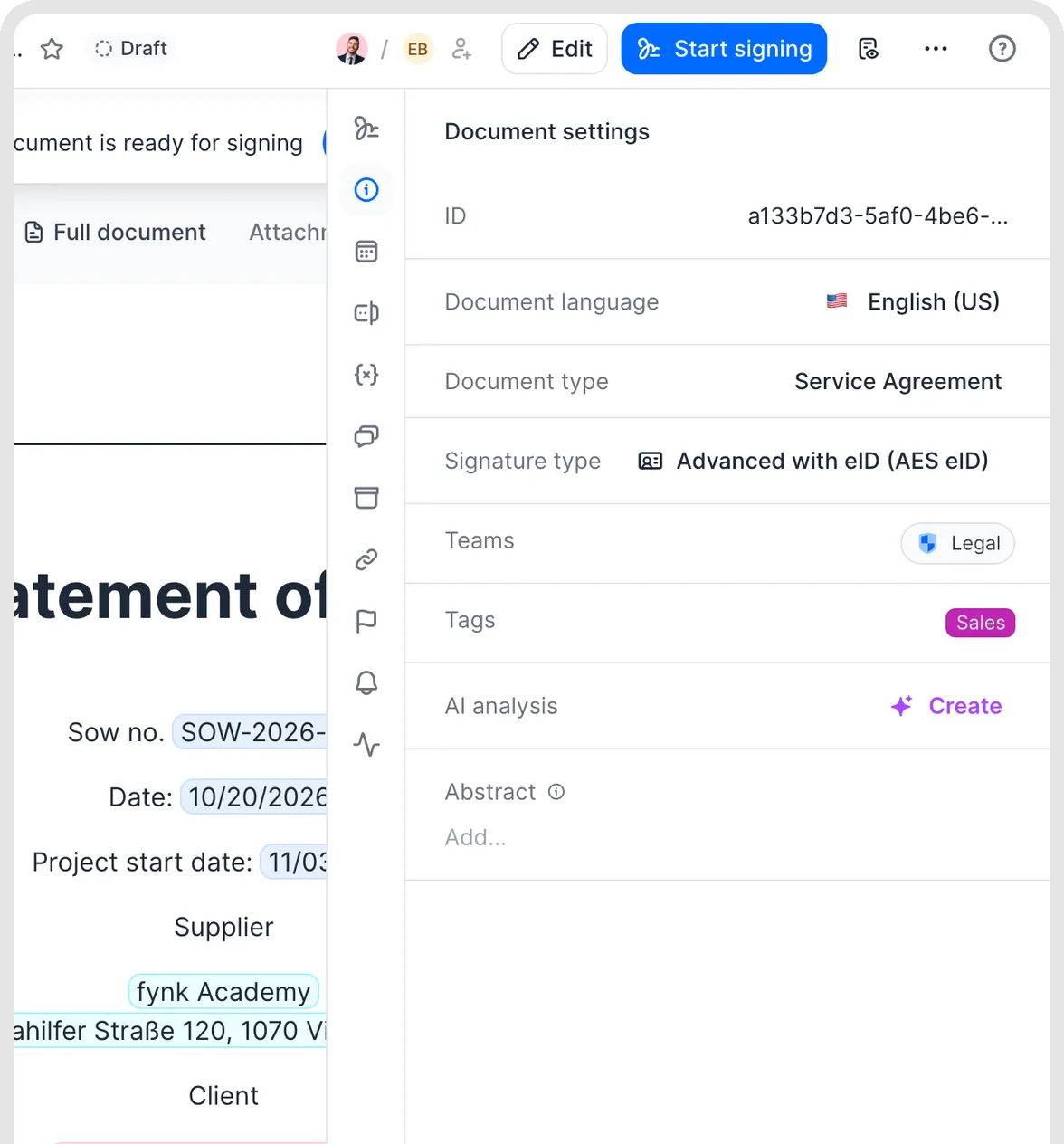
Choose the signature type in document settings.
Advanced signatures: SMS or WhatsApp code
With AES, the signatory receives a verification code on their mobile phone, by SMS or WhatsApp, and enters it to sign. Only the signatory enters their mobile number, during signing. The sender cannot set it in advance.
Some mobile carriers block SMS codes from abroad. This has been reported for example from China, Turkey, the UAE, Indonesia and Norway. If a code doesn't arrive, the signatory can use WhatsApp instead, or you can restart signing with a simple or qualified signature.
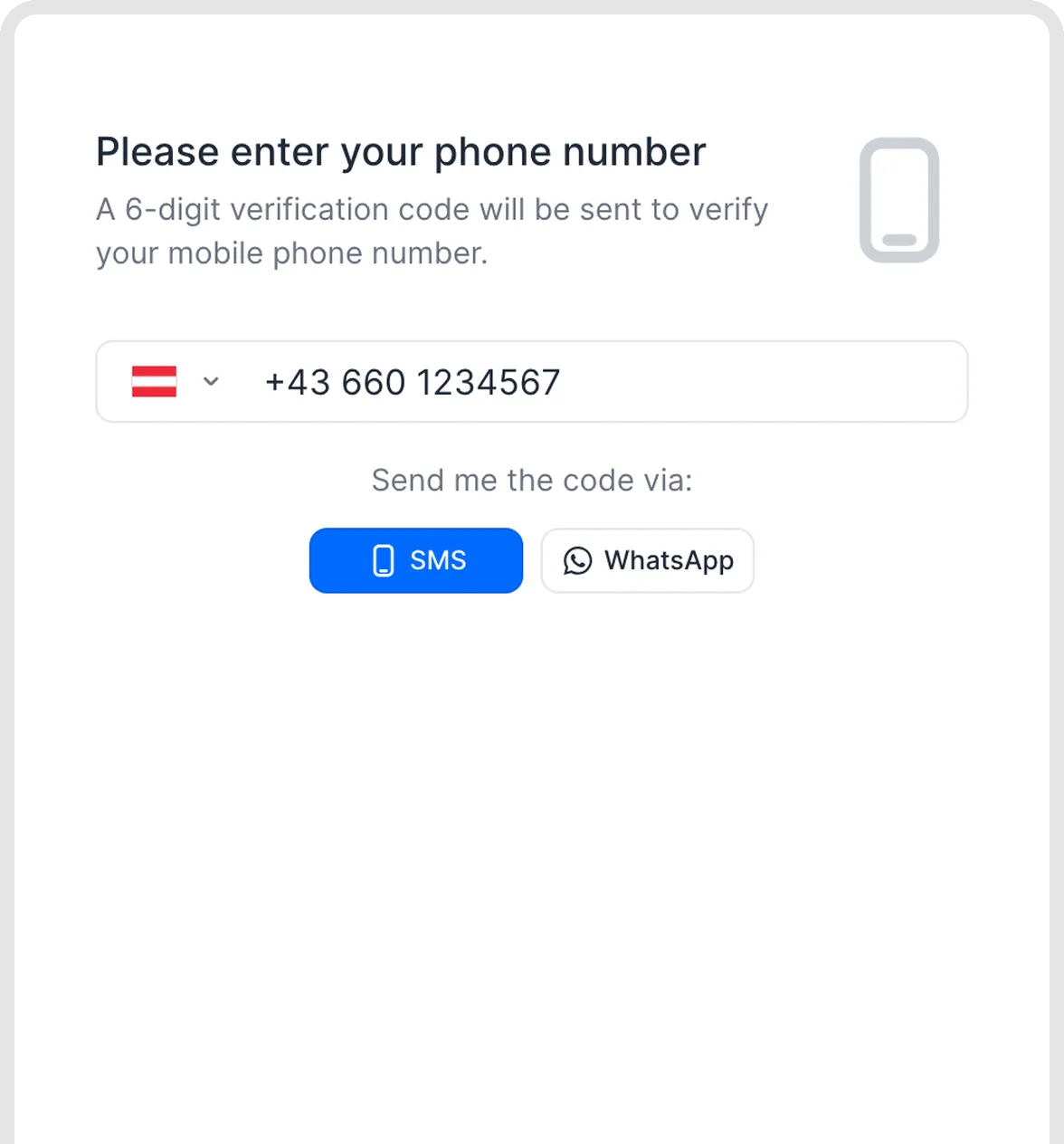
Phone verification for an advanced signature.
AES (eID): national eID and trust providers
Choose AES (eID) to let signatories use an external identity provider, such as Danish MitID, Swedish or Norwegian BankID, Finnish Trust Network or Italian SPID. Qualified providers are also available in this option. Standard AES continues to use fynk SMS or WhatsApp verification.
An Owner or Admin first turns on Enable AES (eID) in Account settings → General. It is off by default, and the toggle is shown for accounts with QES. Then select AES (eID) for the document or template. The toggle is not required to use the separate QES option.
- Signatories always sign one after another.
- The document is converted to PDF when signing starts.
- Voting blocks are not available with AES (eID).
- Each signature is labelled with the level actually achieved. An AES (eID) document can therefore contain both AES and QES signatures, depending on the providers chosen.
- Hover over a signature to see which provider was used.
MitID, Swedish BankID and SPID are available through AES (eID), rather than the QES option. QES only offers qualified methods. See the signature methods list.
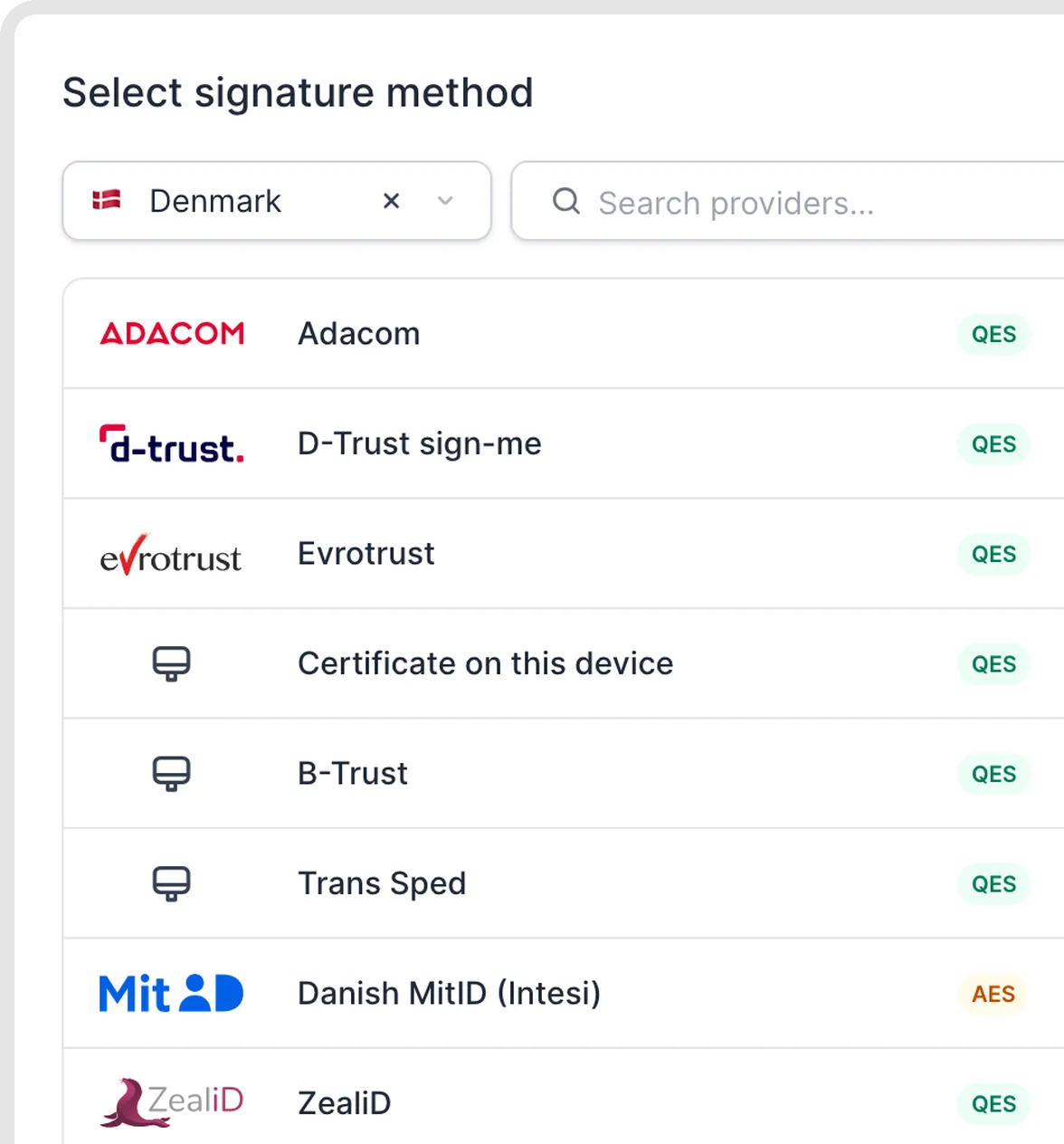
Choose an identity provider in the signing flow.
Qualified signatures
QES signatories verify their identity with an external trust service provider before signing, for example with an ID app or a video identification. The first time takes a few minutes; after that it's quick. See Qualified signatures (QES) for the providers and steps.
Which type do I need?
For most business contracts, a simple or advanced signature is enough. Some documents are subject to legal form requirements that only a qualified signature meets. Which type you need depends on the document, the country and your own risk requirements. fynk provides the technology, but can't give legal advice on your specific case.
Good to know
One signing process uses one selected signing option for all participating signatories. With AES (eID), the level actually achieved can differ by provider, as described above. Do not re-upload an already qualified-signed PDF just to add another signature: modifying or flattening it can invalidate or remove the existing QES. Pre-signed templates have a separate workflow: the existing signature is labelled “pre-signed”, and the remaining signatories can subsequently sign using SES, fynk AES or QES. Choosing AES or QES for the subsequent process does not establish or upgrade the legal signature level of the pre-signature. Pre-sign should not be treated as a confirmed substitute for an AES signature solely because it is compatible with an AES signing process. If the pre-signature itself must meet AES requirements, contact fynk before using it for that requirement. See Pre-sign templates.
A simple signature can be drawn with a mouse, touchpad or touchscreen, typed as a name, or uploaded as an image of a handwritten signature.
Digital signatures are embedded in the signed PDF. You can check them with the RTR signature checker. Adobe Acrobat Reader may show an unverified or invalid-signature message for some documents; use RTR as an additional check if this happens. See After signing: signed PDF, validation, activity log.
Related articles
Was this helpful?
Still need help? Ask the team