Reminders, CC recipients and signing links
How fynk reminds signatories, who receives the signed copy, and how long signing links stay valid.
Written By Sebastian
Last updated About 2 hours ago
fynk sends up to five recurring signing reminders, sends the signed PDF to everyone involved once signing is complete, and keeps signing links secure by renewing them.
Available on all plans · Configurable notifications: Essential, Business and Pro
Reminders for signatories
Signatories who haven't signed yet get a reminder email every 2 days by default. Each reminder contains a fresh signing link. Recurring signing reminders stop when the person has signed, signing is cancelled, or five reminders have been sent. The maximum is five reminders after the initial invitation; no further recurring signing reminders are sent after that.
To change the interval:
For all documents: go to Account settings → Notifications and open the rule for when a signature is required to adjust its reminder interval.
For one document: open the document, click the bell icon and change the reminder settings for this document.
External signatories can open the document notification settings using the link at the bottom of a document email (German: Benachrichtigungen für dieses Dokument verwalten). There they can turn off all notifications for that document with one click. This does not change notifications for other documents.
Add read-only recipients (CC)
Add CC recipients to give people read-only access when signing starts, for example a colleague who needs to follow the document but does not sign:
Click Start signing.
Add their email addresses as CC recipients.
Start signing as usual.
When signing starts, CC recipients receive an email and read-only access to the document in fynk. They can view the document but cannot edit it and are not asked to sign. Once signing is complete, they also receive the final signed PDF by email.
Tip: try the recipient experience yourself. Add your own plus address, such as name+test@company.com, as a CC recipient to receive the email sent to CC recipients when signing starts and open the document with read-only access. Messages reach your usual inbox if your email provider supports plus addressing and it is enabled. To test the actual signing invitation and signing steps, add your plus address as a signatory on a separate test document instead. See how plus addressing works.
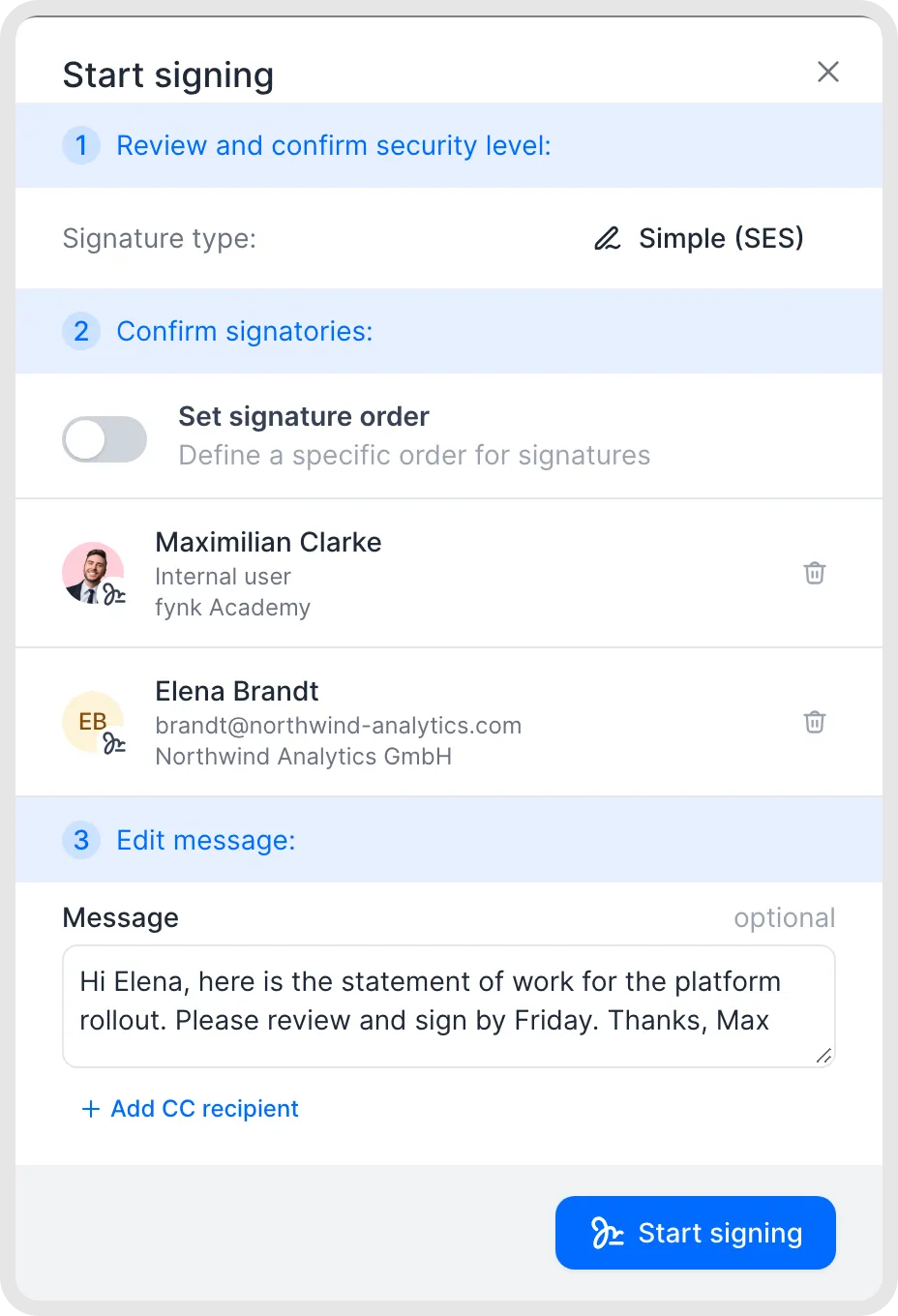
Review the settings before starting signing.
How long signing links are valid
Links are short-lived on purpose: a signing link gives access to the document without a password. A new link always goes to the original email address, so forwarding an old email doesn't give someone else access.
Good to know
Reminders go to signatories only. Collaborators and viewers aren't reminded.
Signatories with a signing order are reminded only once it's their turn.
To resend an invitation, open ⋯ → Sharing. In the Share dialog, find the recipient under User with access and click Re-send beneath their name or email address.
You can also resend a signatory's invitation directly from their entry in the parties/signatories panel using Share again (German: Erneut teilen). The Re-send action in the Share dialog is another route.
Troubleshooting
A signatory says the link doesn't work? Signing links expire after 48 hours. The signatory can request a new link with the button on the page; it's sent to the same email address. If nothing arrives, check the address and the spam folder, or open the Share dialog and click Re-send beneath the recipient.
A signatory gets too many reminders? Change the interval for that document with the bell icon.
Related articles
Was this helpful?
Still need help? Ask the team