Qualified signatures (QES)
How qualified electronic signatures work in fynk, which providers are available and what signatories need to do.
Written By Sebastian
Last updated About 2 hours ago
A qualified electronic signature (QES) has the same legal effect as a handwritten signature in the EU. For a QES, each signatory verifies their identity with a qualified trust service provider that fynk connects to.
Available on all plans, including Free. Qualified signatures are included under fair use.
Send a document for qualified signature
Prepare the document as usual: parties, signatories and signature blocks.
Click Start signing and choose Qualified (QES).
Check the signing order. With QES, signatories always sign one after another.
Click Start signing again.
What signatories do
Open the signing link from the email.
Choose their country and a QES provider from the list.
They're redirected to the provider and verify their identity there, for example with an ID app, a mobile ID or a video identification.
After verification, they return to fynk and the signature is applied.
The first verification with a provider takes a few minutes. Signatories who are already registered with a provider sign in seconds.
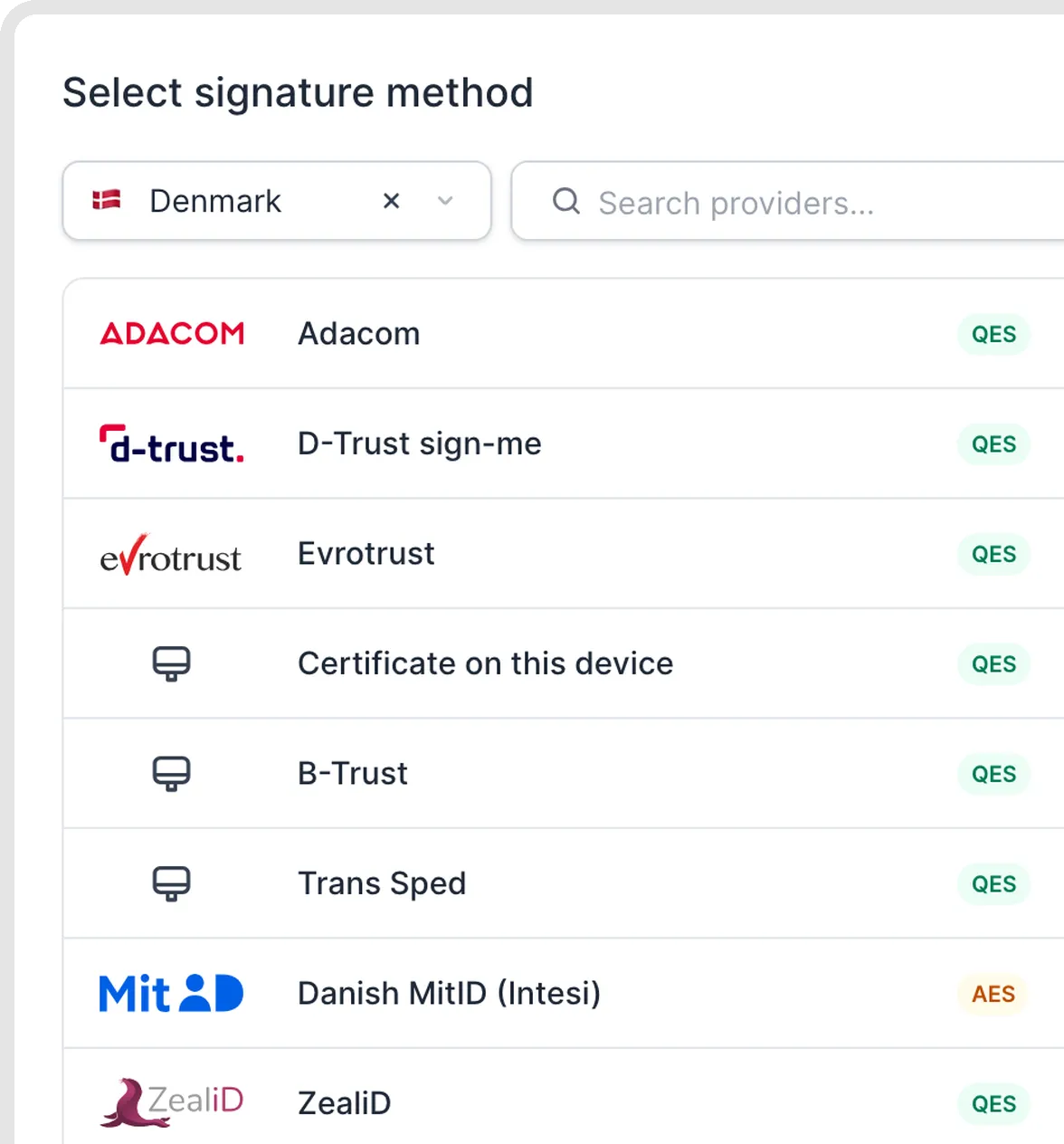
Choose an identity provider in the signing flow.
Keep the signing window open until completion
Keep the original fynk signing tab open while you complete the provider’s verification, including when you use an app on your phone. Return to that tab and wait until fynk shows the signature as completed. A success message from the provider alone does not confirm that the signature has reached fynk.
If the provider reports success but fynk still shows the document as unsigned or does not release the next signatory, check the original signing window. Closing it or moving the signing process to another browser or device can interrupt completion. If the signature still does not appear, contact support with the document link, provider name and approximate time of the attempt.
Available providers
fynk connects to more than 30 qualified signature methods across Europe and beyond. Signatories see the methods available for their country. The full, current list is on the signature methods page. The most common ones:
Some providers charge signatories for their identity verification. These costs are billed by the provider, not by fynk.
In the provider picker, search by name, filter by country and pin your favourite providers. The picker remembers your last country. MitID, Swedish BankID and SPID are offered through AES (eID), not QES. See Signature types.
Good to know
QES signatures can't be pre-signed in templates.
The signing order is mandatory with QES and can't be switched off.
QES signature blocks can be placed side by side in columns.
If a provider reports "Expired signature found" on an uploaded PDF, flatten the PDF first (fynk offers this on upload), then place the QES block.
For a QES, the trust service provider issues a qualified certificate for the signatory.
A PDF that already has a qualified signature can't be counter-signed in fynk without losing it. Flattening removes existing signatures, and a simple signature added after a QES invalidates the QES. Store such a PDF with Import without signing.
Troubleshooting
The provider shows an error? The signatory's verification with the provider isn't complete, or they used a different mobile number than the one they registered with. The signatory needs to resolve this with the provider, or choose another provider.
No suitable method for the signatory's country? Ask them to use a method that works internationally, such as Adacom (no prior account needed) or ZealiD, or use an advanced signature if the document doesn't legally require a QES.
Evrotrust says signed, but fynk still shows signing? Keep the fynk signing window open until the signature appears in fynk. If the process did not complete, reopen the signing link and try starting it in a browser on your computer while completing verification in the Evrotrust app on your phone. Avoid closing or dismissing the waiting window. If fynk still does not record the signature, contact support with the document link, provider name and approximate time of the attempt.
Related articles
Was this helpful?
Still need help? Ask the team