Upload and import existing contracts
Bring your signed contracts into fynk, one at a time or up to 200 at once, and let the AI read them.
Written By Sebastian
Last updated About 3 hours ago
Import your existing contracts so you have them in one place, can search them and get reminded of deadlines. fynk reads each document with AI and fills in dates, parties and other details for you to check.
Available on all plans · Bulk import: Essential, Business and Pro
Before your first import
A little setup makes the AI results much better:
Add your internal parties so fynk knows which side is yours. See Set up your internal parties (My Parties).
Check document types and metadata. Turn off document types you don't use and add custom fields you need. See Document types: set up and customise and Create custom metadata the AI can extract.
Set up teams so imported documents are visible to the right people. See Teams: control who sees which documents.
Test with 2–5 documents first. Check the results, adjust your metadata, then import the rest.
Import documents
Drag the files onto any page in fynk, or go to Documents and click Upload files.
Choose Import without signing. This stores the documents as completed contracts.
Optional: give the import a name, for example "Supplier contracts 2024". You can filter by it later to review the batch.
Optional: choose a team and tags for all documents in this import.
Start the import.
fynk processes the documents one after another. Each takes about 1–3 minutes, including text recognition and AI analysis. You can keep working in the meantime.
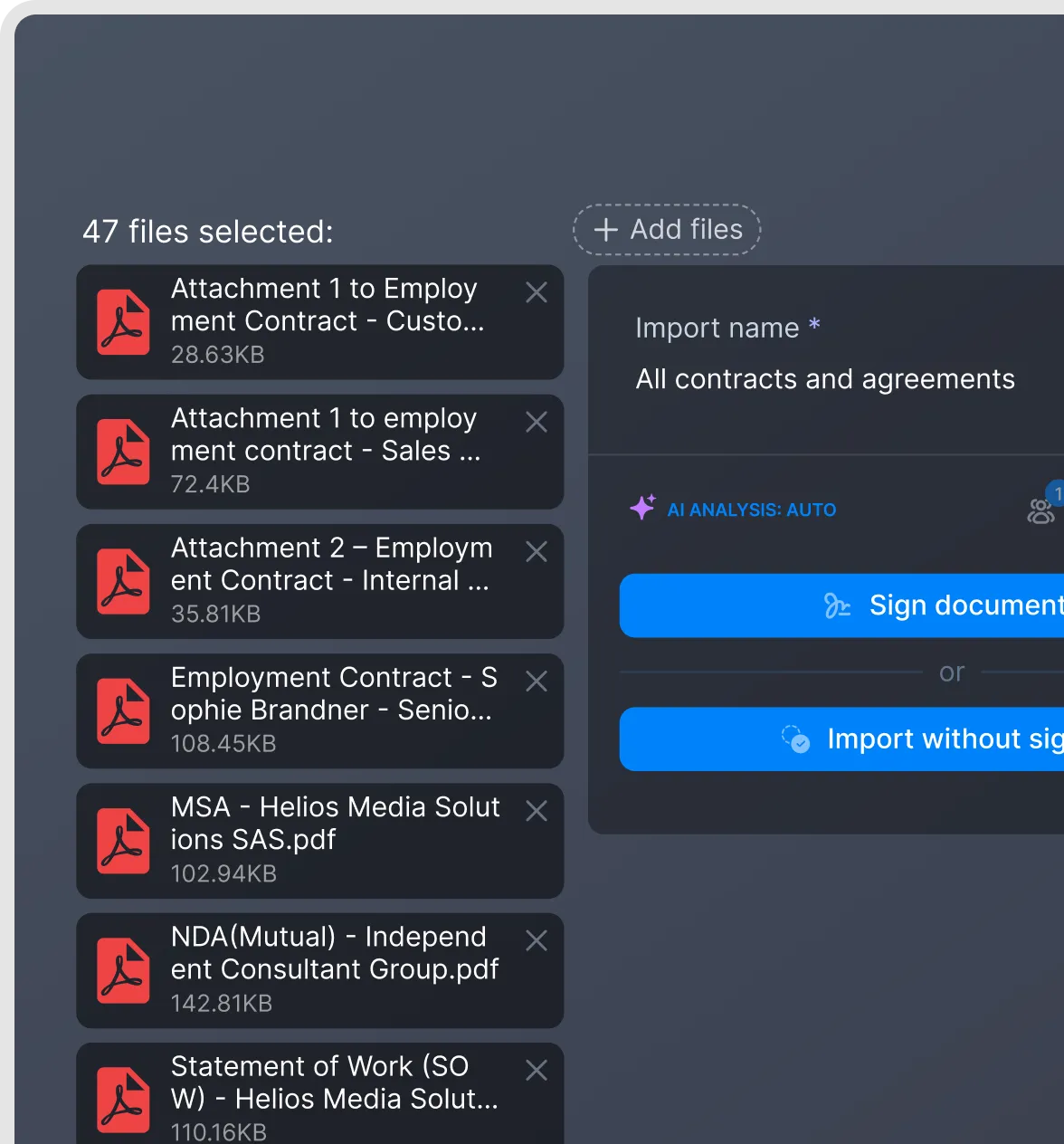
Upload contracts for AI analysis.
Use a template's settings during upload
Selecting a template during upload applies its settings to the uploaded document. The settings transferred depend on the upload workflow:
Import without signing does not copy the template's document auto-access users. Check access after importing and add the colleagues who need it. Use the signing workflow only when the contract still needs signatures.
Review preset parties and metadata before using a template for imports: values already supplied by the template can prevent AI from extracting different values from the uploaded contract. Metadata linked to dynamic fields also needs review when those fields aren't present in the uploaded document.
Notification settings remain inherited, so later changes at template level can affect imported documents unless overridden. See Notifications: who gets notified and how.
After the import
The AI suggests values for each document, such as parties, start and end dates, notice period and contract value. Review and confirm these results. Only confirmed values feed reminders, the calendar, dashboards and filters. See Review and confirm AI analysis results.
Once you trust the results, you can let fynk apply them automatically with Auto-apply AI analysis by default in Account Settings → Document workflow.
Already have a contract register in Excel? Use Automations to create placeholder documents from a prepared template, map your spreadsheet values through dynamic fields into metadata, and set up deadline reminders. Place the dynamic fields in the template's document body too if you want each generated document to show a readable summary of the imported data. This is useful even when you don't have the original PDFs. If a PDF becomes available later, add it with Upload revision. See Bulk-create documents from Excel (Automations) for the migration workflow.
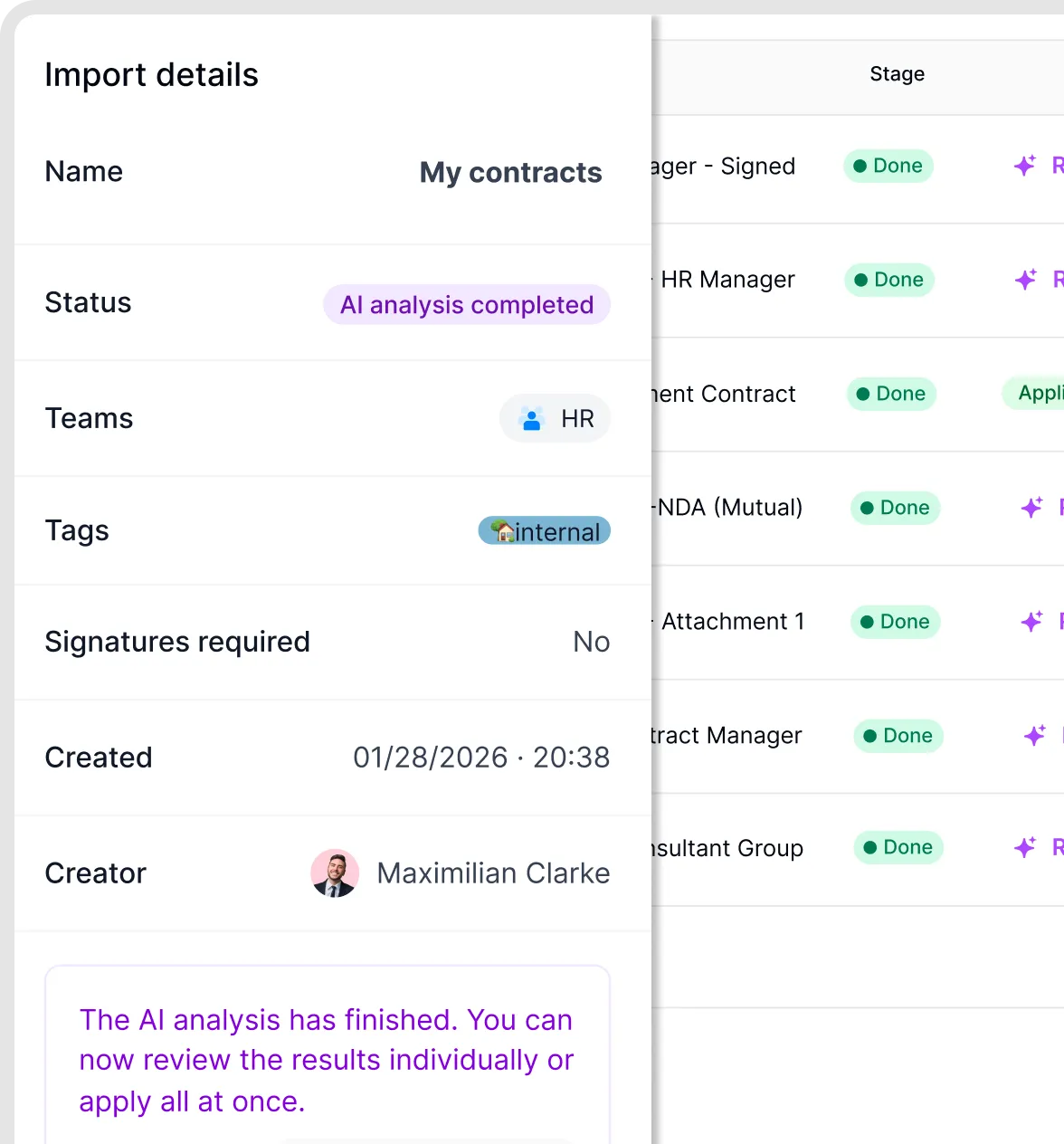
Review the details of a document import.
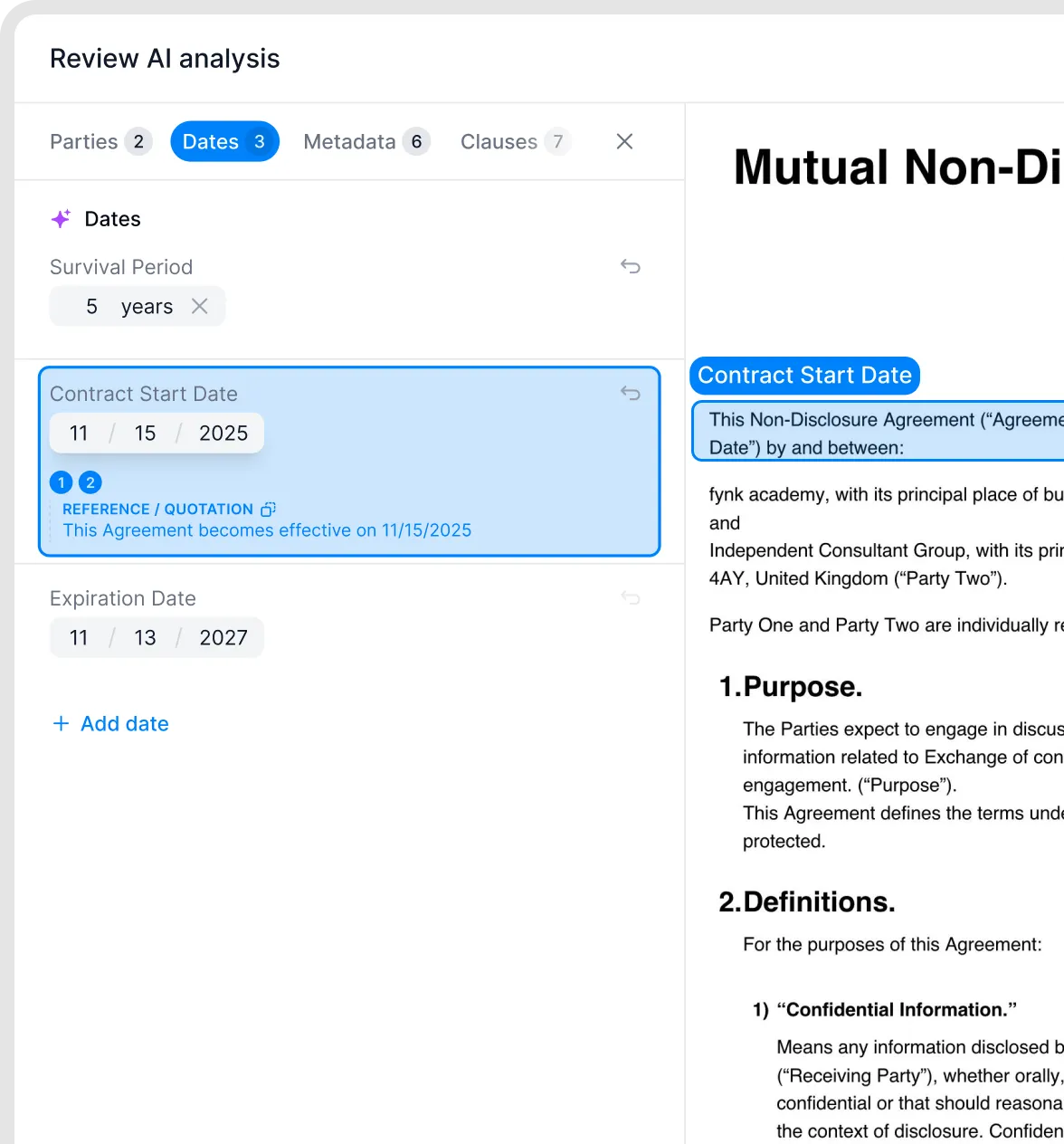
Reviewing dates extracted by AI.
Limits and supported files
Up to 200 files per import, each up to 30 MB.
PDF files, including scanned PDFs: fynk recognises the text automatically.
Bulk import only takes PDFs. Word files dropped into an import are skipped. To work with a Word file, create a document from it instead. See Import from Word and export to Word or PDF.
Large scans over 30 MB: compress a copy or split them into several PDFs and link them. Preserve the original file: compression or splitting can invalidate existing digital signatures. See A PDF won't upload or shows errors.
The file-import flow does not import Excel spreadsheets as contracts. To migrate a contract register and its metadata from Excel, use the Automations workflow described above. To keep the spreadsheet itself as a file, use a document's file storage. Export Google Docs to Word or PDF first.
Good to know
Don't preselect your internal party when you import existing contracts. If you do, the AI doesn't read the parties from the documents.
Import without signing vs Sign document: use Sign document only for contracts that still need signatures. See Sign an uploaded PDF.
Each document should contain one contract. If amendments or annexes are separate files, upload them separately and link them to the main contract. See Attachments, file storage and linked documents.
fynk doesn't detect duplicates. Check for files you've already imported before a large import.
To import PDF attachments from a shared Microsoft 365 mailbox, you can build a custom flow using Power Automate and the fynk API. See Import email attachments with Microsoft Power Automate. For other automated imports, see Integrations overview.
AI analysis uses AI credits. See AI credits: allowance, top-ups and usage.
Related articles
Was this helpful?
Still need help? Ask the team