Create custom metadata the AI can extract
Add your own metadata fields and write descriptions the AI can use to find the right value.
Written By Sebastian
Last updated About 3 hours ago
If the reference fields don't cover something you need to track, such as a cost centre, a project number or a price adjustment rule, create your own field. With a good description, the AI fills it in for every new document.
Available on all plans · Owners and Admins
Create a field
Go to Account Settings → Metadata and open the Account tab.
Click +.
Under General information, enter a Name, choose the Type and write a short Description of what the field contains.
Under Specify relevant document types, choose Use for all, or Select document type to pick the types the field applies to. Choose None for fields you only fill in by hand.
Under AI Settings, turn on Use this metadata in AI analyses. Complete the Prompt and add Keywords (type a keyword, then click Add). Or click Fill with AI: fynk writes a prompt and keywords from your name and description. Adjust them if needed. The How to write prompts panel shows good and bad examples.
Click Create.
New fields apply to documents analysed from now on. To fill them for existing documents, see Fill new metadata on existing documents.
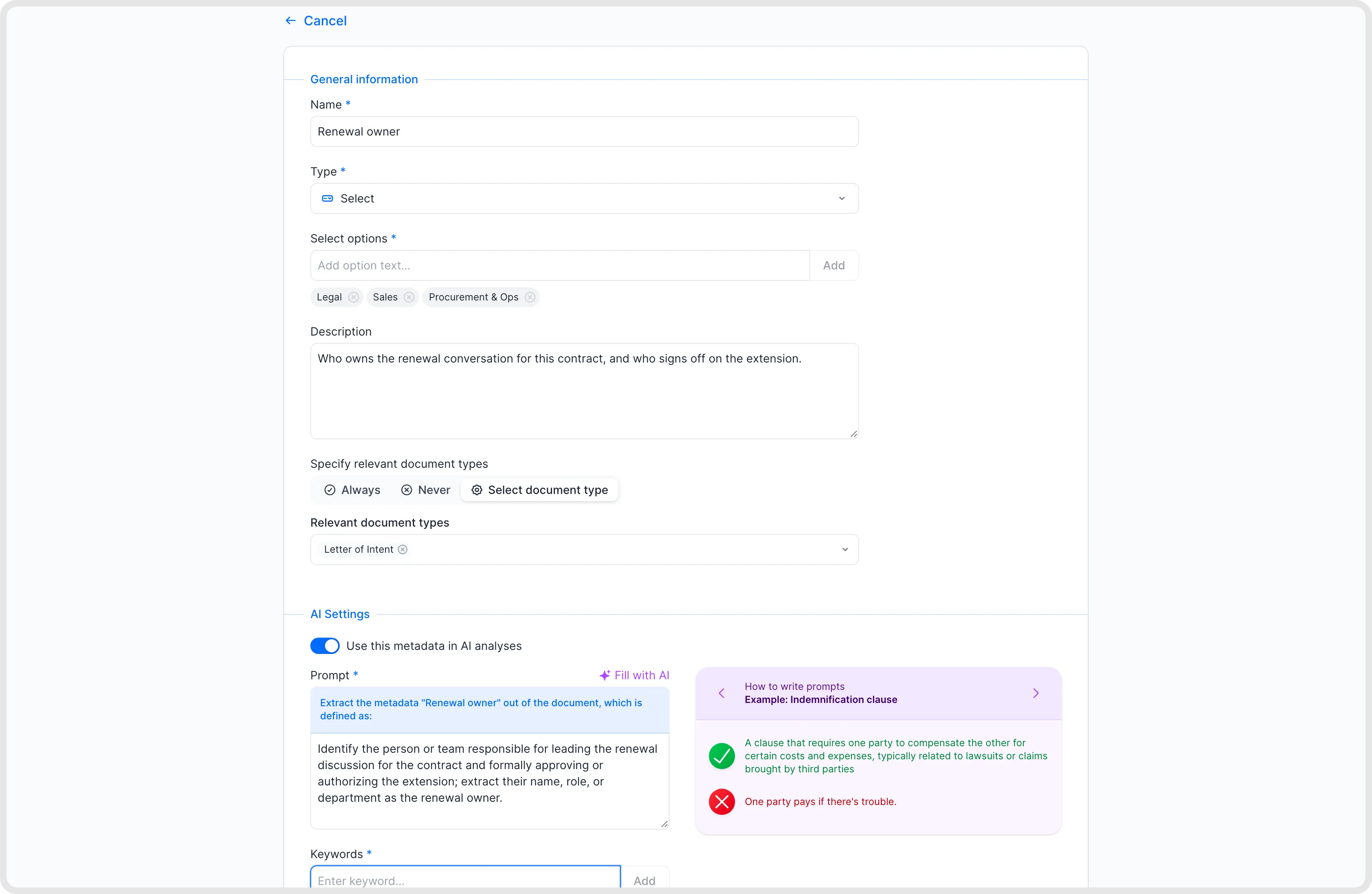
Define a custom metadata field.
Looking for “Automatically use on documents?”
To have a metadata field used for new documents, open its settings under Account Settings → Metadata. Under Specify relevant document types, choose Use for all or the document types it should apply to. To have AI extract its value, also enable Use this metadata in AI analyses under AI Settings and configure the prompt.
These controls determine where the field applies and whether AI fills it. They do not backfill existing documents; use Fill new metadata on existing documents for that.
Manage metadata fields through MCP
Owners and Admins can also ask an AI tool connected through MCP to create and manage metadata fields. For example: Create a text metadata field called Cost centre for supplier agreements. These actions follow your existing fynk permissions.
Specify the field name, type, purpose and relevant document types. Check the resulting field settings under Account Settings → Metadata, including the AI extraction settings if you want values extracted automatically.
Write descriptions that work
One fact per field. "Contract value" and "payment interval" are two fields, not one.
Be specific about where to look. "The notice period for the customer, usually in the termination clause" works better than "Notice".
Say what to return. "Return the cost centre number only, without text".
Say what to do if it's missing. "If no cost centre is mentioned, leave empty".
Phrase it positively. Tell the AI what to find rather than what to ignore.
Split repeating items. If a contract covers several products with their own terms, create a field per product or use a multi-line text field.
Finish the sentence. The prompt starts with "Extract the metadata "{name}" out of the document, which is defined as:". Write the rest so it completes that sentence.
Example: extract a fee from a pricing table
To extract a monthly base fee, create a field called Monthly base fee with the type Currency. Use a focused prompt that identifies the relevant row and the expected value:
The monthly base fee shown in the pricing table under “Base fee”, including its currency. Leave empty if no amount is stated.
Match the requested output to the field type. If you use an existing Number field, ask for the numeric amount only, without a currency symbol or explanatory text. Avoid asking one field to return the whole table or several different fees.
Test the prompt on a few representative documents and check the extracted values before using it more widely. You can't change an existing field's data type; create a new field if you need a different type.
Example: classify contracts by risk level
Create a Select metadata field called Risk level with the options Low, Medium and High. Enable Use this metadata in AI analyses and write a prompt defining the criteria for each level, what contract content to assess, and what to do if the information is insufficient.
Run AI analysis on the document, then review and confirm the proposed value. For existing documents, use Fill new metadata on existing documents, linked above. This gives you a saved metadata value for filtering and reporting; it does not require a playbook. Playbooks serve a different purpose: reviewing a document against a set of rules. Review AI classifications against your criteria before relying on them.
Test before you roll out
Upload 2–5 documents that contain the value, and some that don't.
Check the results and refine the description.
Run the analysis again on the same document to test the updated description. If a cached result appears, wait a while before trying again.
When the results are reliable, run the field across your existing documents.
Good to know
You can't change the data type later, so choose carefully. Use text for IDs and numbers with leading zeros.
The AI works from the document's content. It can extract stated values and produce summaries or classifications using the criteria in your prompt. It can't look up information elsewhere, and a prompt can't refer to other metadata fields.
The AI isn't reliable for calculations, such as adding up several amounts. Extract the parts and calculate in an export.
Keep the number of custom fields manageable. Every field you add to the AI analysis makes the analysis longer.
The description is shown to users as context for the field. Fill with AI also uses it to write the prompt and keywords, so it only gives good results with a clear description.
A Multi-line text field can have the AI write a short statement about one aspect of the document, for example how liability is limited.
You can't import field definitions or your own values in bulk, for example from Excel. Create fields individually in the settings or ask a connected MCP tool to create them. To set values for many documents, use the bulk action Manage metadata in the document list, or the API or MCP.
Related articles
Was this helpful?
Still need help? Ask the team