Sign yourself and manage saved signatures
Sign documents as a fynk user and save signatures, including a default signature or stamp.
Written By Sebastian
Last updated About 3 hours ago
When you're a signatory yourself, you can sign directly in fynk. Save your signature once and reuse it for every document.
Available on all plans
Sign a document
Open the document from the invitation email, or from your Inbox in fynk.
Click Sign now.
Click your signature block and add your signature:
Draw it with your mouse, touchpad or finger.
Type your name.
Upload an image of your signature.
Or pick a saved one under My signatures.
If the document has more blocks for you, sign each of them. You can reuse the same signature.
Confirm. With an advanced or qualified signature, you then verify with a code or with your QES provider.
Watch on YouTube: Sign a document (2:05–2:20) · English
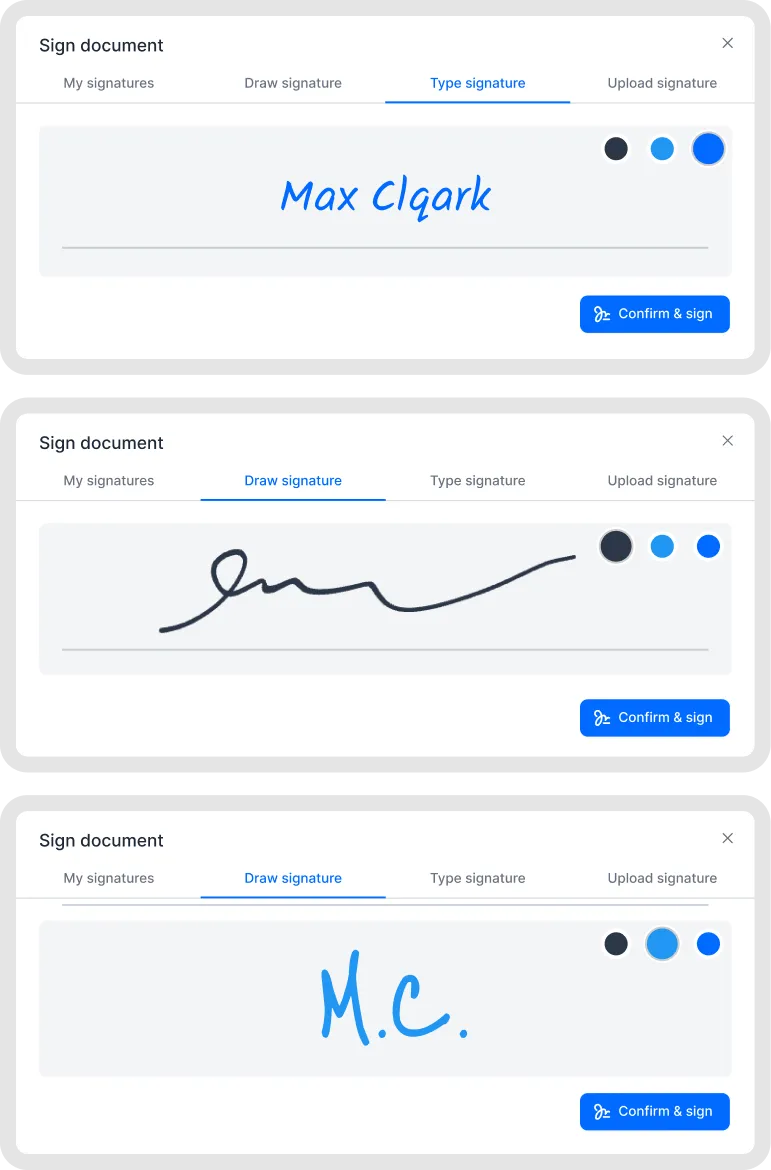
Choose how your signature is displayed.
Save signatures and set a default
Go to your profile and open Saved signatures (app.fynk.com/user-profile/user-signature-seals).
Add a signature by drawing, typing or uploading it.
Click the star icon to make it your default for the current account. fynk then suggests it whenever you sign.
You can save several signatures, for example your signature and a company stamp, and choose the right one each time.
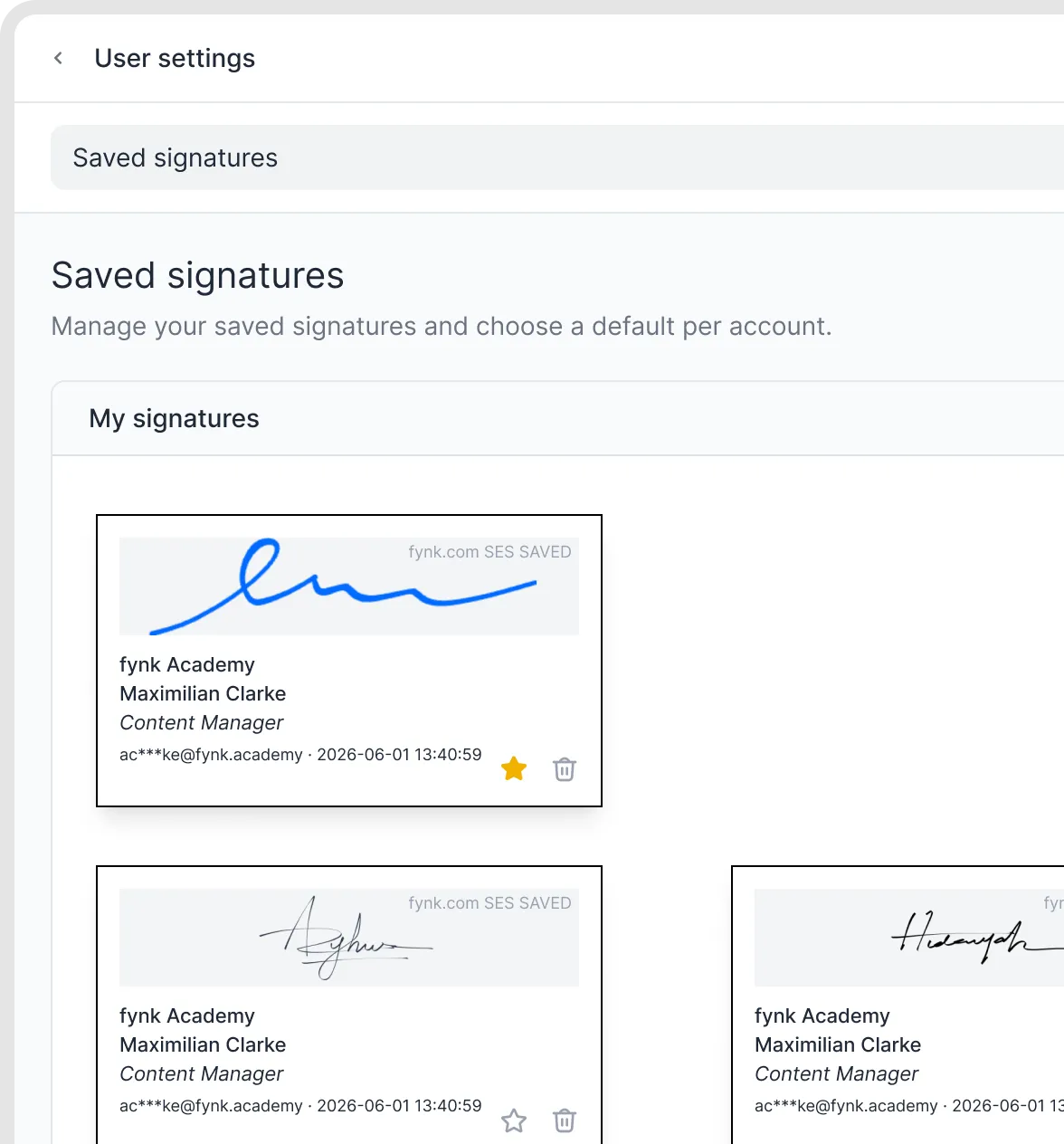
Manage saved signatures.
Good to know
Saved signatures are personal. Colleagues can't use them.
On Business and Pro, internal users with the Editor, Admin or Owner role can pre-sign templates where they are the signatory of the signature block, so every document created from them already carries their signature. See Pre-sign templates.
A stamp is not a separate signature type. Upload it as an image signature if you want it in the signature block.
Related articles
Was this helpful?
Still need help? Ask the team