Signing order, several signatories, one person for several parties
Decide who signs when, add several signatories to a party, and handle one person signing for more than one party.
Written By Sebastian
Last updated About 3 hours ago
With SES and standard AES, all signatories receive their invitation at the same time by default and can sign in any order. QES and AES (eID) always use sequential signing. You can also make them sign one after another, add several signatories to one party, and let one person sign for several parties.
Available on all plans
Set a signing order
As an internal user, click Start signing.
Under Confirm signatories, turn on Set signature order.
Use the drag handles beside the signatories to arrange them in the order they should sign.
Click Start signing again.
Only the first signatory is invited at first. Each next signatory gets their invitation when the previous one has signed. A signatory who isn't next yet can open the document but can't sign it.
Tip: Many companies let the other side sign first and sign last themselves, so they only sign once the counterparty has committed.
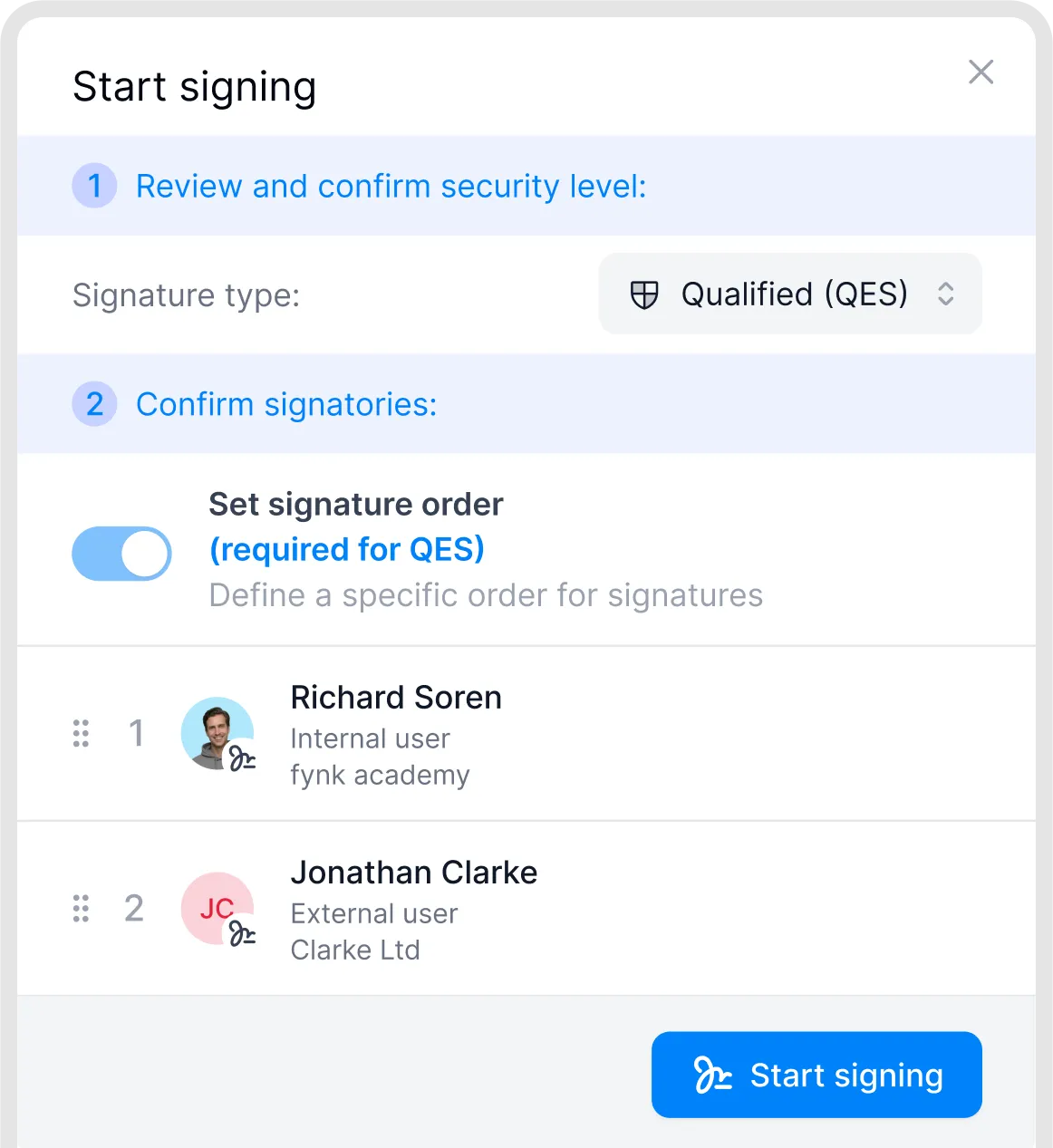
Configure the signing order.
Several signatories for one party
Add as many signatories to a party as you need, for example two managing directors. Each signatory signs separately. In editor documents, the party has one signature block listing all its signatories by default; you can split it so each signatory signs in their own place. PDF documents and PDF templates default to individual signatory blocks. See Place and adjust signature blocks.
External collaborators can manage signatories for their own party during the initial wizard and afterwards through the party details. A signature block must be placed for that party. Party blocks allow adding and removing signatories; individual signatory blocks allow only replacing the assigned signatory.
The same party can have multiple placeholders and signature blocks in a document. Separate party entries cannot have exactly the same name; an additional space in one name is a workaround when you need separate entries.
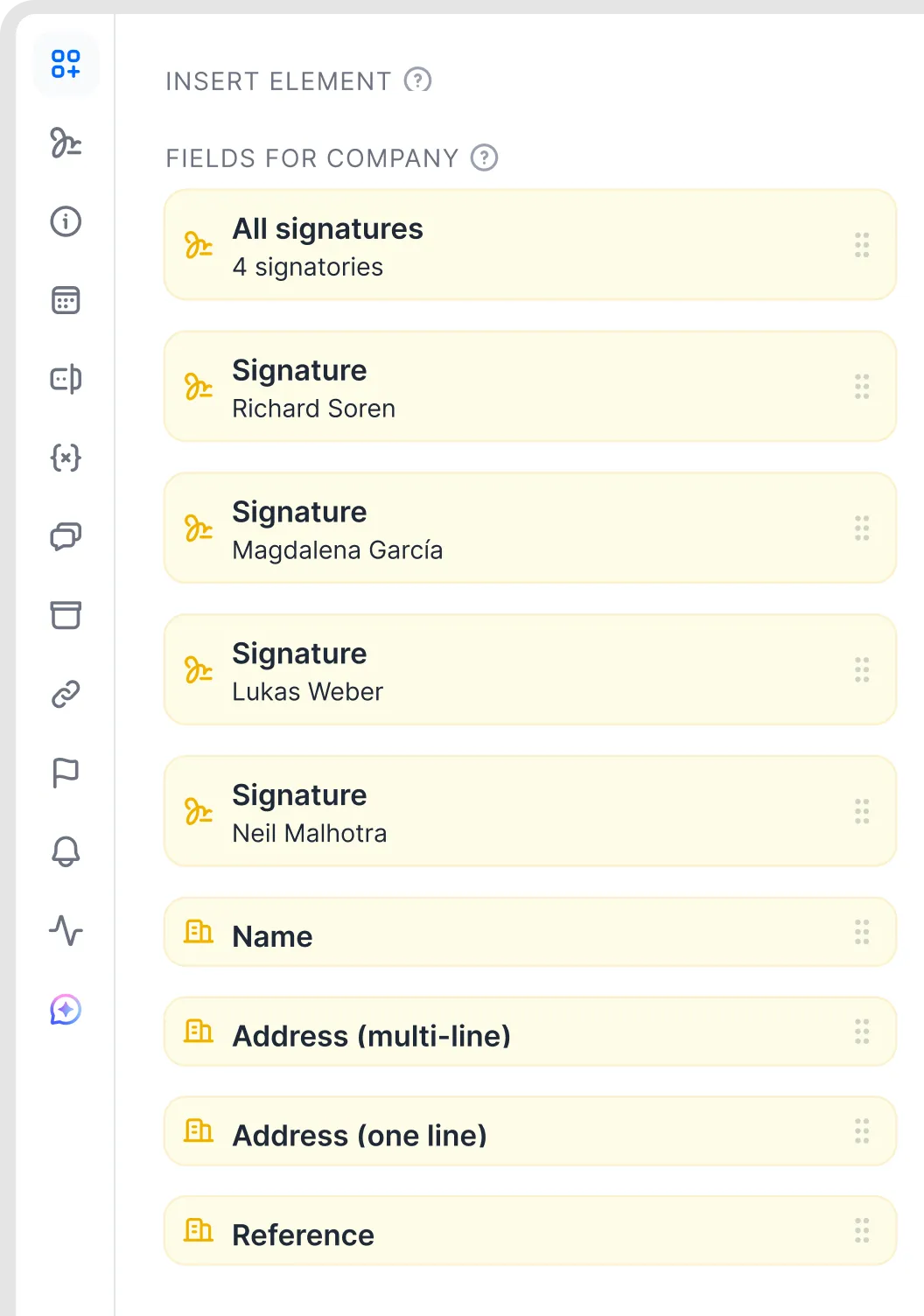
Separate signature blocks for individual signatories.
Several locations for the same signer
If the same person signs in several places for the same party, add more signature blocks for that signatory. This is supported with QES too and does not require a separate email address. Each block must be signed, and QES may require separate verification for each block.
One person signing for several parties
Each email address can be used only once per document. If one person signs for two parties, for example for a parent company and its subsidiary, use plus addressing to give them a distinct address for each party:
Party A: anna.berger@company.com
Party B: anna.berger+1@company.com
Add +text before the @, for example name+company@example.com instead of name@example.com. Messages reach the original inbox if the email provider supports plus addressing and it is enabled. Check delivery with your IT team before using a plus address. The person receives two invitations and signs once for each party.
In Exchange Online, plus addressing is enabled by default, but an administrator can disable it. These plus addresses do not need to be configured as mailbox aliases. See Microsoft: Plus addressing in Exchange Online.
If you mainly need to show a different title or capacity next to a signing location, use the Minimal signature-block style and put the relevant role, title and company in nearby plain text or dynamic fields. On an uploaded PDF, place text fields beside the block. The Minimal style omits the profile title and company details. This is a display workaround; where you need distinct party/signatory entries, use the separate-address approach above.
The same trick works for testing: send documents to yourself as name+test@company.com to see what an external signatory sees.
Good to know
With qualified signatures (QES) and AES (eID), the signing order is mandatory.
You can enable sequential signing in a template's General tab, but you can't arrange the signatories' order directly in the template. The default order follows when the signatories were created: signatories already defined in the template come before those added later. An internal user can adjust this order in the Start signing dialog before starting the process. Keep this default in mind for automated workflows, such as documents created through the API.
Mixed orders aren't possible, for example one person first and then everyone else in any order. Either all signatories sign one after another, or all at once.
You can't change the signing order after signing has started. You can still update signatories: party blocks allow adding and removing signatories, while individual blocks allow only replacement. The party must have a placed signature block. See Change signatories or cancel signing after it has started.
Signing several documents in one go, or setting one order across several documents, isn't possible. Each document has its own signing process.
Troubleshooting
A signatory can open the document but can't sign? There's a signing order and it isn't their turn yet. They'll get an email when it is.
fynk says the email address is already used? The same address is already a signatory for another party in this document. Use a plus address as described above.
Related articles
Was this helpful?
Still need help? Ask the team