Pre-sign templates
Sign a template once so every document created from it already carries your signature. What gets locked and how to unlock it.
Written By Sebastian
Last updated About 3 hours ago
If you sign the same kind of document again and again, such as quotes, NDAs or standard agreements, you can sign the template once. Every document created from it then already contains your signature, and only the other party still has to sign.
Available on Business and Pro, and during the trial · You must be an internal user with the Editor, Admin or Owner role and the signatory of the signature block
Pre-sign a template
Open the template and make sure you're set as the signatory of the signature block. See Parties and signatories in templates.
Click the signature block and click the signature icon.
Choose Pre-sign this template.
Draw, type or upload your signature and confirm.
The signature block is now marked as pre-signed, and every new document from this template includes your signature.
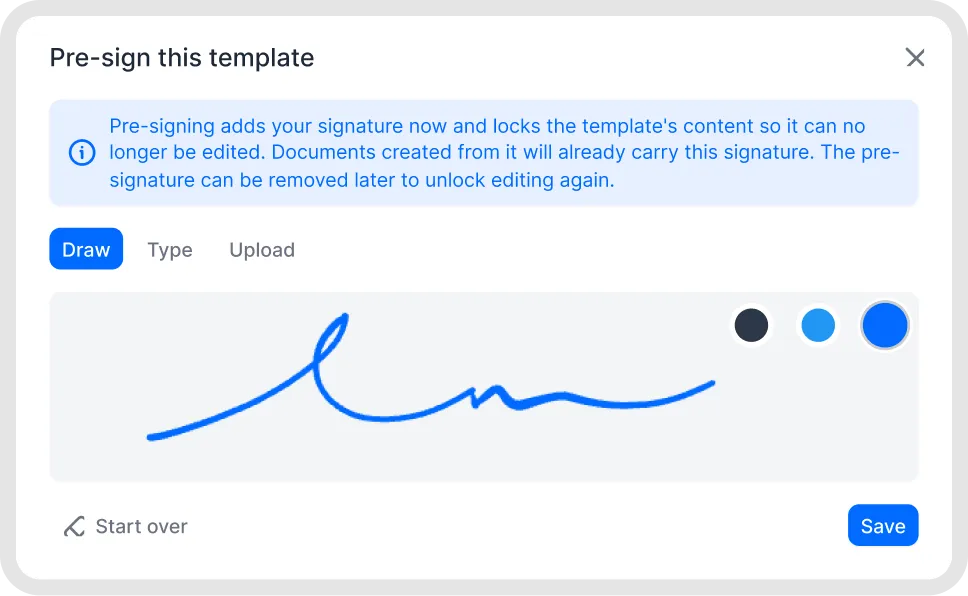
Pre-sign a template.
What gets locked
Once a template contains a pre-signed signature, its content is locked to protect the signature. This also applies to every document created from it. You can no longer:
add or move parties or signatories
add, remove or move signature blocks or voting blocks
add or move dynamic fields
add attachments or PDF blocks
edit conditions or move content with drag and drop
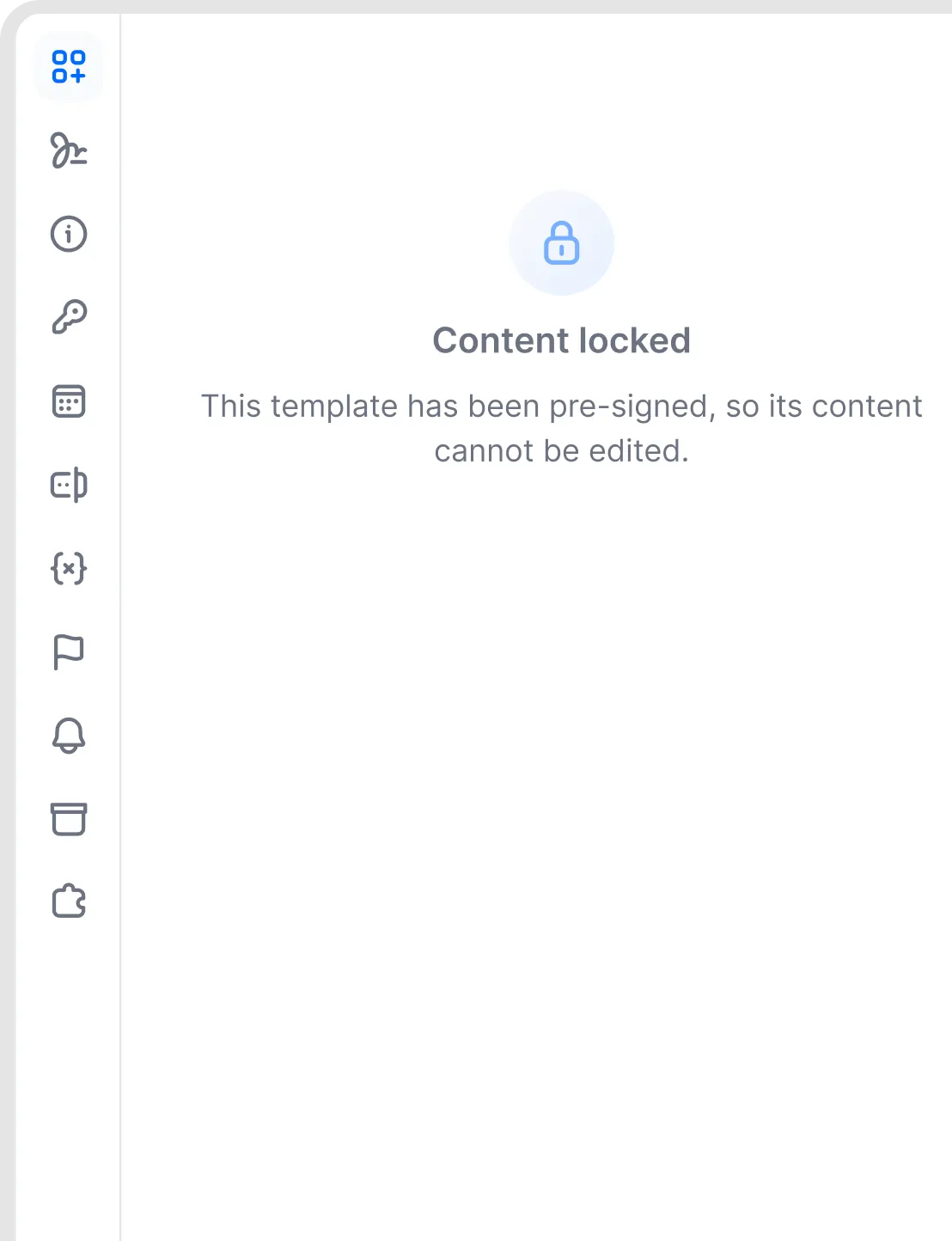
A template after pre-signing.
What can still be changed
In documents created from a pre-signed template, you can still:
fill in the values of dynamic fields
change settings such as document language, document type, teams and tags
let the other party complete their details, such as company name and address
Remove a pre-signed signature
To edit the template again, click the signature block, click the delete icon and choose Remove my signature. When the last pre-signed signature is removed, the template is unlocked. Documents already created keep the signature, but you can remove it there too: click the signature block and click the bin icon.
Good to know
Only internal users with the Editor, Admin or Owner role can pre-sign templates, and only signature blocks where they are the signatory. External signatories cannot pre-sign templates.
A pre-signature is labelled “pre-signed”, rather than SES, AES or QES. Pre-signing does not repeat the regular AES verification step for each document created from the template. External AES methods provided through eID Easy and qualified signatures (QES) cannot be pre-signed.
The signature type set in the template can't be changed in documents created from it.
Documents created from a pre-signed template can subsequently be signed by the remaining signatories using SES, fynk AES or QES. The selected method applies to those subsequent signatures; it does not establish or upgrade the legal signature level of the existing pre-signature. If your process specifically requires the pre-signature itself to meet AES requirements, contact fynk before relying on Pre-sign for that requirement.
Documents can't be signed automatically, for example in bulk. Pre-signing a template is the closest option: your signature is already in place, and only the other party signs.
Related articles
Was this helpful?
Still need help? Ask the team