Create a new document
Start a document from a template, from scratch, or by uploading a Word file or PDF.
Written By Sebastian
Last updated About 3 hours ago
Every new contract in fynk starts with Create. You can use one of your templates, start with a blank page, or upload a file you already have.
Available on all plans · Owners, Admins, Editors and Managers can upload Word files and create documents from scratch. Managers can edit these documents, but cannot edit the text of documents created from templates. Limited Managers cannot upload or create documents, including from templates.
Create a document
Click Create in the top bar. Under Document, choose Create from scratch to start from a template or a blank document. Choose Sign document for a PDF or Word file, or Upload Signed Document to store signed documents.
Choose how to start:
From a template: browse, search or filter your templates, preview them and pick one. Star templates you use often so they appear first.
Blank document: start with an empty page in the fynk editor.
Upload a file: drag in a Word file (.docx) or a PDF.
Enter a name and fill in what the template asks for, such as the parties and dynamic fields.
The document opens in the Draft stage, ready for editing, review and signing.
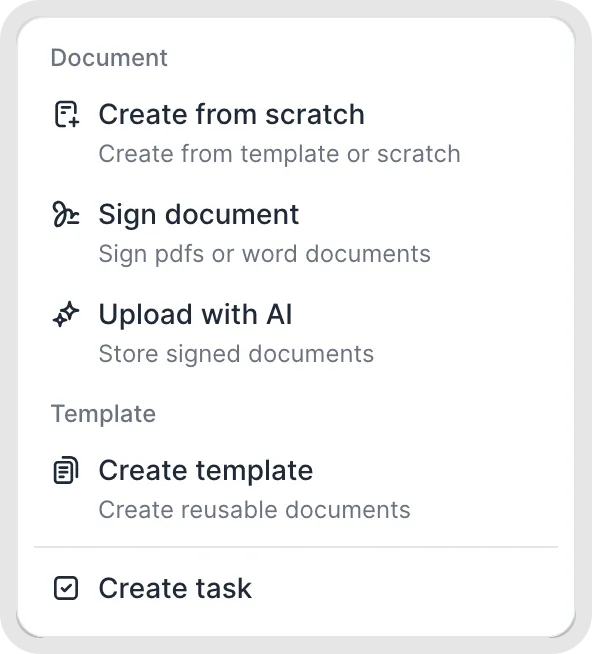
Choose what to create from the Create menu.
Which option to choose
To store contracts that are already signed, import them instead. See Upload and import existing contracts.
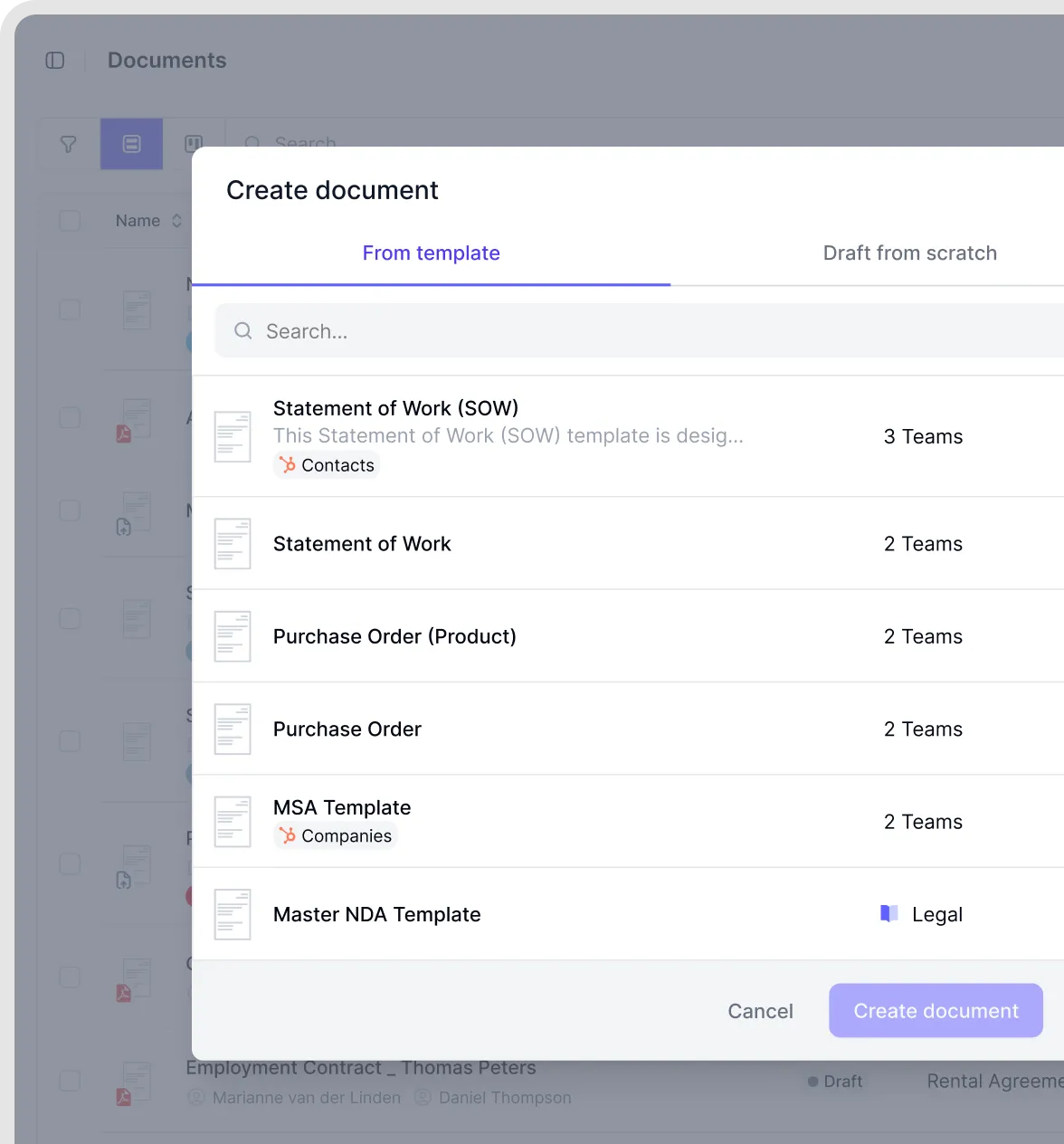
Create a document from a template.
Apply template settings to an uploaded file
If you select a template during upload, fynk applies settings such as tags, teams, metadata and parties to the uploaded document. A PDF uploaded for signing also receives checkpoints and document-user access. Importing a completed PDF without signing does not copy the template's auto-access users. See Upload and import existing contracts for the settings by upload type and what to check afterwards.
Good to know
Which templates you see depends on your teams. If a template is missing, ask an Owner or Admin to add your team to it.
You can also create documents from a CRM, such as HubSpot, Salesforce or Pipedrive, or from your AI tools through the fynk MCP. See Integrations overview.
To create many similar documents at once, use an automation. See Bulk-create documents from Excel (Automations).
To start from an existing contract, duplicate it. See Duplicate a document.
Related articles
Was this helpful?
Still need help? Ask the team