Manage templates
Duplicate, edit, archive and delete templates, and control which teams can use them.
Written By Sebastian
Last updated About 3 hours ago
Once you have several templates, keep them tidy: give each a clear name and description, control which teams can use them, and archive the ones you no longer need.
Available on all plans · Owners, Admins and Editors manage templates; only Owners and Admins can delete them
Find templates
Go to Templates. Search by name, filter the list, and star the templates you use most so they appear first in the template picker and under Favorites in the sidebar.
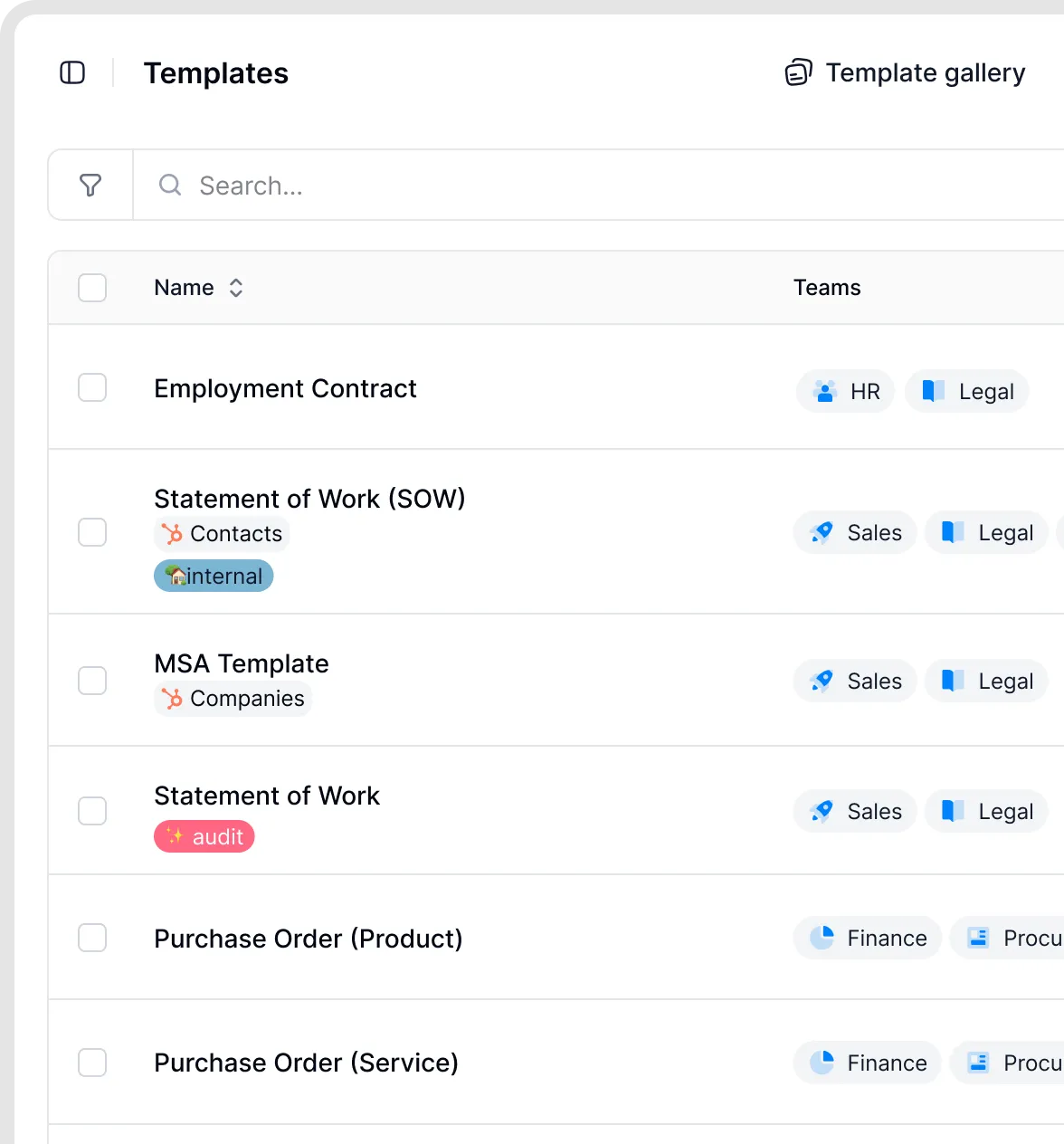
Choose a template from the template library.
Edit a published template
Open the template, make your changes and save. Editing does not unpublish the template. Documents created after you save use the updated template. To stop the template being available, unpublish it manually.
Changes to the template's content apply to documents created afterwards. The content of existing documents isn't updated.
Notification settings are an exception: they remain inherited from the template unless overridden on the document. Changing a template's notification settings can therefore affect existing documents as well as new ones. Check the recipients and timing before changing a shared default. See Notifications: who gets notified and how.
Duplicate a template
Open the … menu next to the template and choose Duplicate. Use this to create a variant, for example an English version of a German contract, or to try out bigger changes without touching the live template.
Reuse a template as a layout
To reuse an entire document structure, keep a master template with the headings, tables, standard text and fields you need. Create documents from it, or duplicate the template when you need a different version. Duplicated templates are independent; later edits to the master do not update the copies.
For reusable branding at the top and bottom of pages, use Account Settings → Headers / footers and select them in the template. See Format documents. This lets you reuse the header and footer without copying the whole contract body.
Control who can use a template
In the template's settings, choose the teams that can use it. Only members of these teams, plus Owners and Admins, see the template when creating a document. When creating a document from a template, Managers can choose templates assigned to their teams. Limited Managers cannot create documents, including from templates. Managers can also upload and edit Word documents or create and edit documents from scratch; they cannot edit the text of template-based documents. See User roles and permissions.
Archive or delete a template
Archive a template you no longer use. It disappears from the template picker, but documents created from it are unaffected.
Delete is available to Owners and Admins, not Editors. Documents created from the template remain unchanged, but lose the link to it and show Deleted template instead.
Reuse clauses across templates
There's no clause library, so you can't share one clause between templates and update it in one place. Instead, build one master template and use conditions to switch between variants, or duplicate a template and adapt the copy. See Conditions: show or hide content.
Good to know
Templates don't have a version history. Before big changes, duplicate the template as a backup.
Write a short description for each template. It's shown in the template picker and helps colleagues choose the right one.
Templates can't be shared directly between fynk accounts. To recreate one in another account, download the source content as Word and give the file to the AI Assistant in the destination account, asking it to create a template. Review the generated fields, parties, signature blocks and settings before publishing. This creates a new template rather than transferring the original configuration. See Create and publish a template.
A template that contains a pre-signed signature is locked. See Pre-sign templates.
If you deleted a template by mistake, contact support. Deleted templates can be restored within 10 days.
Related articles
Was this helpful?
Still need help? Ask the team