Connect AI tools with MCP
Connect Claude, ChatGPT, Cursor or another AI assistant to fynk with MCP and work with your contracts from there.
Written By Sebastian
Last updated About 3 hours ago
With the fynk MCP server, you can work with fynk from the AI assistant you already use. Create documents, search contracts, update fields or add signatories by asking in plain language.
Available on Essential, Business and Pro · Each user connects their own assistant
Before you start
- An Owner must turn on Enable MCP for this organization in Account settings → MCP. The View documentation button there opens the MCP documentation.
- After that, every user can connect their own AI tool. Permissions follow fynk: AI tools can only access what each user can already see and do in fynk. No new permissions are created or required.
- The server URL is the same for every AI tool: https://app.fynk.com/mcp
- Open Profile → MCP → How to connect for the current connection instructions for supported AI tools.
- Adding a custom connector may need admin rights in the AI tool itself, for example a Claude admin, a ChatGPT admin with Developer Mode, or a Cursor admin.
Claude
- Open fynk in the Claude directory.
- Click Connect, sign in to fynk and approve the connection.
Fallback: custom connector. If you cannot use the directory, connect manually:
- In Claude, go to Settings → Connectors and click Add custom connector.
- Enter the name "fynk" and the URL https://app.fynk.com/mcp, then click Add.
- Click Connect, log in to fynk and approve the connection.
To upload PDFs to fynk from Claude, turn on network access in Claude's capability settings.
Claude Code
- Run
claude mcp add --transport http fynk https://app.fynk.com/mcp. - Start Claude Code, run
/mcp, select fynk and click Authenticate. - In fynk, confirm the localhost address with I recognize and trust this URL, then click Approve.
If the authentication URL doesn't open automatically, copy it from the terminal into your browser. The localhost prompt is expected, because Claude Code runs on your computer.
ChatGPT
For ChatGPT Pro or Business.
- Open chatgpt.com/plugins and click + next to the search box. If you don't see it, enable Developer mode under Settings → Security and login.
- Name the connection fynk and paste
https://app.fynk.com/mcpinto Connection. - Tick I understand and want to continue, click Create, then Sign in with fynk and approve the connection.
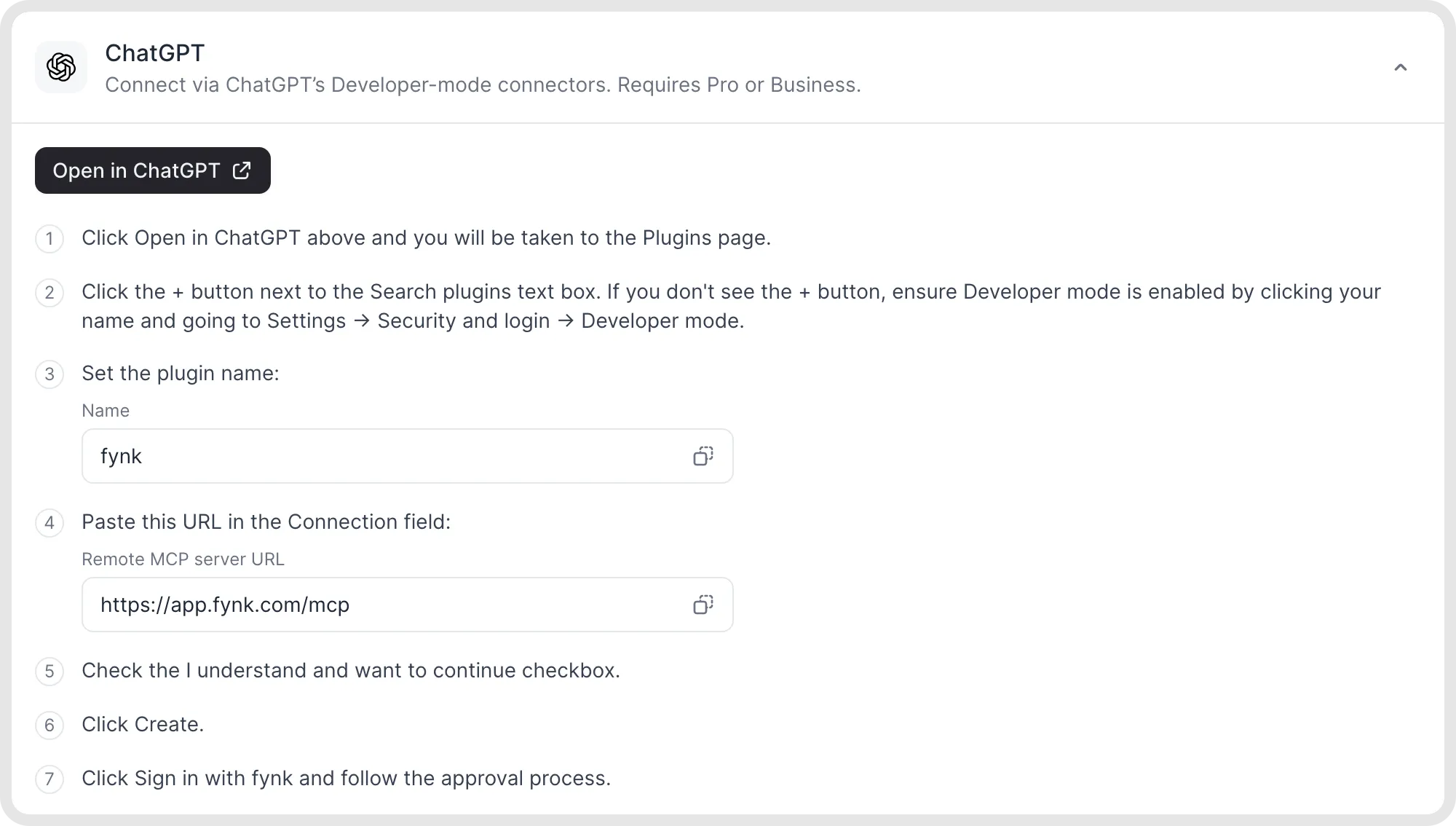
Connection instructions for ChatGPT.
Cursor
Use Add to Cursor to install the fynk MCP connection, then approve the connection in fynk.
Alternatively, go to Settings → Cursor Settings → Installed MCP Servers → Add Custom MCP and enter the name fynk and https://app.fynk.com/mcp.
VS Code
Use Add to VS Code to add the fynk MCP server. Follow the installation and sign-in prompts and approve the connection in fynk.
Codex
- Run
codex mcp add fynk --url https://app.fynk.com/mcp. - Complete the sign-in in your browser and approve the connection in fynk.
Microsoft Copilot Studio
- In your agent, click + next to Tools, select Model Context Protocol and click Add.
- Enter the name fynk, description fynk MCP Server and URL
https://app.fynk.com/mcp. - Choose OAuth 2.0 for authentication and Dynamic (with Discovery) for the configuration type.
- Make sure the agent uses the signed-in user's permissions, then complete the connection.
Other MCP-compatible tools
Add https://app.fynk.com/mcp as the server URL and approve the connection in fynk.
What you can ask
The fynk MCP server currently offers 68 tools: 20 read-only tools and 48 tools that make changes. All actions follow your fynk permissions, including template publishing and managing metadata fields or document types.
For example, ask your connected assistant:
- Draft a complete NDA template from scratch with fields for the parties and the term.
- Duplicate our standard NDA template.
- Duplicate the contract with Demo Inc.
- Publish the NDA template I have reviewed.
- Create a metadata field called Cost centre.
- Update the description of our Supplier quality agreement document type.
Review the drafted template and its fields before publishing it. You can also use these everyday prompts:
- Create an NDA from our standard template for Demo Inc.
- Show me all active supply agreements tagged "Sales".
- Which contracts need to be signed this week?
- Add John Doe as a signatory and start the signing process.
- Set the contract term to 24 months.
- Upload this PDF and mark it as completed.
- Archive the contract with Demo Inc.
- Who has access to this document?
- List our templates, document types and metadata fields.
- Create a document type called Supplier quality agreement.
- Show me documents with open discussions.
Adding a signatory is different from giving someone collaborator or viewer access. To invite someone who should review or receive a document without signing it, use the document’s sharing controls in fynk. Do not add them as a signatory just to give them access.
Manage connections as an admin
In Account settings → MCP you can see all connected AI tools and who connected them, disconnect individual tools, and choose to notify Owners and Admins when someone connects a new tool.
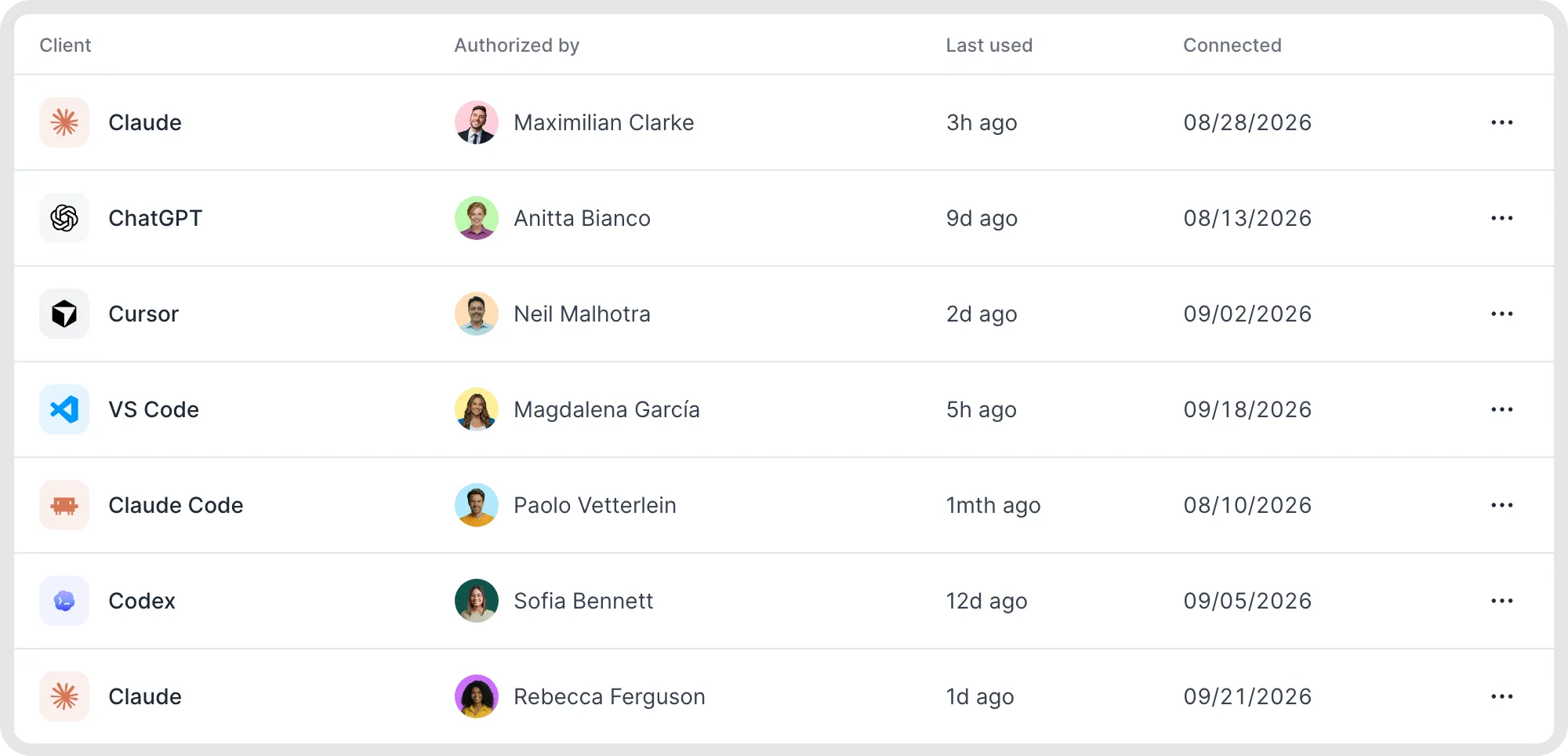
Manage connected MCP clients.
Good to know
- Once data reaches your AI tool, its provider decides where it's processed. For guaranteed processing in the EU, use the fynk AI Assistant.
- Some actions via MCP use AI credits, for example starting an AI analysis.
- Each person using MCP needs a fynk user licence.
Technical documentation
fynk is listed in the official MCP Registry. Find setup instructions and server documentation in the public fynk MCP server repository.
Related articles
Was this helpful?
Still need help? Ask the team