Account settings overview
Where to find each setting in fynk, who can change it, and the difference between account settings and your personal profile.
Written By Sebastian
Last updated About 2 hours ago
fynk has two places for settings. Account settings apply to everyone in your company account. Your profile holds the settings that only affect you, such as your language, password and two-factor authentication.
Available on all plans · Account settings: Owner and Admin
Open the settings
Account settings: click on the cogwheel symbol next to your company name in the upper-left corner.
Your profile: click your name in the bottom-left corner, then Manage Profile.
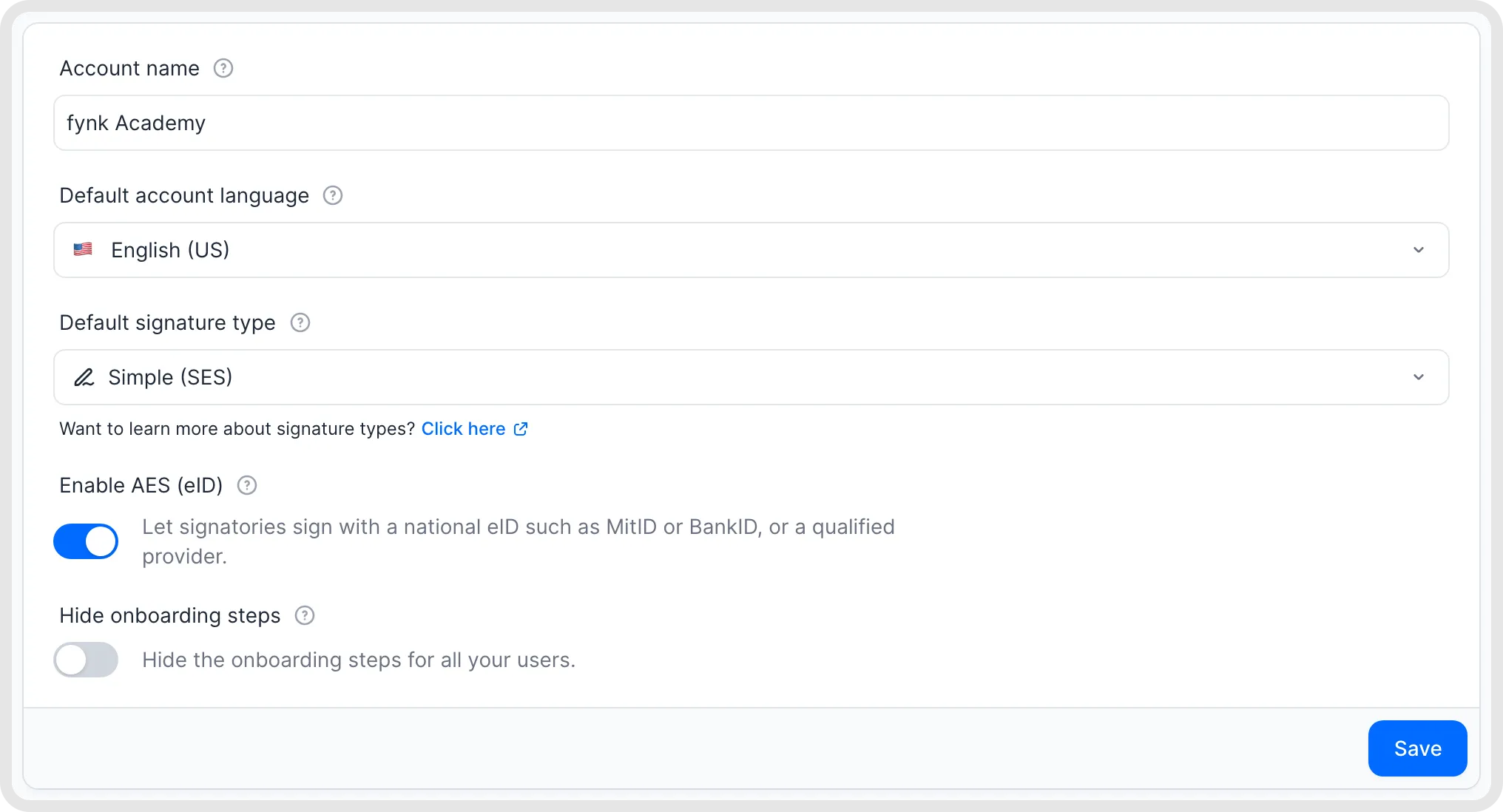
General account settings.
What you'll find in account settings
Account settings are grouped into three sections, as in the menu on the left.
Manage account
Document settings
Integrations
What you'll find in your profile
Your name, personal language and password
Two-factor authentication and active sessions
Your personal notification preferences
Your saved signatures and seals
Calendar feeds for your deadlines
Good to know
The account name doesn't appear in documents. The legal entities in your documents come from My Parties.
The default account language in General is preselected for every new template and document. For imported documents, the AI detects the document's language itself. AI summaries and metadata extraction use the account language.
If a document has no language set, emails to external users are sent in the default account language.
Only Owners and Admins can open account settings. Other roles only see their profile.
If you work in several company accounts, settings apply to the account you're currently in. Switch accounts in the upper-left corner.
Related articles
Was this helpful?
Still need help? Ask the team