Revisions and document comparison
Upload a new version of a document, see what changed between versions, and compare any two documents side by side.
Written By Sebastian
Last updated About 2 hours ago
Contracts change during negotiation. fynk keeps every version as a revision, so you can upload a new version, see who changed what and when, and compare versions word by word.
Available on all plans
Upload a new revision
- Open the document and open the … menu.
- Choose Upload revision and select the new file.
- For Word files, choose whether to keep tracked changes as proposals. See Import from Word and export to Word or PDF.
The new version replaces the current content. The stage, parties and metadata stay as they are.
Replacing an editor document with a PDF
Uploading a PDF as a revision of an editor document replaces its editable content with the PDF. You cannot switch that document back to the editor afterwards. If the PDF is supporting material, add it as an attachment or stored file instead of a revision. Check the upload action before confirming.
Compare two versions
- Open the … menu and choose Compare, or choose Compare from the document list.
- Pick a revision on each side. You can also compare with another document, or with a PDF from your computer.
- Switch between:
- Diff view: additions and deletions highlighted in one text
- Raw view: both versions side by side
- Use the list of changes to jump from one change to the next. Swap sides reverses the comparison.
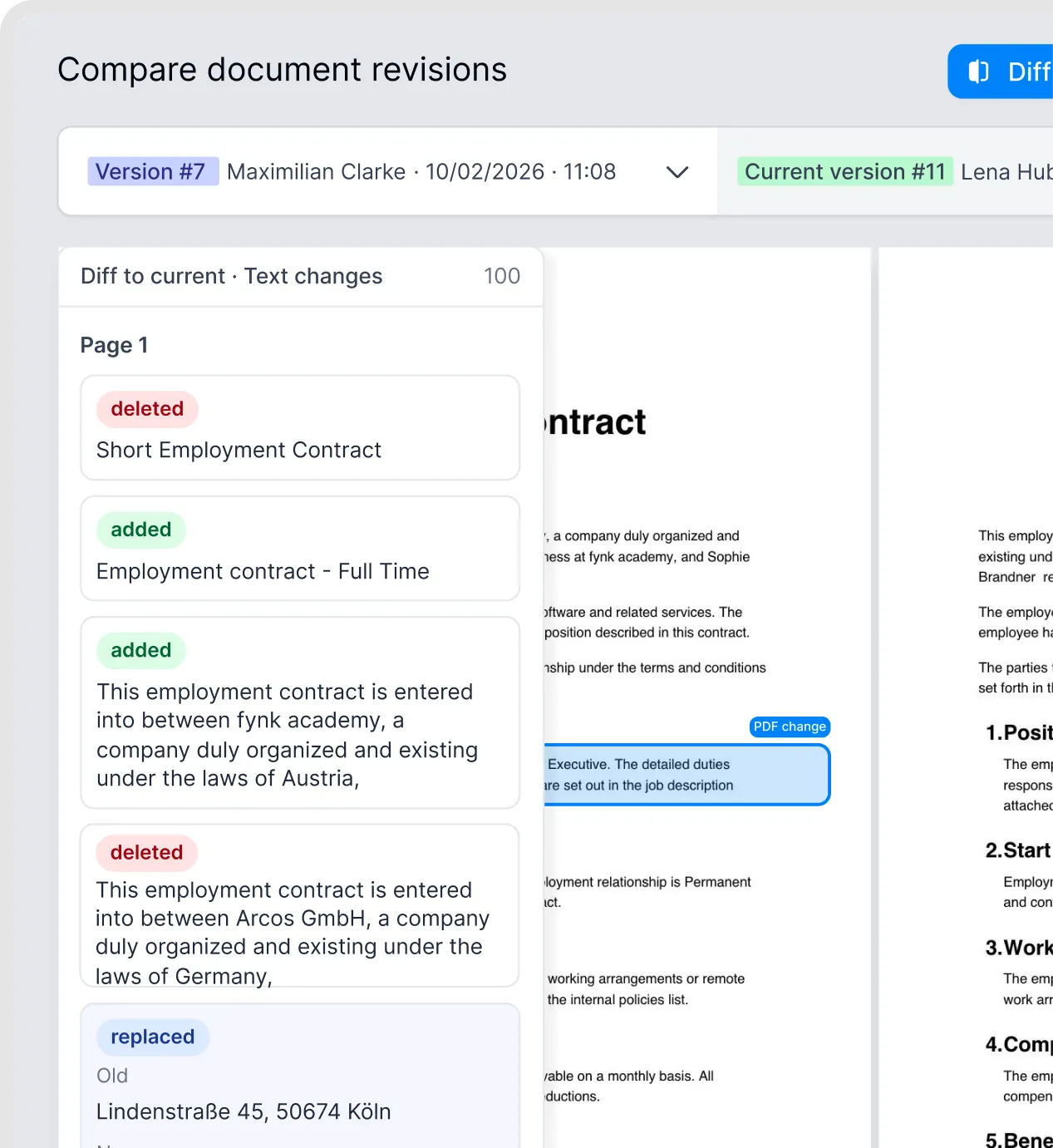
Review differences between document versions.
Compare from the document list or AI chat
In the document list, select exactly two compatible documents on the current page, then choose Compare in the bulk-action bar. This works in table and Kanban views. The older document opens on the left.
In AI chat, ask for the exact wording, a line-by-line comparison or a redline view. The assistant offers a card that opens the comparison. A PDF uploaded into the chat can be one side of a PDF comparison. A summary or table of differences in chat is separate from the exact comparison view.
Compare two PDFs or two editor documents. A signed editor document still counts as an editor document. The picker only offers compatible documents.
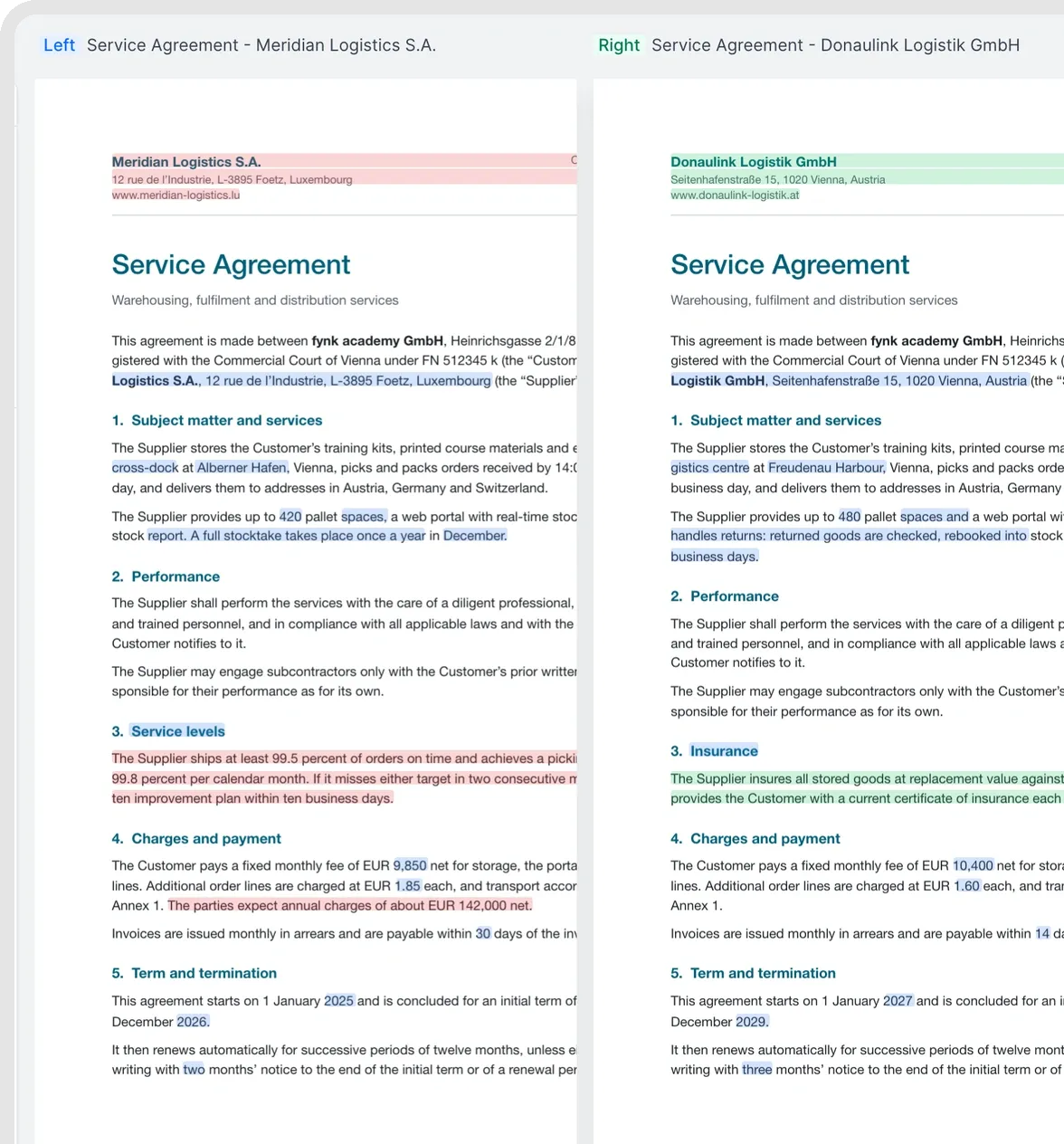
Compare selected documents.
Revision history
The activity feed shows each revision with who uploaded or changed it and when. You can download individual revisions for your records; the revision history itself is not available as a downloadable report.
Good to know
- You can compare two PDFs or two editor documents, but not a PDF with an editor document.
- Comparing scanned PDFs works best when the text has been recognised well. Poor scans can show false differences.
- You can't roll a document back to an older revision directly. For a compatible file type, download the old version from the revision history and upload it again as a new revision. This does not undo conversion from an editor document to a PDF document.
- Flattening a PDF also creates a new revision and keeps the original.
- If a document was signed on paper after all, upload the signed scan as a revision and mark the document as Done. See Document stages explained.
Related articles
Was this helpful?
Still need help? Ask the team