User roles and permissions
What Owners, Admins, Editors, Managers and Limited Managers can do, and which role to choose.
Written By Sebastian
Last updated About 2 hours ago
Every user has one of five roles. The role decides what someone can do. Teams decide which documents they see. Only Owners see every document in the account.
Available on all plans · Owners and Admins assign roles
The roles at a glance
Owners and Admins can access billing, invoices and subscription settings.
Limited Managers cannot upload, create or archive documents, even when added as Collaborators. They can start signing only when they have been added to that document as a Collaborator. They have no access to bulk actions in the document list, including for documents where they are Collaborators.
To cancel an active signing process, an internal user must be a Collaborator on that document. This permission is the same for every account role, including Limited Managers.
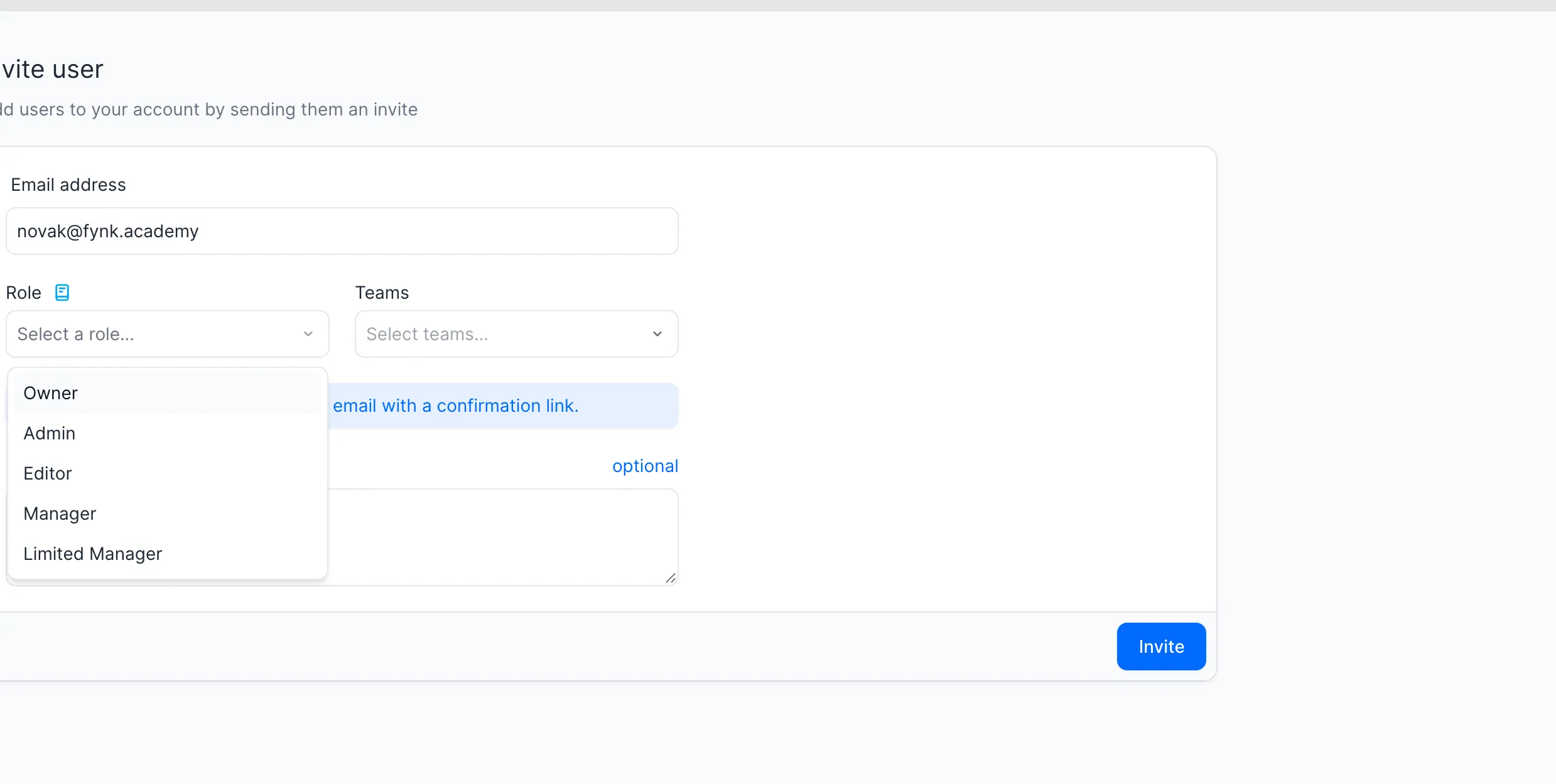
Choose a user role when inviting a colleague.
Which role should I choose?
Work from the simplest need upwards:
Needs to view team documents and participate in documents by invitation, without creating, uploading or archiving documents? Limited Manager.
Uploads and edits Word documents, writes documents from scratch, fills template fields and signs? Manager.
Also edits text in template-based documents, builds templates or imports documents in bulk? Editor.
Manages users, teams, metadata, settings, or needs to delete documents? Admin.
Needs to see every document in the account, always? Owner.
Good to know
Roles can't be customised. If no role fits exactly, choose the closest one and use teams to control which documents someone sees.
An account always has at least one Owner. Keep two Owners so you're never locked out.
Admins don't automatically see all documents. They see the documents of their teams. Make an Admin a member of every team, or give them the Owner role, if they need to see everything.
Admins can't invite, edit or remove Owners, and can't assign the Owner role.
Admins can also manage your internal parties under My Parties.
Managers can upload and edit Word files and create and edit documents from scratch. They can also create documents from their teams' templates and fill dynamic fields, but cannot edit the text of template-based documents.
Limited Managers cannot upload or create documents, including from templates, and cannot archive documents. They can't use Join document on their own; someone must invite them as a Collaborator to participate.
Every role uses a paid seat. There is no free view-only role.
People outside your company never need a role. Invite them to a single document instead.
Related articles
Was this helpful?
Still need help? Ask the team