Review contracts with playbooks
Turn your review checklist into a playbook, let the AI check documents against it, and see red and orange flags at a glance.
Written By Sebastian
Last updated About 2 hours ago
A playbook is your review checklist, run by AI. You define the rules a contract must meet, for example "The notice period must be stated" or "The discount must not exceed 5%". fynk checks a document against every rule and shows which ones are met and which aren't.
Available on all plans · Checkpoints: Essential, Business and Pro · Owners and Admins create playbooks
Create a playbook
Go to Account Settings → Playbooks and click +.
Enter a name and an optional description, for example "NDA review".
In the Conditions tab, click Add condition for each rule. In Edit condition, fill in:
Name: for example "Term of confidentiality"
Type: for example Prompt
Implication: Red flag for a must-have, Orange flag for a warning
Prompt: what must be true, for example The contract must state how long the confidentiality obligation lasts.
Click Generate optimized prompt to let fynk sharpen your wording, then click Save. To delete a condition, use Remove.
Drag conditions to reorder them, then save.
Optionally, add a checkpoint to the playbook in the Approvals tab. Documents the playbook runs on then need approval before they move on. See Internal approvals with checkpoints.
Watch: Create a playbook · English · Excerpt 0:25–0:47
Write good conditions
The AI answers each condition with yes or no, so the wording matters:
Write what must be true: The contract must state the gross monthly salary, not Salary is relevant.
Check one thing per condition.
Be specific about limits: The discount must be less than or equal to 5%.
Example prompt library
Use these examples as starting points for your playbook conditions. Copy each prompt into a separate condition and adapt it to your review checklist. Amounts such as €10,000 and 5% are example limits, not fynk defaults. Include only requirements that apply to your contract and agree them with HR, Sales or Legal.
Employment contracts
Start date: The contract must clearly state the employment start date.
Position: The contract must clearly state the employee’s position title.
Weekly working hours: The contract must specify the regular weekly working hours.
Overtime: The contract must explain when overtime may be required, how it is handled and how it is compensated.
Salary: The contract must specify the gross monthly salary.
Special payments: The contract must clearly describe the agreed special payments.
Vacation: The contract must specify the number of annual vacation days.
Probation period: The contract must specify the length of the probation period in days, weeks or months.
Collective agreement: The contract must identify the collective agreement that applies to the employment relationship.
Non-compete clause: The contract must describe the terms and conditions of the agreed non-compete clause.
Confidentiality: The contract must describe the confidentiality obligations for proprietary and sensitive information obtained during employment.
Offers
Offer number: The offer must include an offer number.
Parties: The offer must clearly name all involved parties.
Maximum amount: The total offer amount must be below €10,000.
Discount: The stated discount must not exceed 5%.
Payment terms: The offer must clearly and completely describe the payment terms.
Validity: The offer must specify an expiry date that has not yet passed.
Notice period: The contract must clearly specify the notice period.
Contract extension: The contract must describe the conditions and duration of any contract extension.
Rental agreements
Property address: The agreement must clearly state the address of the rental property.
Scope of rental: The agreement must describe in detail what is included in the rental.
Duration: The agreement must specify its duration and state whether it is fixed-term or open-ended.
Rent amount: The agreement must specify the rent amount.
Payment arrangements: The agreement must specify the rent amount, payment due date, payment method and any late-payment penalties.
Notice periods: The agreement must specify the notice periods and the corresponding termination dates.
Minimum term: The agreement must specify a minimum term during which termination is not permitted.
Terms of use: The agreement must include acceptance of the terms of use.
Start from the review checklist you already use for each document type. Agree the conditions with the department that owns the contract type, for example HR for employment contracts, Sales for offers or Legal for rental agreements.
Watch: Add rules, severity and optimized prompts · English · Excerpt 0:47–1:38
Run a playbook on a document
Open the document and click the flag icon in the right-hand panel.
Choose Apply playbook and select the playbook.
After about a minute, the result appears: Red flags found, Orange flags found, or all conditions met.
Click the result to see each condition. Show reference jumps to the relevant passage.
Fix the issues, then apply the playbook again to check.
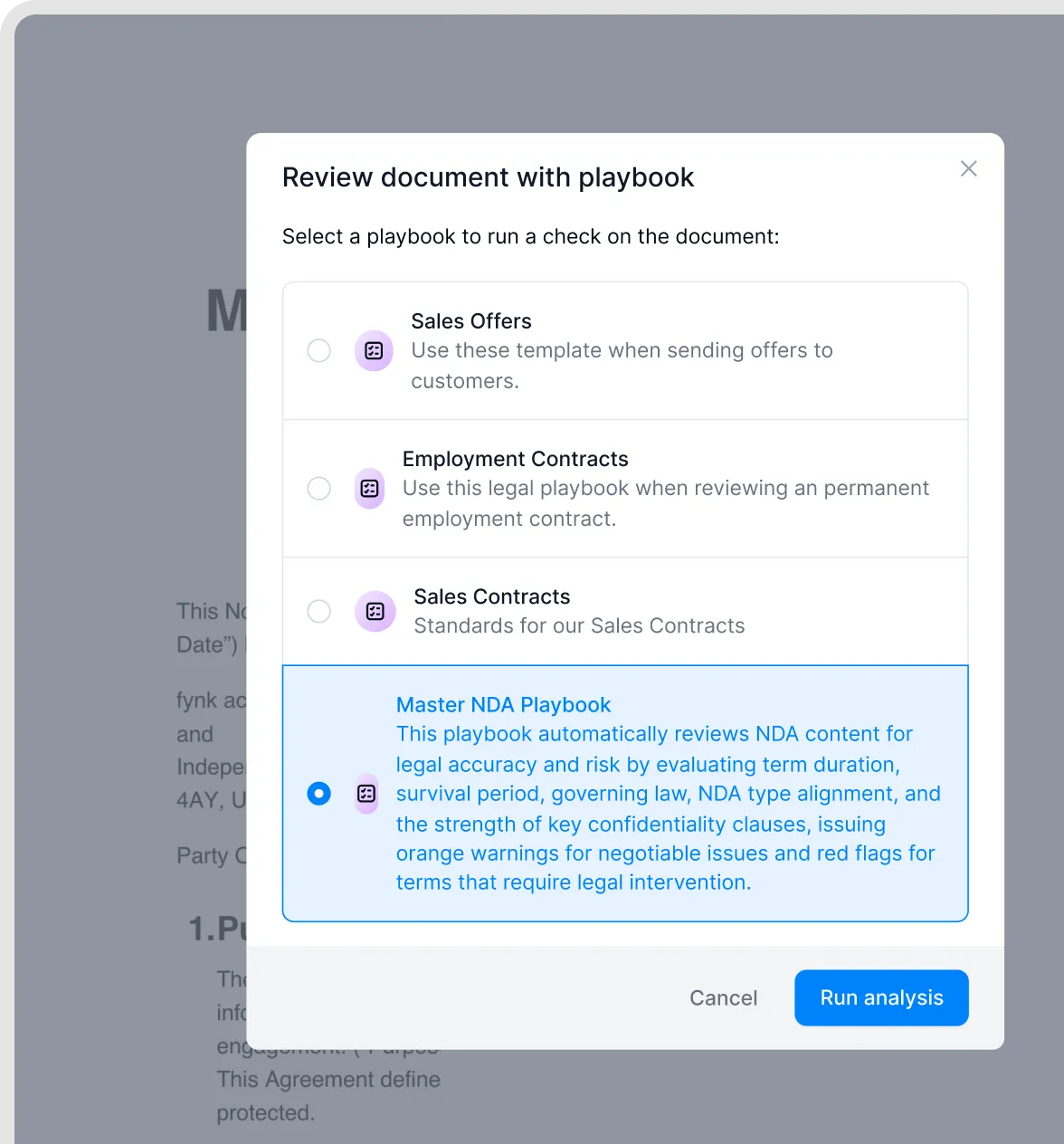
Select a playbook for contract review.
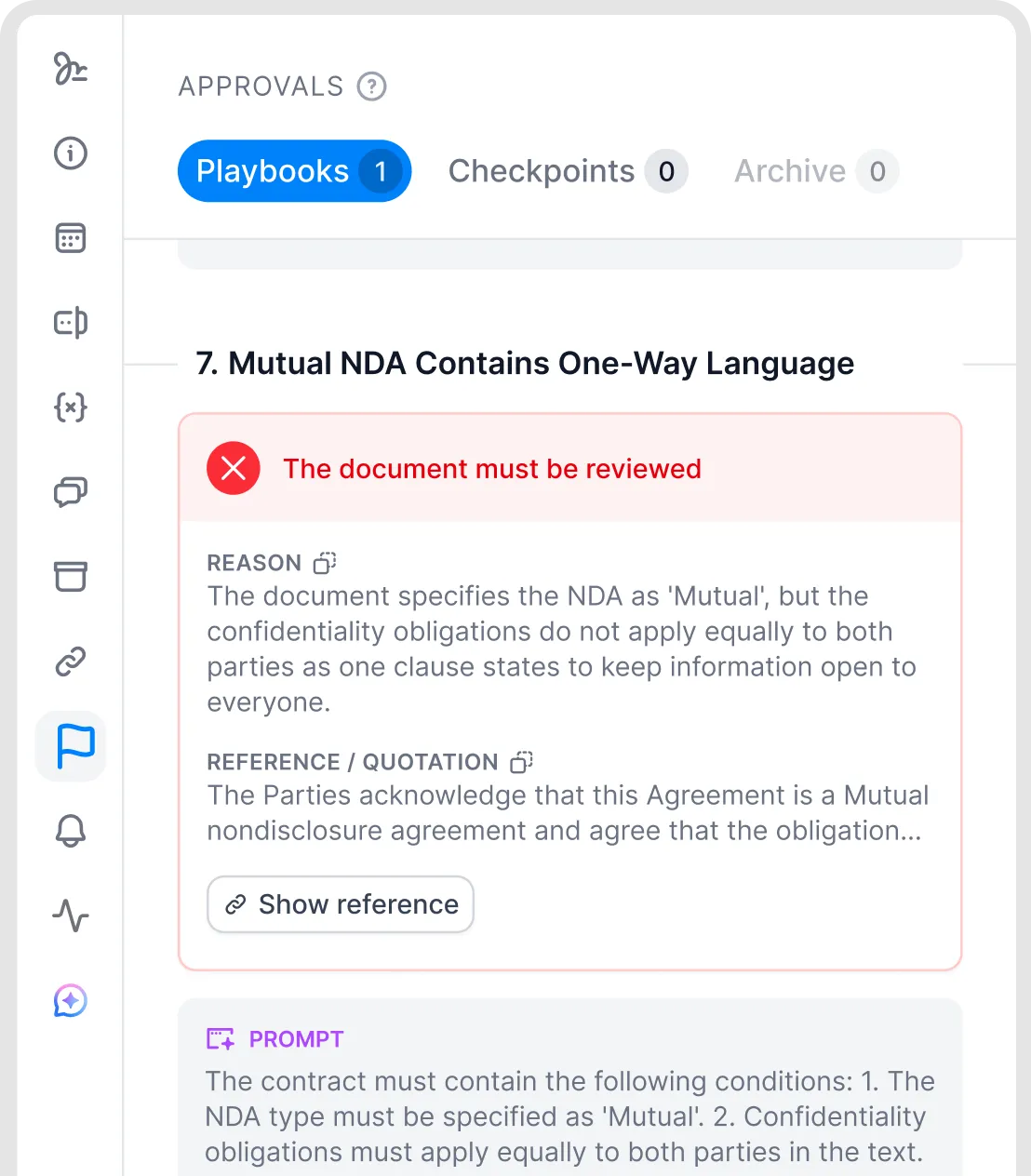
Review findings highlighted by a playbook.
Good to know
Playbooks are applied manually to each document. They can't yet run automatically or be attached to a template.
The AI says whether a condition is met, but doesn't suggest replacement wording or name the law behind a rule.
If the document changes after a playbook run, the references may no longer match. Run it again.
You're not notified when a run is finished. Stay on the document or come back later.
Playbooks have no team permissions. You can't limit which teams can see or use a playbook.
Only Generate optimized prompt uses AI credits (1 credit per prompt). See AI credits: allowance, top-ups and usage.
Related articles
Was this helpful?
Still need help? Ask the team