Share a document with external parties
Invite the other party by email, send them a personal link, or create a view-only public link, and control how long access lasts.
Written By Sebastian
Last updated About 3 hours ago
Share a document with people outside your company so they can read it, comment, propose changes or fill in their details before signing. They don't need a fynk account.
Available on all plans · Negotiation with comments and proposals: Essential, Business and Pro
Before you share
Fill in the dynamic fields and the parties, so the other side sees a complete document.
Mark fields the other party should fill in themselves as Internal and external. See Dynamic fields: types, visibility, mandatory fields.
You don't have to share a document with signatories who only need to sign. They get their invitation automatically when signing starts.
Save your changes and leave edit mode before you share.
Three ways to share
Click Invite in the document header and choose:
When you share a document for the first time, it moves to the Review stage. See Document stages explained.
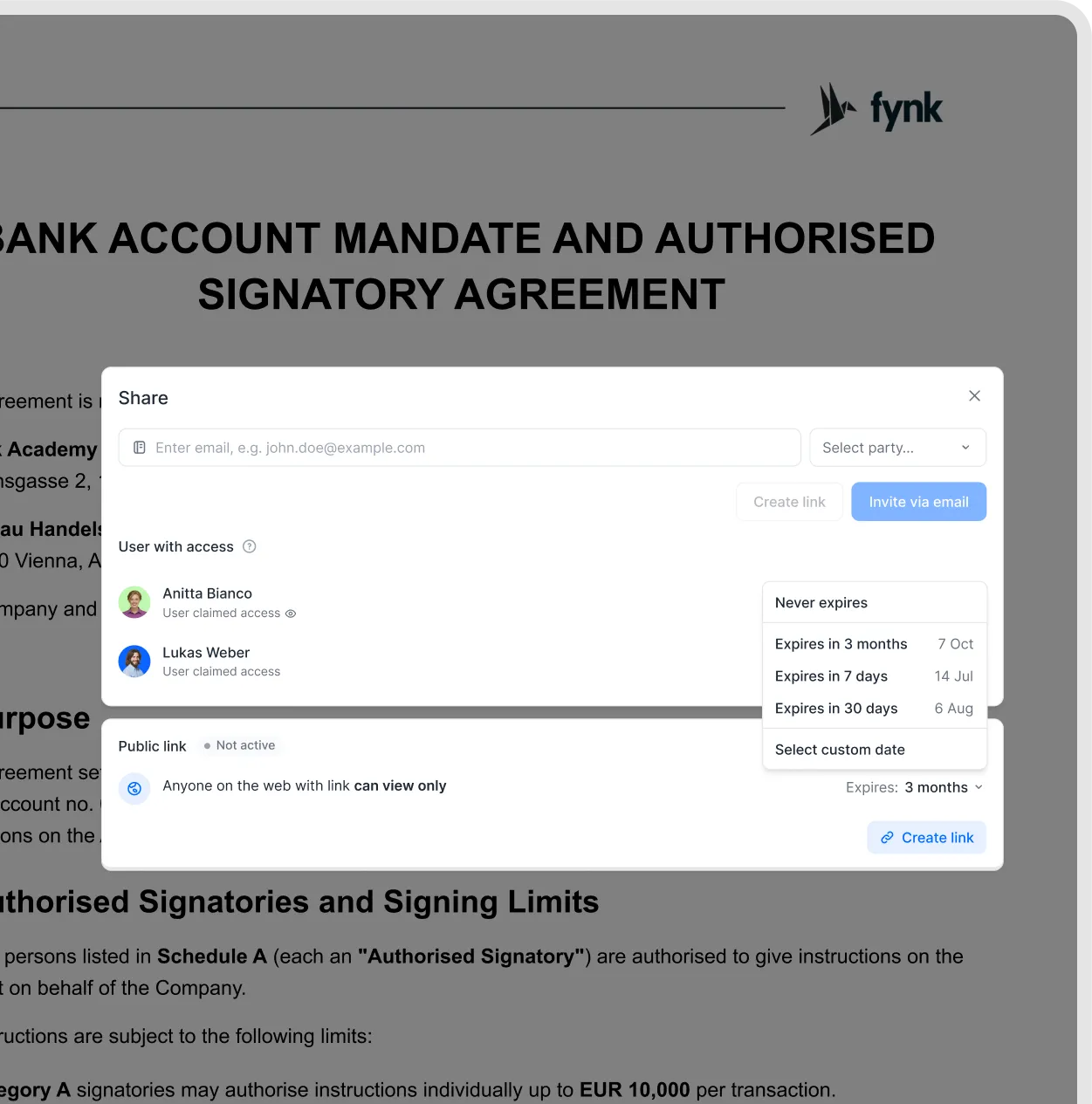
Share a document using a link.
Roles for external people
For each invited person, choose what they may do:
Collaborator: comment, propose changes and fill in fields marked for external parties
Viewer: read the document and comments shared externally; cannot add comments or see internal comments
You can change a person's role later in the Invite dialog.
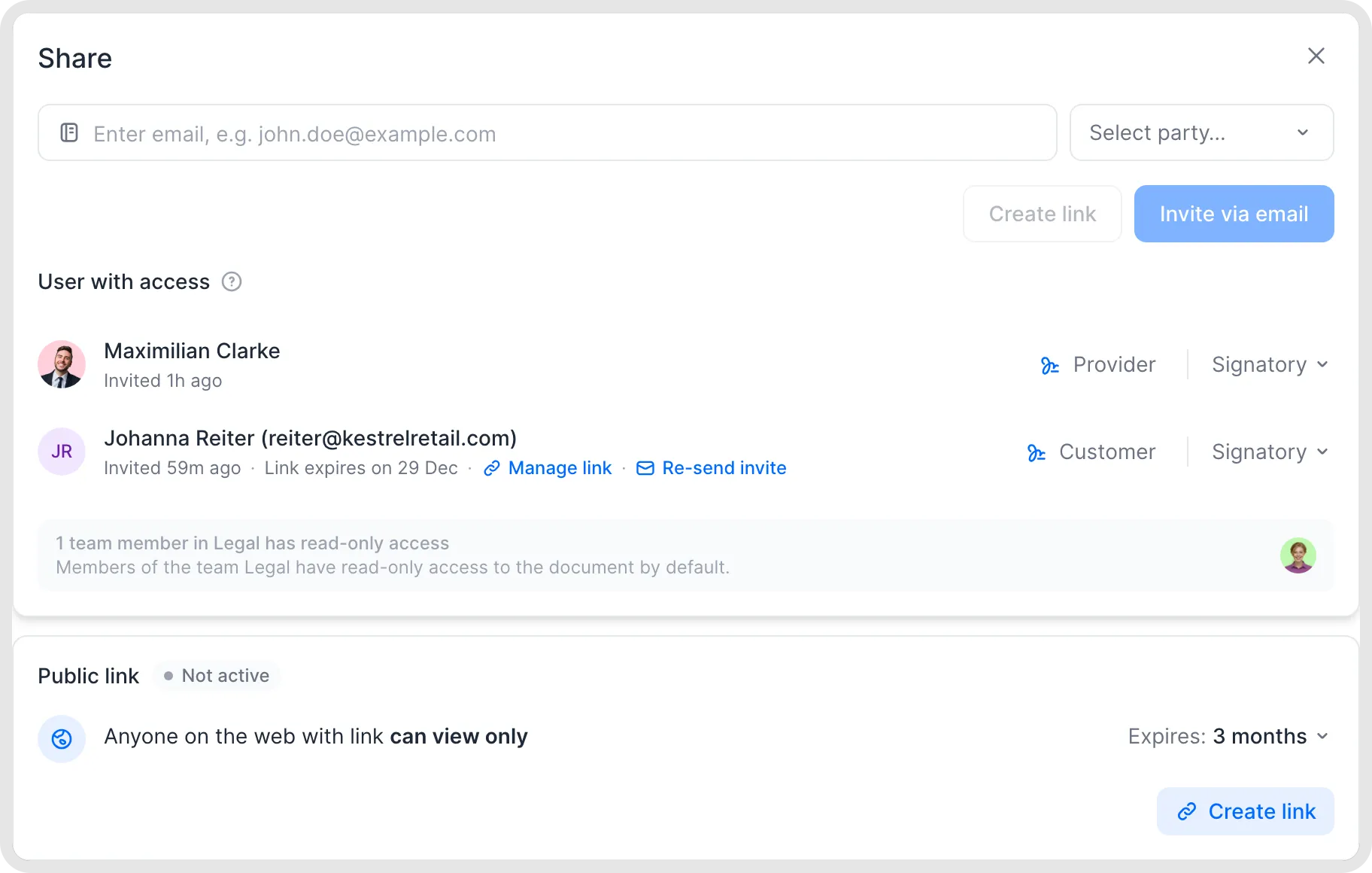
Manage access to a document.
Revoke access
Open Invite, find the person or the public link, and click Revoke access. The link stops working immediately.
Good to know
Signing invitations are separate: they're always valid for 48 hours, and the signatory can request a new link with one click. See My link expired or my code doesn't arrive.
External people only see comments marked as visible to everyone, never internal comments.
External people can't see the internal file storage, linked documents, metadata or the internal activity log.
Each party needs its own email address. If one person represents two parties, use plus addressing. Add
+textbefore the@, for examplename+company@example.cominstead ofname@example.com. Messages reach the original inbox if the email provider supports plus addressing and it is enabled. Check delivery with your IT team before using a plus address.Add CC recipients when you start signing to give them an email notification and read-only access to the document. They are not asked to sign and also receive the final signed PDF when signing is complete.
Adding someone as an external party doesn't give them access to the document. Access comes from their role, for example collaborator, signatory or public-link viewer.
You can also invite people who aren't a party, for example an internal compliance team without fynk accounts, so they can give feedback.
The document's language setting decides the language of the emails and the interface that external people see.
Related articles
Was this helpful?
Still need help? Ask the team