HubSpot
Install the fynk app from the HubSpot Marketplace to create contracts from deals and track them in HubSpot.
Written By Sebastian
Last updated About 3 hours ago
With the fynk app for HubSpot, you create contracts right from a deal, contact or company. HubSpot data is filled in automatically, and you can follow the status of each contract without leaving HubSpot.
Available on Business and Pro · fynk: Owner and Admin · HubSpot: super admin
What you can do
Create a document from a fynk template on a HubSpot deal, contact or company, with the HubSpot data already filled in.
Send the document for review or signature, and track its status on the fynk card in HubSpot.
Use the workflow action Create fynk document in HubSpot workflows, for example to create a contract automatically when a deal reaches Closed Won. The document is attached to the deal, and you can continue or start signing from there.
What HubSpot workflows do not automate
The native Create fynk document action creates the document, but does not automatically populate its signatories and send it for signature. Complete those steps manually, or build the additional steps with the fynk API.
The fynk card shows the contract status, but the native integration does not write that status to a HubSpot property that can trigger another workflow. If you need this, use a custom integration, for example with fynk webhooks and the HubSpot API.
The signed document is accessible through the fynk link in HubSpot; the PDF itself is not automatically saved as an attachment in HubSpot.
Before you start
Create at least one template in fynk and map the HubSpot fields you need (see below).
Connect from fynk
Go to Account settings → API integrations → HubSpot.
Click Connect with HubSpot.
Review the permissions in HubSpot and click Connect app.
Back in fynk, you'll see a confirmation and the connected HubSpot Portal ID.
You can also start from the fynk app listing in the HubSpot Marketplace. After Connect app, log in to fynk and confirm the connection. If you don't have a fynk account yet, you can create one during this flow.

HubSpot connection settings.
Add the fynk card to HubSpot records
In HubSpot settings, add the fynk card to the record pages for deals, companies and contacts. The card appears at the bottom of the page first. Drag it to where you want it.
Watch: Add the fynk card to HubSpot records · English · Excerpt 1:10–1:28
Map HubSpot data in a template
Open a template and go to the Data Mapping tab in the sidebar.
Select HubSpot as the data source and map the fields from contacts, companies or deals to dynamic fields.
In the Parties tab, link HubSpot contacts or companies as parties.
Optionally, link metadata to HubSpot fields in the Metadata tab.
To update a document with the latest HubSpot data, click Reload Data in the document sidebar.
Watch on YouTube: Map dynamic fields from HubSpot (0:29–1:07) · English
Watch: Map HubSpot data in a template · English · 1:45 minutes
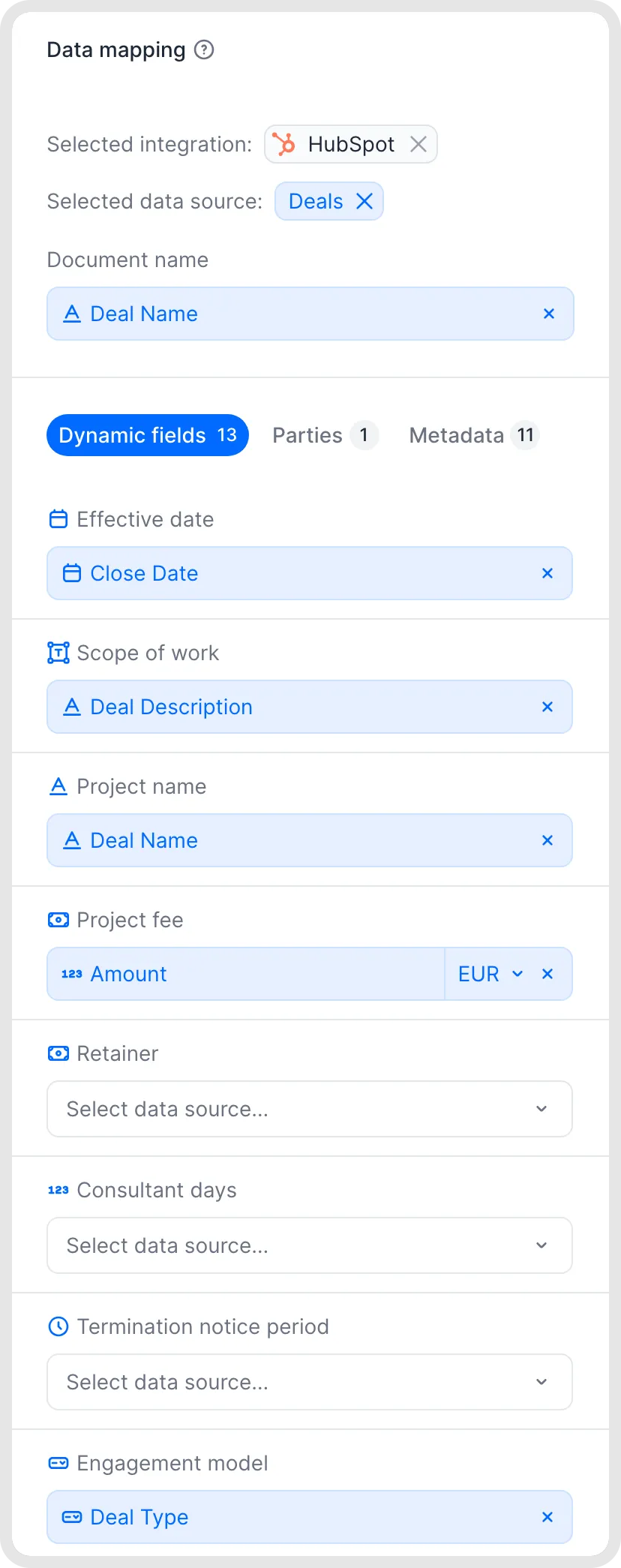
Map CRM data to a template's dynamic fields.
Create and manage a document from HubSpot
Open a deal, contact or company with the fynk card and create a document from your prepared template. Check the document and the imported data. You can then start review and signing from the card and follow the document status.
The video demonstrates manual actions in HubSpot. The limitations of the automatic workflow action described above still apply.
Watch on YouTube: Create a document from a template (0:08–1:02) · English
Watch on YouTube: Review, collaborate and start signing manually (1:02–2:10) · English
Watch: Create and manage a document from HubSpot · English · 2:22 minutes
Disconnect
In fynk: Account settings → API integrations → HubSpot → Remove. The app is uninstalled in HubSpot too.
In HubSpot: Settings → Integrations → Connected Apps → fynk → Uninstall.
Remove or replace Create fynk document workflow actions before you disconnect, otherwise those workflows break. Your fynk documents and HubSpot data stay as they are.
When you disconnect from fynk, the connection's access tokens are deleted and HubSpot emails your HubSpot admins to confirm the uninstall. If you uninstall in HubSpot, fynk marks the integration as disconnected on its next request. After that, the fynk card and the Create fynk document action are no longer available in HubSpot.
You can reconnect any time, from fynk or from the Marketplace listing. Existing documents keep their links to HubSpot records. You only select and confirm the HubSpot account again.
Switching from the old HubSpot integration
If you connected HubSpot earlier with a private app and access token, go to Account settings → API integrations → HubSpot and click Switch to the fynk app.
Good to know
In Data Mapping, you can set a document name. Otherwise the template name is used. Which fields you can map depends on the data source you select (contacts, companies or deals).
fynk reads and writes the HubSpot data needed to create and sync contracts.
Signed documents and contract metadata aren't saved back to HubSpot automatically.
Related articles
Was this helpful?
Still need help? Ask the team